LapMonitor and SkyRC LapWiz are wireless lap counters, popular at home tracks. They talk to the PC over Bluetooth, so there is no cable and no COM port: RaceLyx scans for the unit and connects to it.
Before you start
- Bluetooth switched on in Windows Settings (built in, or a USB Bluetooth adapter).
- The lap counter switched on and close to the PC.
Step by step
- 1
Open Timing Hardware
Switch Bluetooth on in Windows, and switch on your lap counter. Then open Settings, Timing Hardware.
Or click the decoder chip in the header. The unit should be close to the PC for the first connection.
- 2
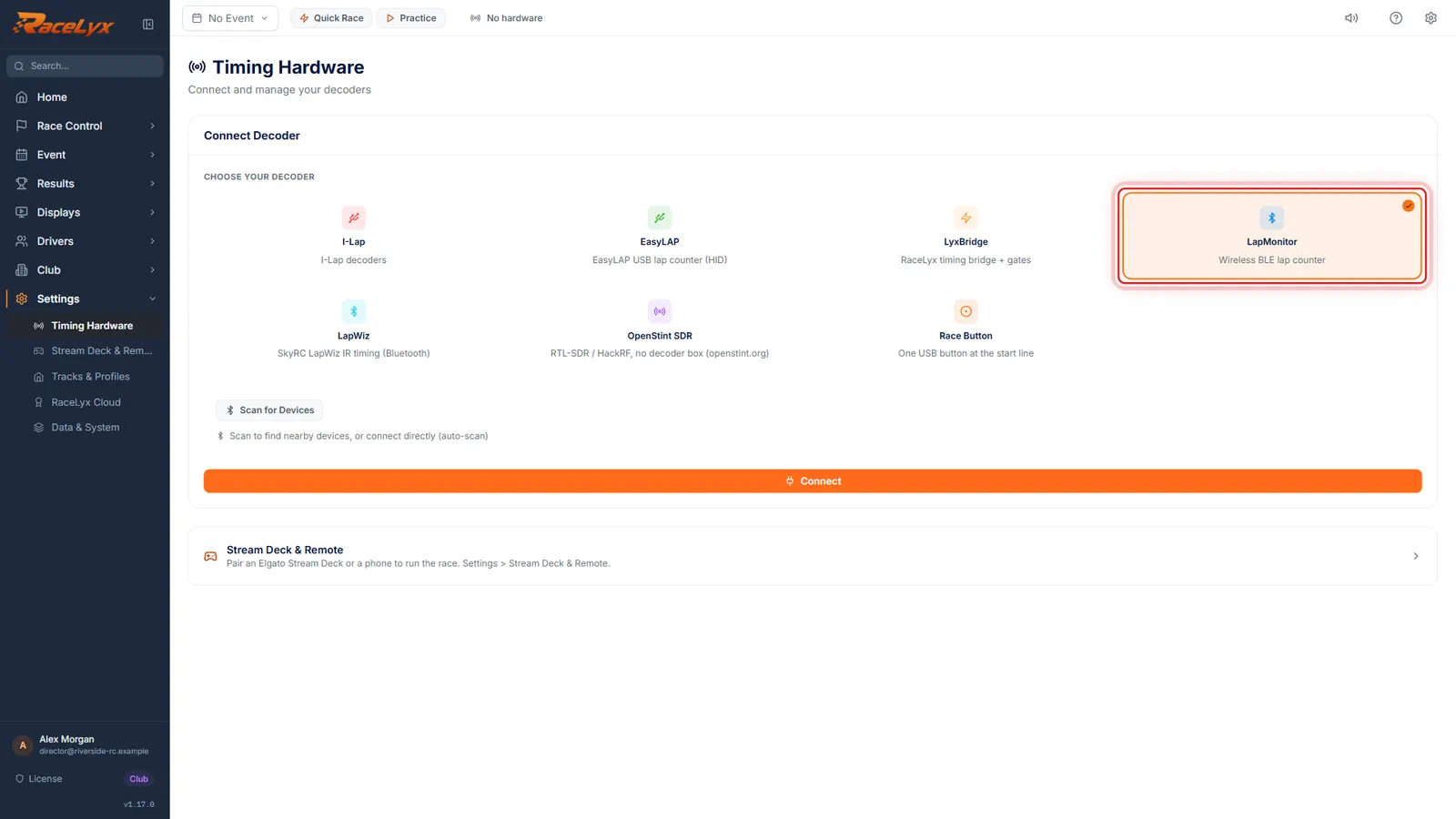
Choose LapMonitor or LapWiz
Under Choose your decoder, click LapMonitor, or LapWiz for a SkyRC unit.
LapMonitor reads "Wireless BLE lap counter" and LapWiz "SkyRC LapWiz IR timing (Bluetooth)". Both show Scan for Devices instead of a port list.
- 3
Scan for Devices
Click Scan for Devices. Units nearby appear in a list, with their name and signal strength.
The button reads Scanning... while it looks. Each unit shows its name, its Bluetooth address and its signal in dBm. Before a scan the hint reads "Scan to find nearby devices, or connect directly (auto-scan)".
- 4
Pick it and Connect
Click your unit in the list, then click Connect.
The unit you picked is outlined in blue. Clicking Connect without picking one makes RaceLyx scan by itself. Once connected, the unit is in Saved Devices for a one-click reconnect.
- 5
Check the passes
Read the line under the card, then run a car past the unit. Each pass shows in the Live Feed.
The decoder is talking means the unit is sending. Silent means it has stopped: check its power and that it is in range. Unreadable frames means it is sending something RaceLyx cannot read.
Tips
- Close the maker's phone app first. A unit that is still connected to a phone may not show up in the scan.
- You can click Connect without scanning: RaceLyx scans for a unit by itself.
- With two units in range, pick yours by name and signal: the nearer one shows the stronger dBm (closer to zero).
- LapMonitor and LapWiz connect the same way. Pick the card that matches your unit.
Troubleshooting
- "No Bluetooth adapters found".
- This PC has no Bluetooth, or it is switched off. Turn Bluetooth on in Windows Settings, or plug in a USB Bluetooth adapter.
- "BLE scan failed".
- Windows would not scan. Check Bluetooth is on, then click Scan for Devices again.
- The scan finds nothing.
- Switch the unit on, bring it next to the PC, close the maker's phone app, and scan again.
- Connected, but laps never arrive.
- Read the line under the card: it says whether the unit is silent or sending frames RaceLyx cannot read. Check you picked the card that matches your unit.
Related guides
Something here does not match what you see? Tell us and we will fix the guide.