Your club's online dues page lets members pay by card and pick their membership type. The money goes to your Stripe account, less Stripe's card fee and the RaceLyx $0.50. When you open Members or click Check online payments, RaceLyx renews each payer, or adds them as a new member, and books the dues in Financials. It needs the Club plan and Stripe connected in Pre-Registration.
Before you start
- Club plan.
- Stripe connected in Pre-Registration (see Take payments online with Stripe).
- Signed in to RaceLyx Cloud.
- Dues set for each membership type on Members, Settings.
Step by step
- 1
Members, Settings
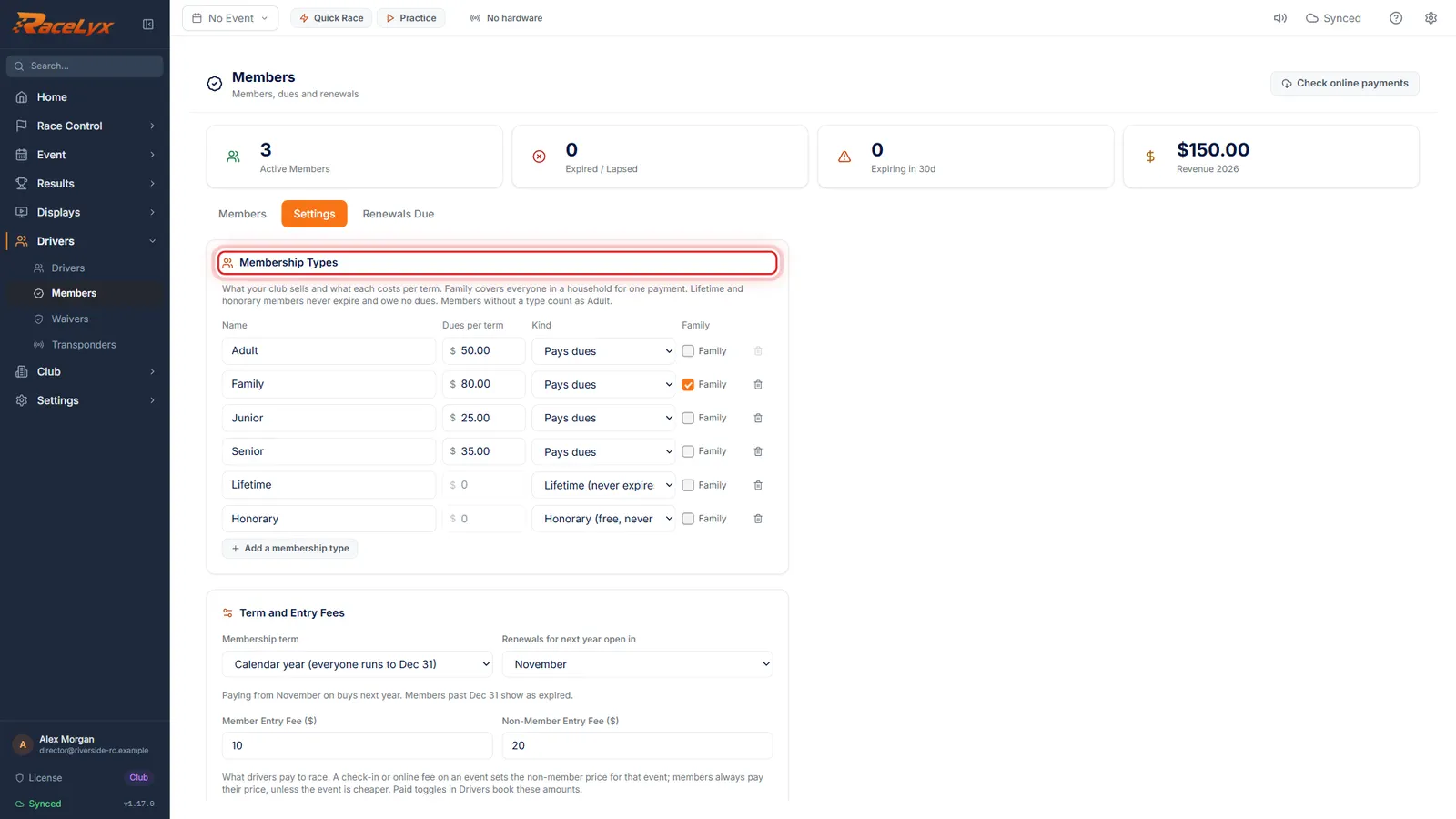
Open Drivers, Members, then the Settings tab. The dues you set for each type are what members pay online.
Open Drivers, Members and click the Settings tab. Membership Types lists each type with its dues per term. Change a price, then click Save Settings, so the online page charges the new amount. Honorary and lifetime types are not sold online.
- 2
Online Dues Payment
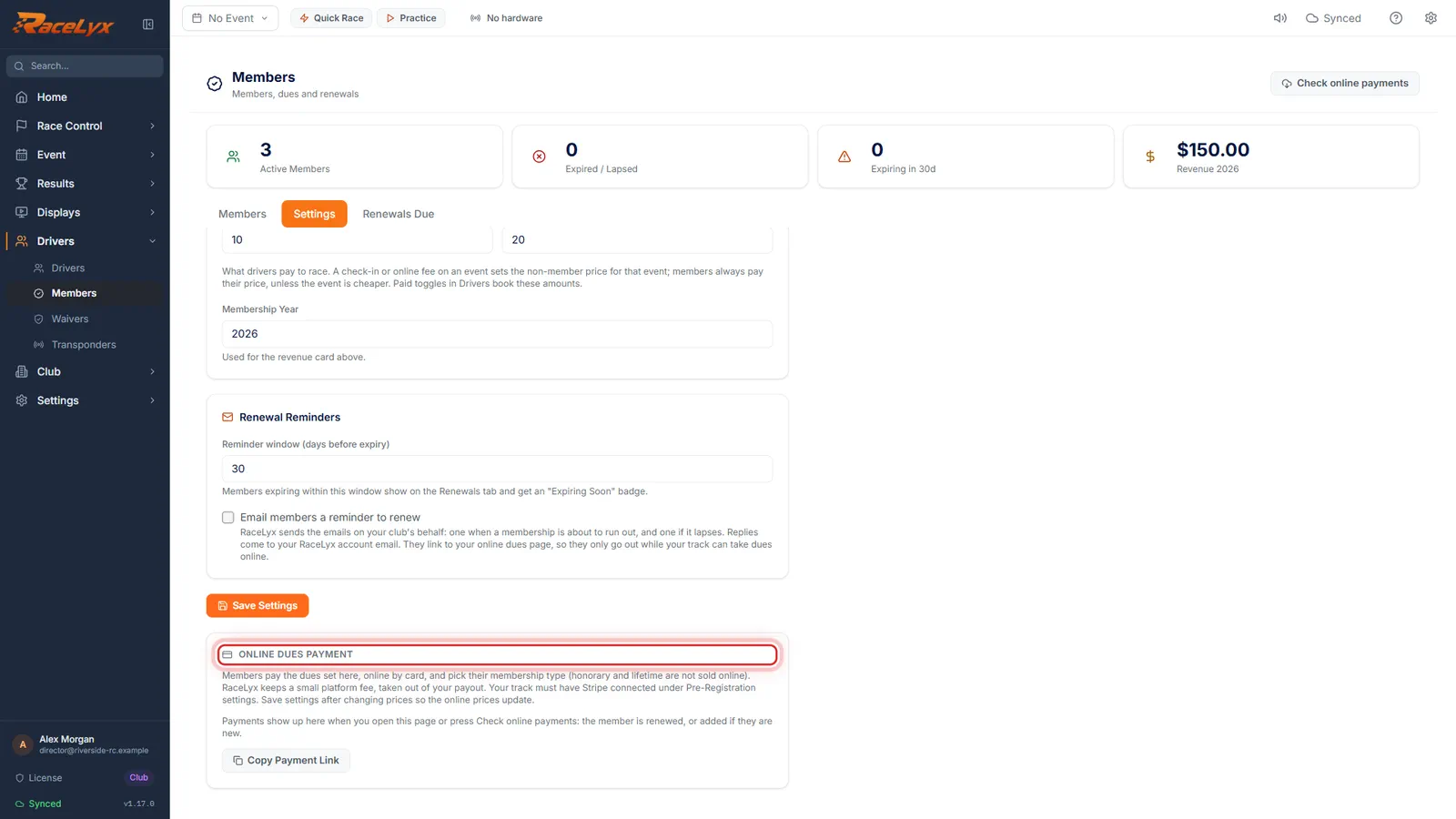
Scroll to Online Dues Payment. Members pay by card, through the Stripe account you connected in Pre-Registration.
The card says members pay the dues set here, online by card, and pick their membership type. RaceLyx keeps a small platform fee, $0.50 a payment, taken out of your payout, and Stripe takes its card fee. No Stripe yet? Connect it first: see Take payments online with Stripe.
- 3
Copy Payment Link
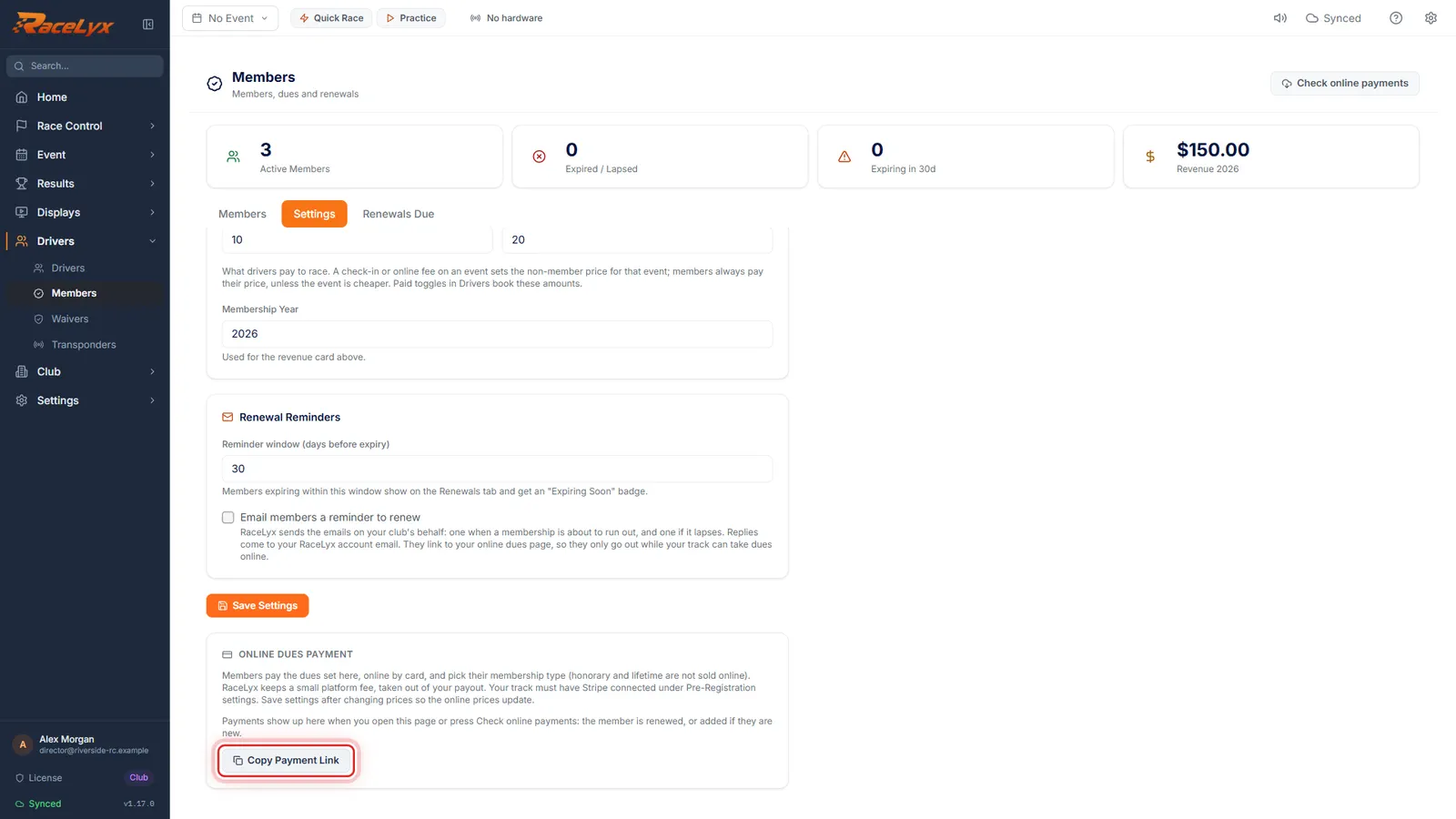
Click Copy Payment Link, and share it in your newsletter, on your website or in the club chat.
The link opens your club's dues page on RaceLyx. Members sign in, pick their type and pay by card. Renewals Due has a pay link for each member who is due, and the reminder emails link to the same page.
- 4
Check online payments
When members pay, open Members or click Check online payments. Each payer is renewed, or added as a new member, and the dues go into Financials.
RaceLyx checks by itself when you open Members, and Check online payments checks again. The banner says what came in, like Online payments: 2 renewals, 1 new member. Each payment is booked once as Membership Dues, Paid by Online, at the full amount. You need to be signed in to RaceLyx Cloud.
Tips
- Members pay the dues you set per type. Honorary and lifetime types are not sold online.
- Click Save Settings after changing prices, so the online page charges the new amounts.
- Online dues go into Financials as Membership Dues at the full amount, Paid by Online. Book Stripe's fee and the $0.50 as a Card & Bank Fees expense from your payout. See Reconcile a Stripe payout.
- Tick Email members a reminder to renew on the Settings tab, and RaceLyx emails a link to this page before a membership runs out. Reminders only go out while your track can take dues online.
- Renewals Due has Copy pay link for each member who is due.
- Each payment is booked once, however often you check.
Troubleshooting
- Sign in to RaceLyx Cloud to check online payments.
- Sign in under Settings, RaceLyx Cloud, then click Check online payments again.
- Online payments could not be checked: ...
- RaceLyx could not reach RaceLyx Cloud. Check the internet and click Check online payments again. Nothing is lost: payments wait in the cloud until they are brought in.
- Online payments: 1 refund to check.
- A dues payment was refunded in Stripe. RaceLyx does not undo the renewal or the dues row for you: on Financials, Transactions, click Refund on that Membership Dues row with Paid back by Online, and change the member's expiry if needed.
- No active facility
- Set up your track first on Settings, Tracks & Profiles, then click Copy Payment Link again.
- Could not start Stripe Connect. Try again.
- Online dues need Stripe connected. If Connect won't start, email [email protected]; meanwhile take dues at the desk and renew members by hand.
Related guides
Something here does not match what you see? Tell us and we will fix the guide.