The display server serves two pages anyone on your network can use: the Registration Screen, where racers enter themselves, and the Driver Check-In Screen. Both are open by default. Public access on Displays closes either one at once, while every TV and overlay stays up.
Before you start
- Nothing. The switches apply while the display server runs.
Step by step
- 1
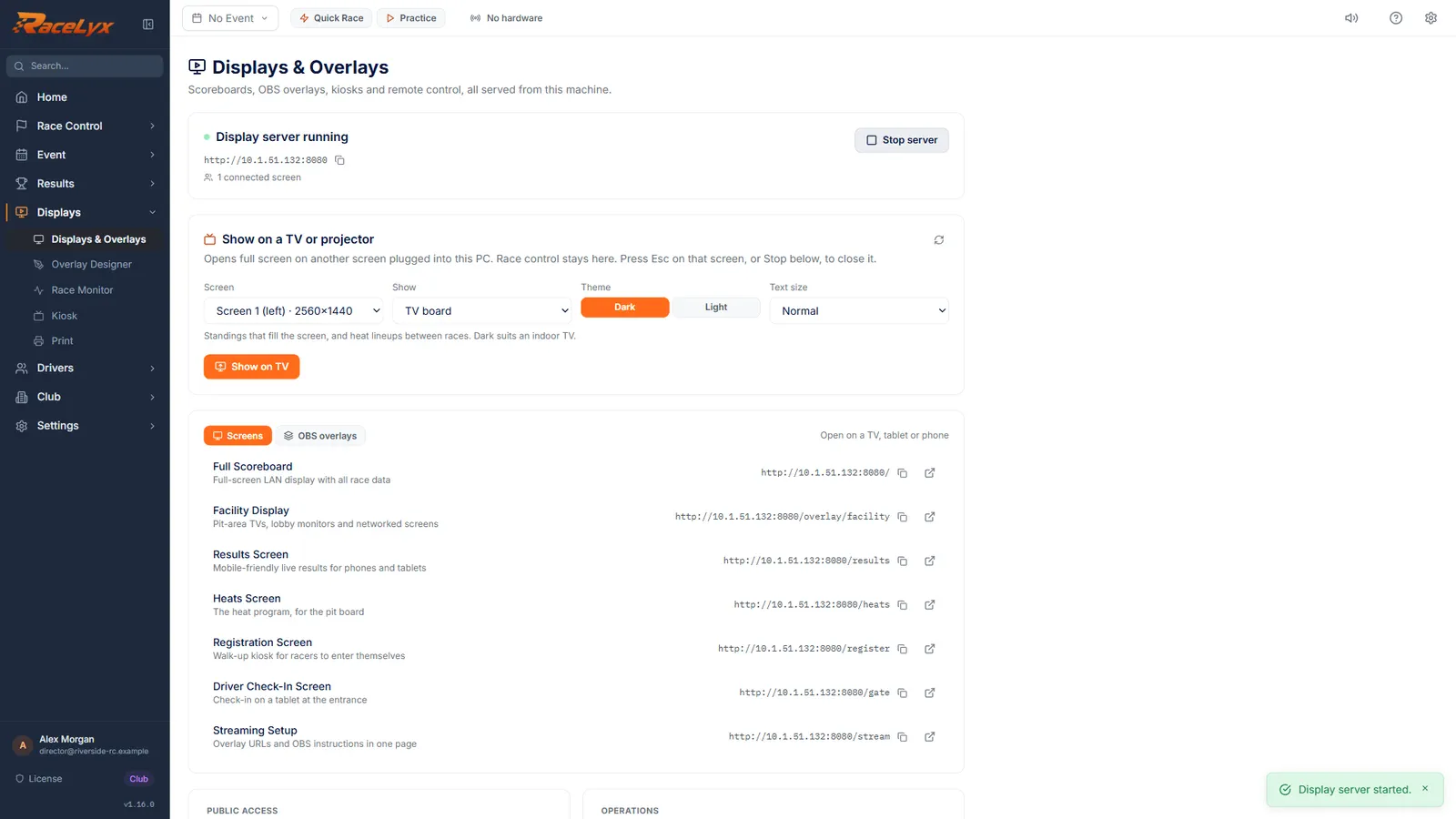
Start the display server
On Displays, click Start server.
The Registration Screen and the Driver Check-In Screen are served from this PC as soon as the server runs, open to anyone on your network.
- 2
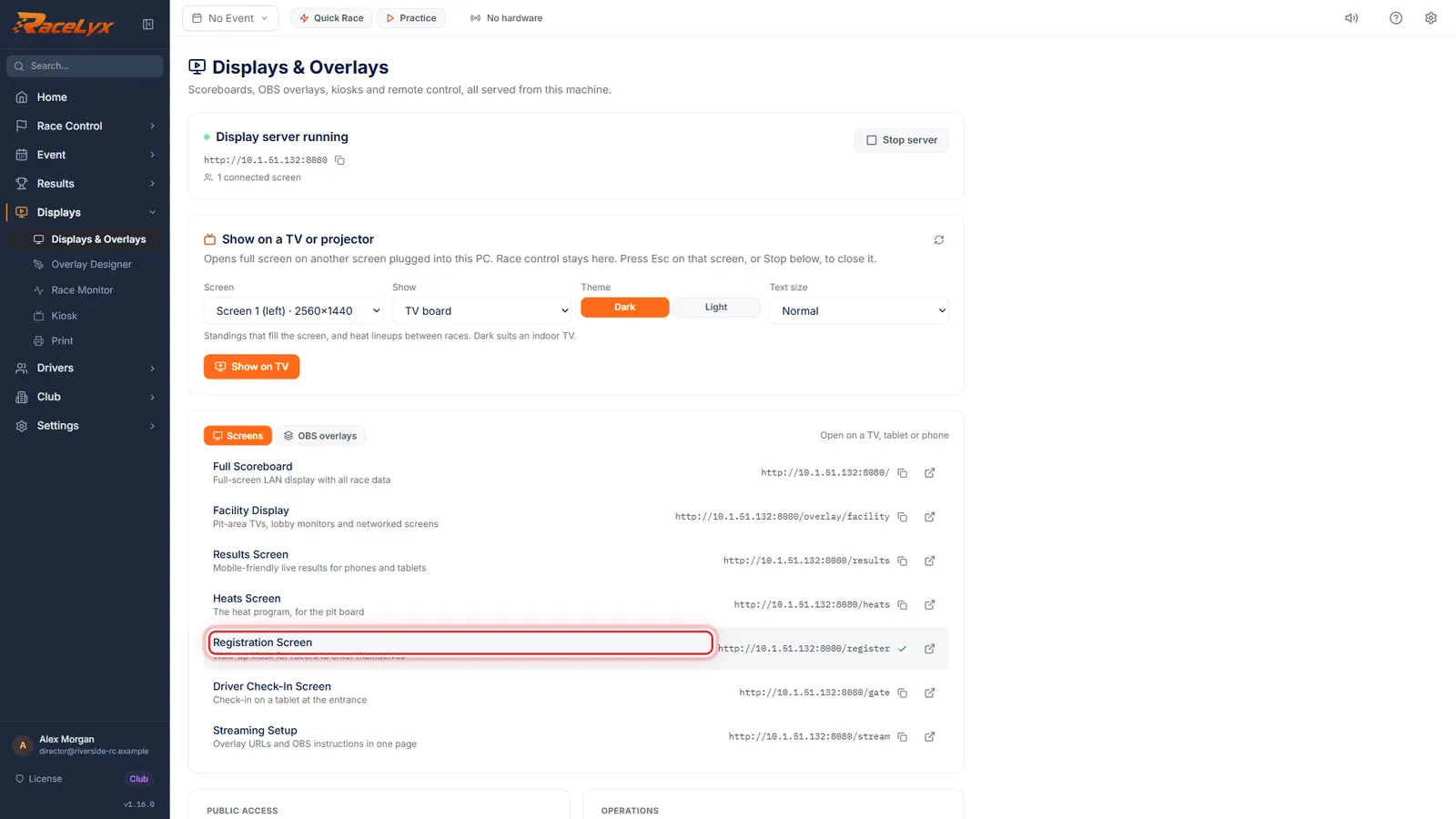
The two screens
The Screens tab has the Registration Screen and the Driver Check-In Screen. Copy an address for a tablet at the door.
Registration Screen: a walk-up kiosk for racers to enter themselves. Driver Check-In Screen: check-in on a tablet at the entrance. Open the address in the tablet's browser.
- 3
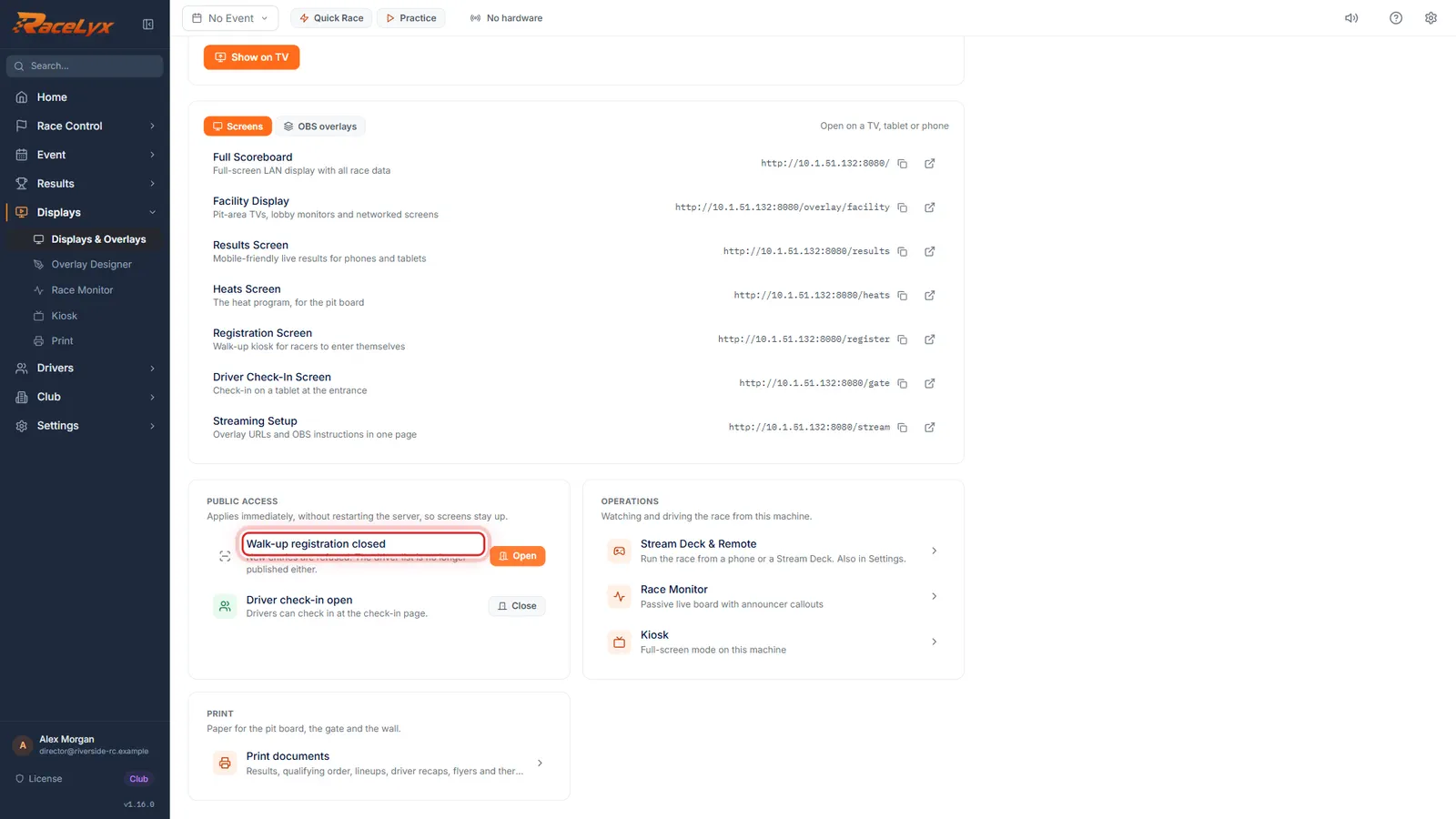
Close walk-up registration
Under Public access, both read open. Click Close next to Walk-up registration.
It now reads Walk-up registration closed: new entries are refused, and the driver list is no longer published. The screens and overlays stay up, and nothing restarts.
- 4
Driver check-in
Driver check-in has its own switch. Leave it open to keep checking in drivers who pre-registered.
Closed, check-ins from the Driver Check-In Screen are refused and registration is unaffected. Checking in at the desk on the Check-In page always works.
- 5
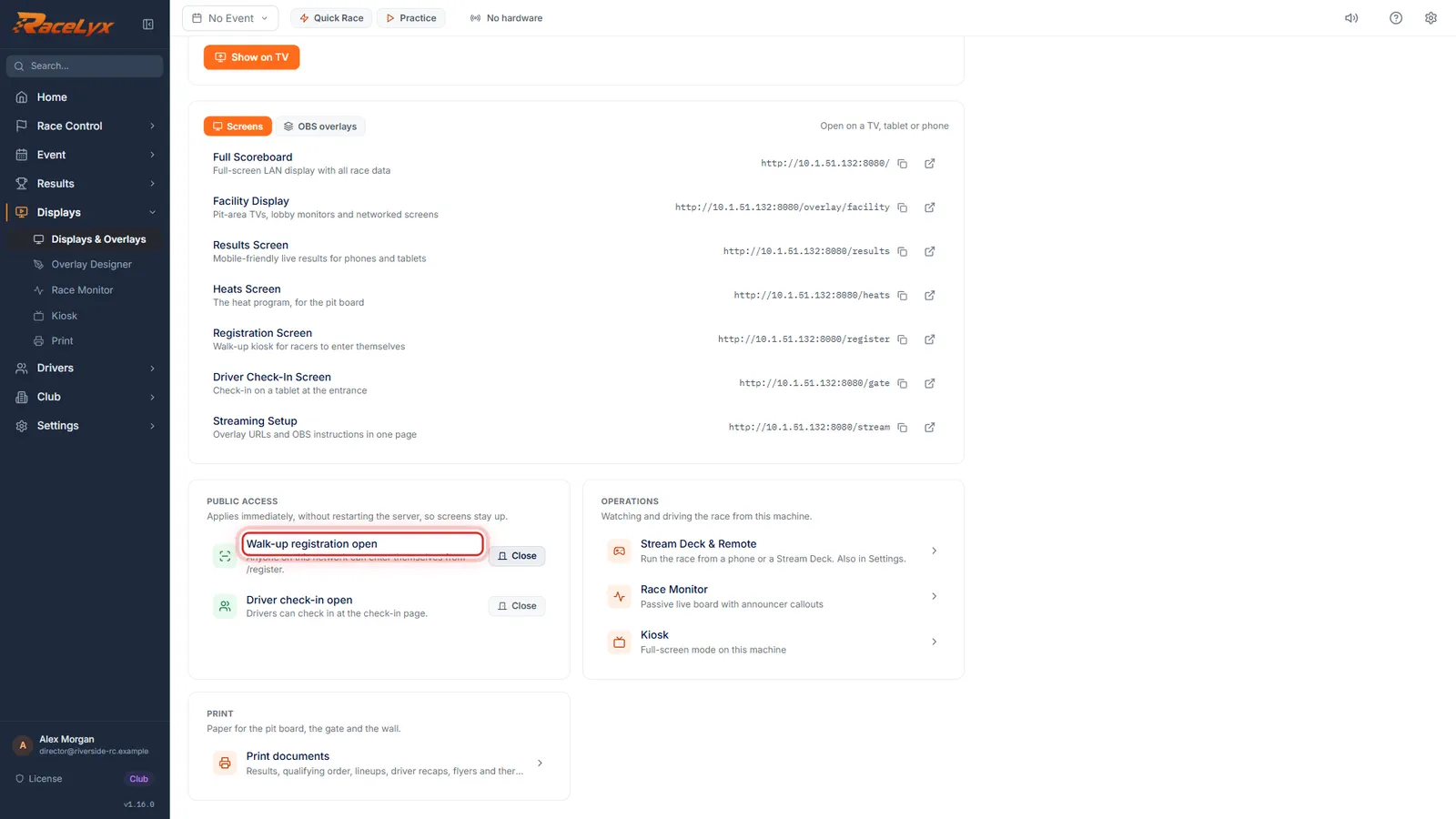
Open it again
To take walk-ups again, click Open. It applies at once.
Both switches go back to open at the next launch of RaceLyx. On the Check-In page, Open the registration screen reopens registration by itself.
Tips
- The two are separate: close walk-up entries and keep checking in drivers who pre-registered.
- Closing registration also stops publishing the driver list on the network.
- Both open again at the next launch of RaceLyx: close them again if you need to.
- On the Check-In page, Open the registration screen reopens walk-up registration by itself.
Troubleshooting
- Racers say the Registration Screen refuses their entry.
- Walk-up registration is closed. On Displays, under Public access, press Open.
- "These take effect when the server is running."
- The display server is stopped. Start it on Displays and the switches apply at once.
- A walk-up sign-up is not in tonight's event.
- Walk-up registration adds the driver and car only. Find them in the search box on Check-In and enter them.
Related guides
Something here does not match what you see? Tell us and we will fix the guide.