Print Station prints a receipt of a driver's laps today: runs, laps and track time, each session's fast lap and averages, and the last run lap by lap. It prints on an Epson-compatible thermal receipt printer on a serial port. Preview works without a printer.
Before you start
- An Epson-compatible thermal receipt printer on a USB serial port, for printing.
- For auto-print: a second decoder at a scan point, connected on Timing Hardware.
Step by step
- 1
Open Print Station
Open Displays, Print. Under Hardware printing, click Print Station.
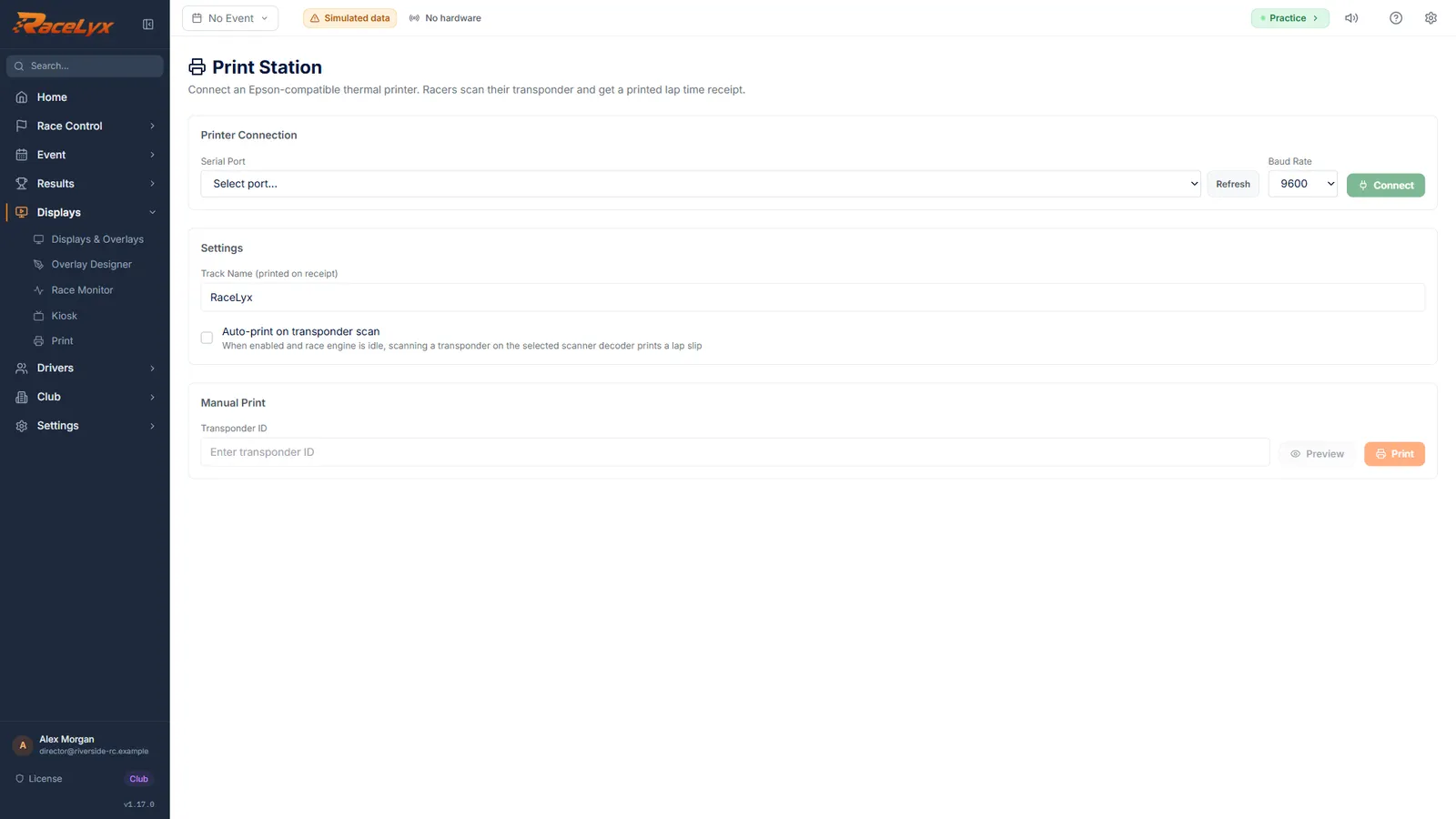
Print Station: connect an Epson-compatible thermal printer, and racers scan their transponder for a printed lap time receipt.
- 2
Connect the printer
Under Printer Connection, pick the printer's Serial Port and Baud Rate, then click Connect.
Not listed? Plug it in and press Refresh. 9600 baud suits most receipt printers. The header then says Connected, and Disconnect lets it go.
- 3
Track Name
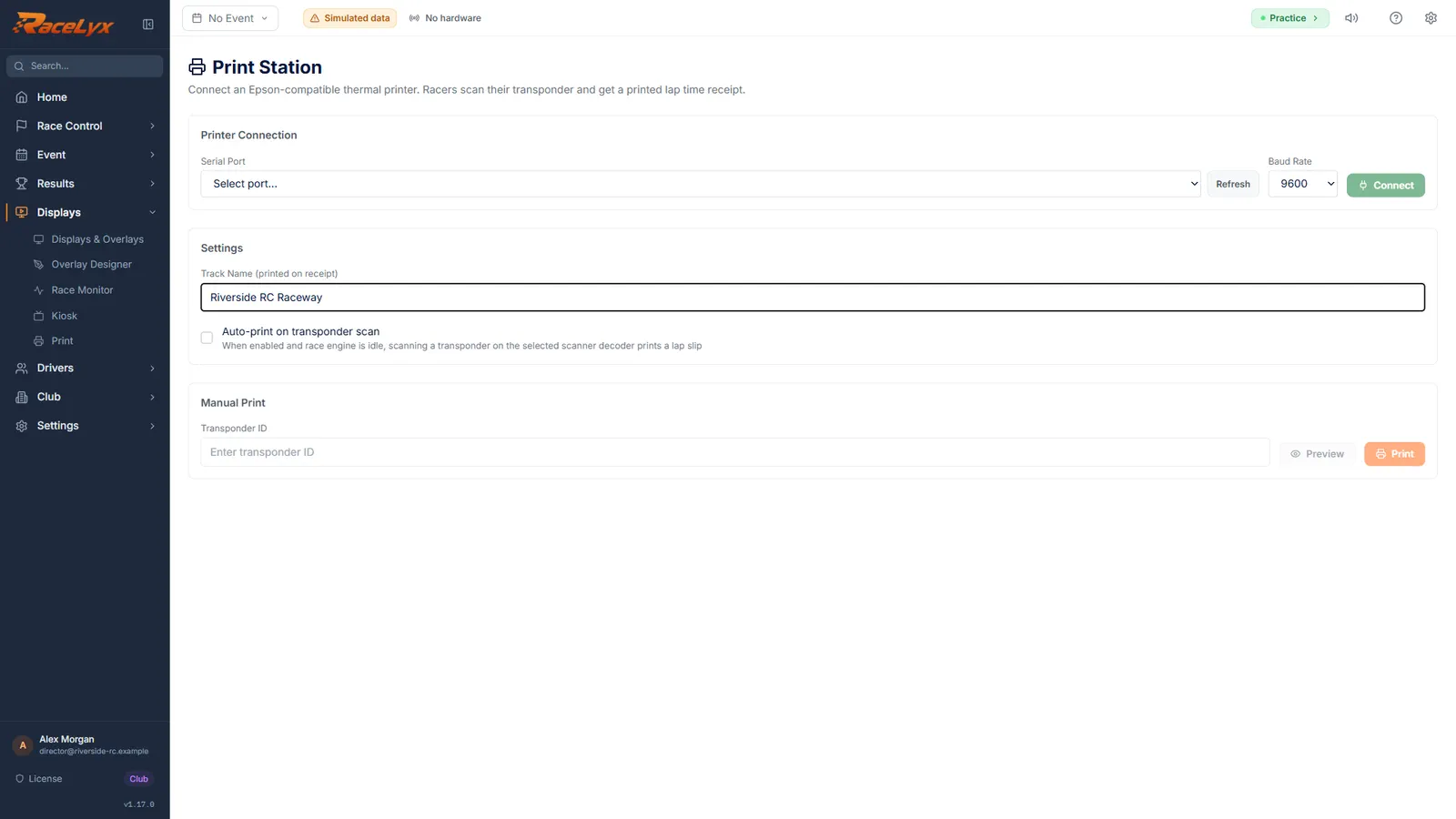
Type your Track Name for the top of the slip.
Tick Auto-print on transponder scan to print whenever a car crosses the Scanner Decoder you pick, while no race runs. Your main timing loop never prints.
- 4
Preview a slip
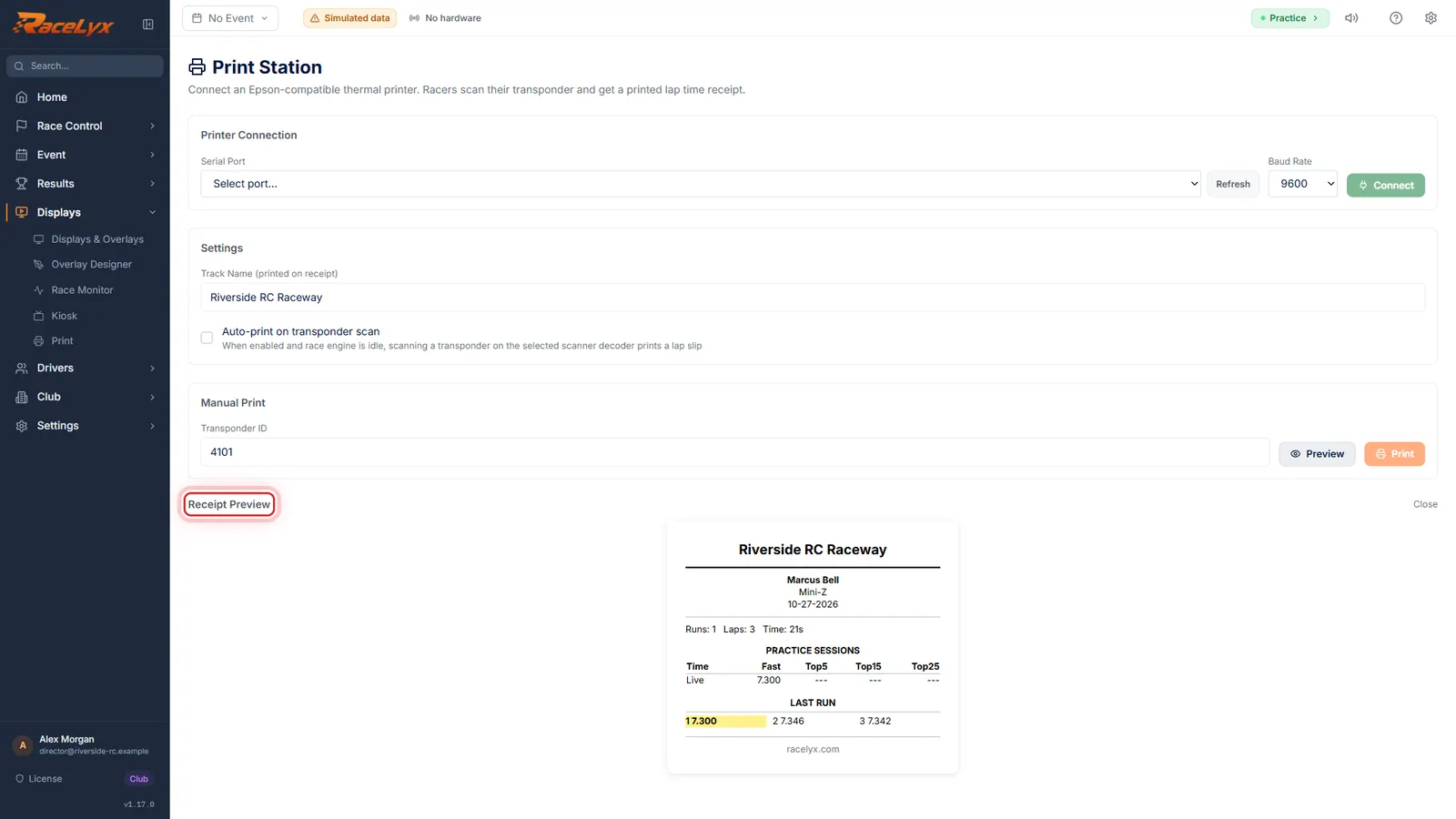
Under Manual Print, type a transponder ID and click Preview. The slip shows today's laps.
Here Marcus Bell's slip from the practice that is running: Runs, Laps and Time, each session's fast lap with its top 5, 15 and 25 averages, and the last run lap by lap with the best lap marked.
- 5
Print
Click Print to print it. Recent Prints lists every slip.
Print needs the printer connected. Pressing Enter in the transponder box prints too.
Tips
- Baud Rate is usually 9600. If the slip prints garbage, check the printer's manual.
- Auto-print fires only while no race is running, and only from the Scanner Decoder you pick, never from your main timing loop.
- The slip counts today's sessions, plus a session that is running now.
- Track Name (printed on receipt) is kept on this PC.
Troubleshooting
- The Print button is greyed out.
- Connect the printer under Printer Connection, and type a transponder ID.
- "Select a decoder above to enable auto-print."
- Pick the Scanner Decoder. Connect a second decoder on Timing Hardware for the scan point.
- The printer is not in the Serial Port list.
- Plug it in, press Refresh, and check Windows sees it as a COM port.
Related guides
Something here does not match what you see? Tell us and we will fix the guide.