A track in RaceLyx is the place you race. Most clubs rebuild their track now and then, so each track can have several layouts. Laps and track records are kept per layout, so a fast night on a short layout never beats the record on the long one. A track that never changes can leave Layouts empty.
Before you start
- First-run setup finished.
Step by step
- 1
Open Tracks & Profiles
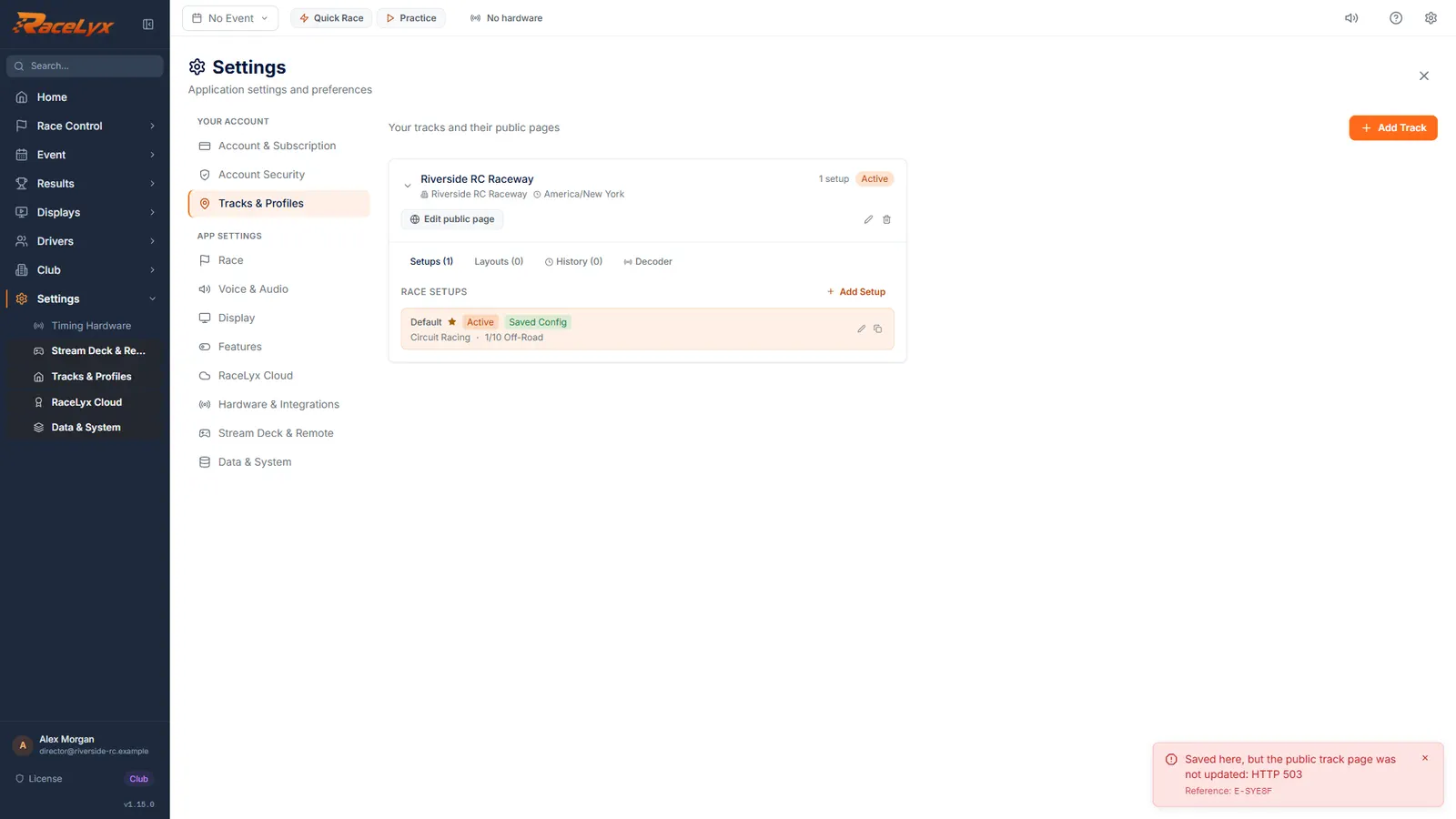
Open Settings, Tracks & Profiles. Your track is the card here.
Each track card shows its name, location and time zone, with Edit public page for what spectators see online. The open card has four tabs: Setups (Race Setups that Event Setup starts from), Layouts, History (past events at this track) and Decoder (a note of which decoder this track uses).
- 2
Rename / details
To change the track's name, location or time zone, click the pencil on its card. Click the green tick to save.
The pencil is Rename / details. It opens the name, a City, State box and the time zone list. The time zone sets the times printed on results and shown online, so pick where the track is. The tick saves and the cross cancels.
- 3
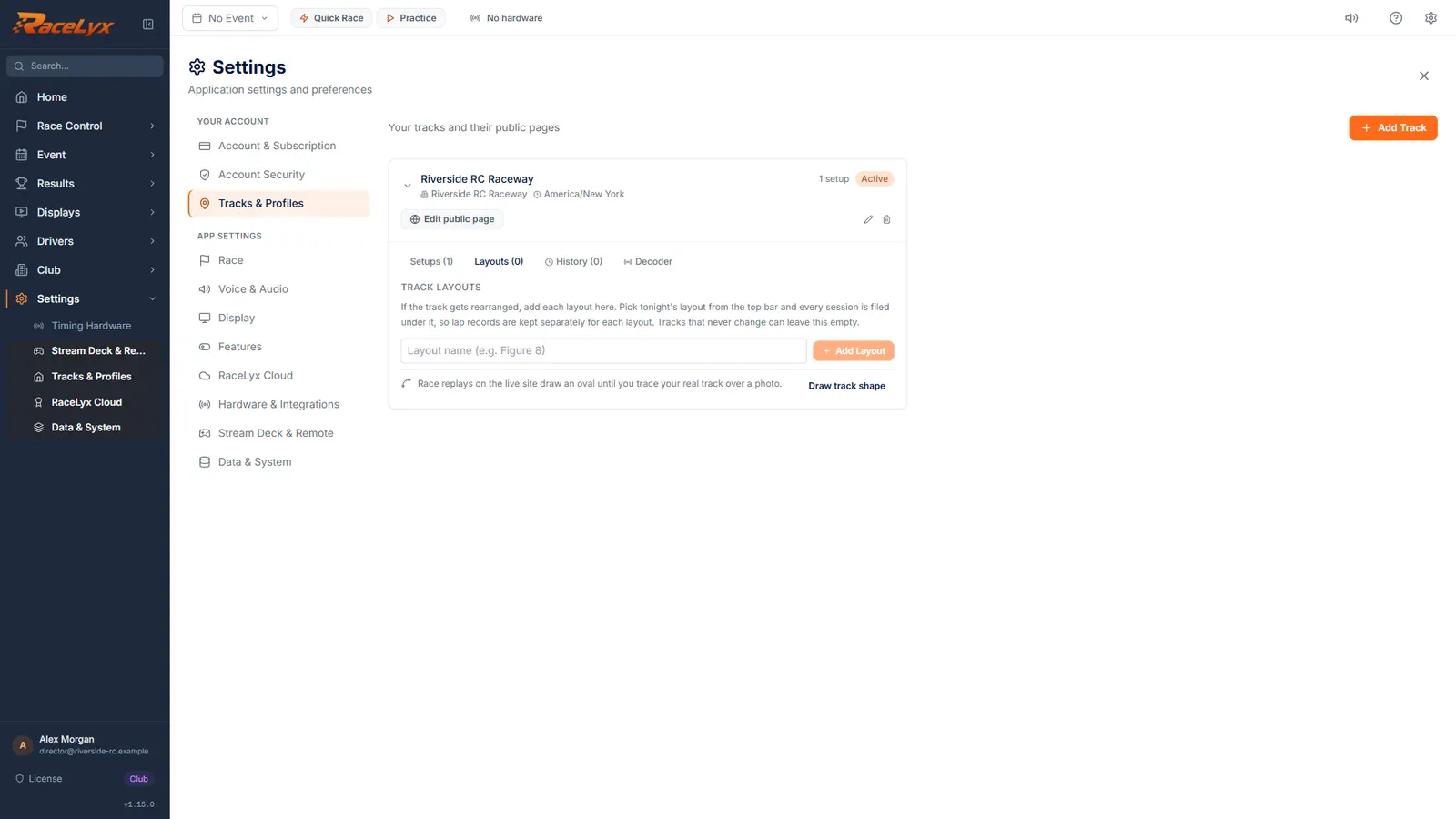
Open the Layouts tab
Click the Layouts tab.
Track Layouts lists every layout for this track. The one marked "In use" is what laps are being recorded against right now. The note above says tracks that never change can leave this empty.
- 4
Add a layout
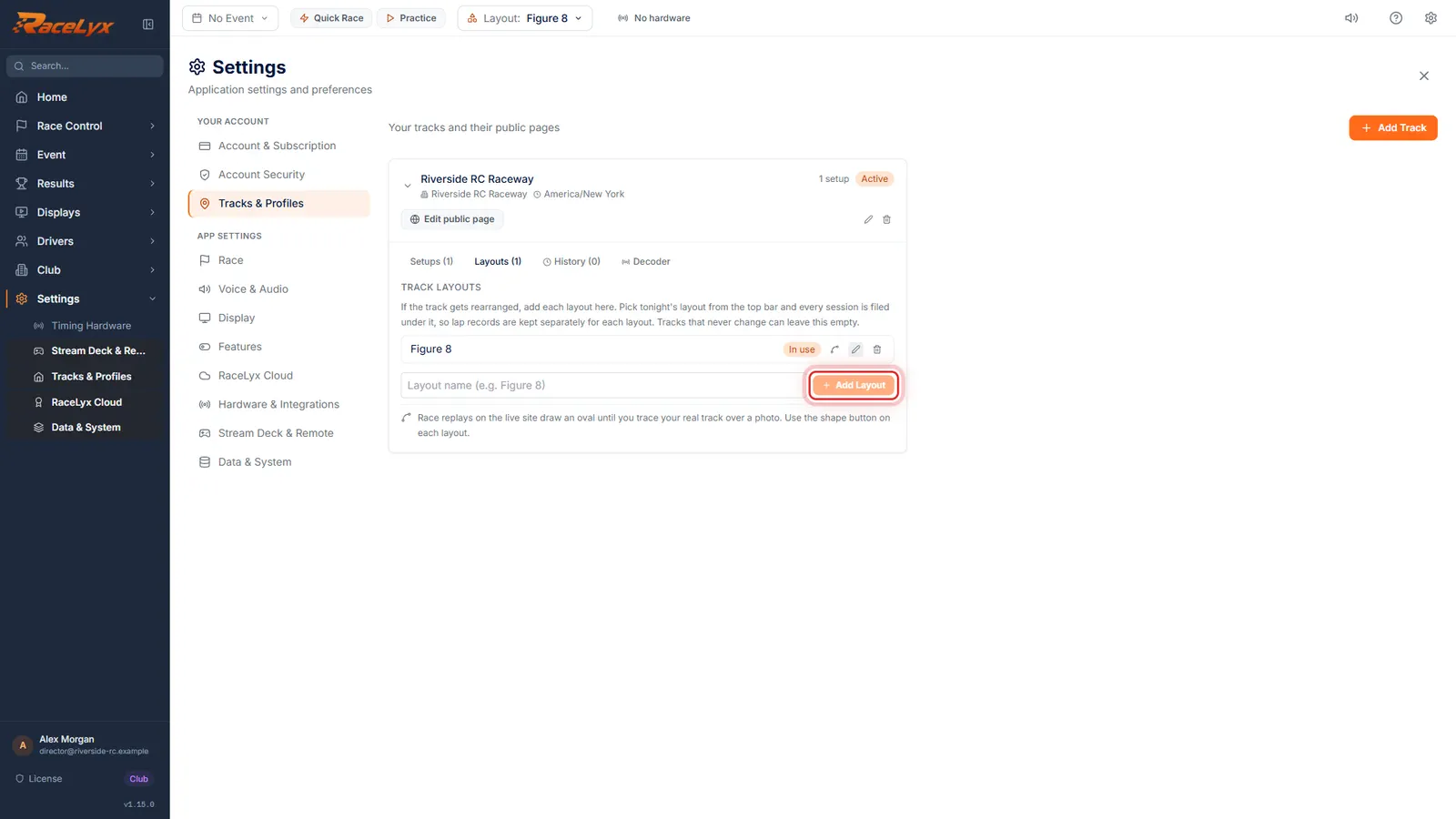
Type a name for the layout, then click Add Layout.
Type it in Layout name (e.g. Figure 8) and click Add Layout. Use the name drivers use for it. Records, best laps and replays are kept separately for each layout. The pencil on a layout renames it and the bin removes it.
- 5
Use this layout
Your first layout is the one in use, and the header says so. With more than one, click Use this layout on the one you race tonight.
Only one layout is in use at a time; every other layout shows Use this layout. Switch between race nights, or mid-day if the track is rebuilt. The small shape button on each layout lets you trace its outline for race replays.
- 6
Or switch from the header
You can also switch layouts from the Layout menu in the header, any time between sessions.
The header Layout menu asks "Which layout is the track set up in?". It is the quickest way to change on race day.
Tips
- Pick the layout from the header's Layout menu before the first heat. Every lap that night is recorded against it.
- Name layouts the way drivers talk about them, like "Spring 2026" or "Figure 8".
- Race replays on the live site draw an oval until you trace your real track. Use the shape button on the layout (or Draw track shape before you add one); you trace the outline over a photo on the live site, signed in as the track owner.
- The Setups tab holds Race Setups (race type, scale and lap limits) that Event Setup starts from. The Decoder tab notes which decoder this track uses; you still connect it on Timing Hardware.
Troubleshooting
- Track records print says to name the layout.
- The current layout has no name. Add or rename it here, then print again.
- I see two copies of my track.
- If a banner says duplicate facilities were found, press Clean up.
Related guides
Something here does not match what you see? Tell us and we will fix the guide.