The pages you use every race day can sit one click from Home. Pin them with the star beside any page in the menu, and Home's page list shows them, with the next events you have scheduled underneath. Every plan.
Before you start
- RaceLyx set up with a track.
Step by step
- 1
Open an area
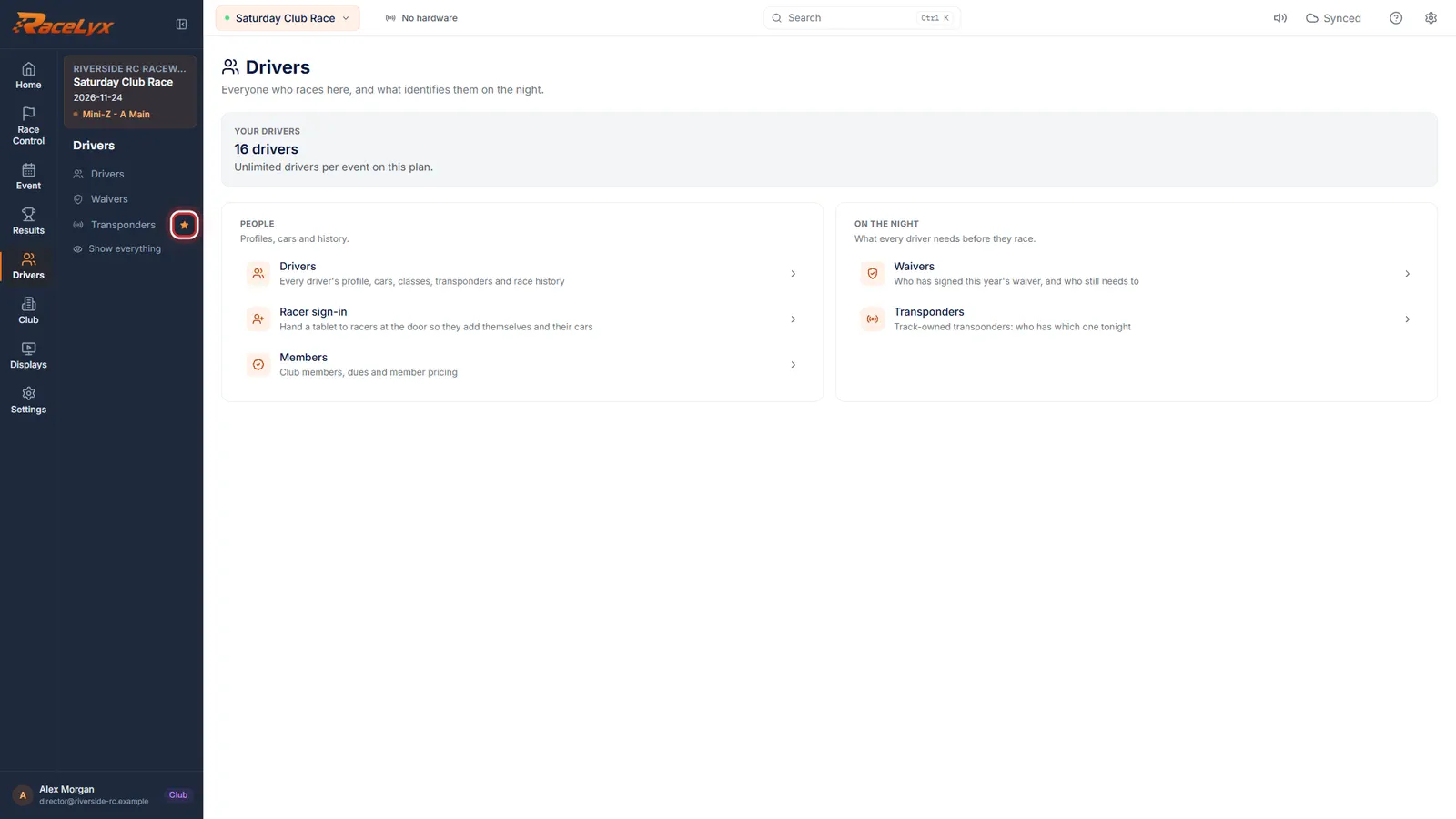
Open the area with a page you use all the time. Here, Drivers.
Every area's pages are listed beside the rail. Any of them can be pinned, Settings tabs included.
- 2
Click the star
Hover the page and click the star beside it. Transponders is now pinned to Home.
The star fills in when a page is pinned. Its tooltip reads Pinned to Home.
- 3
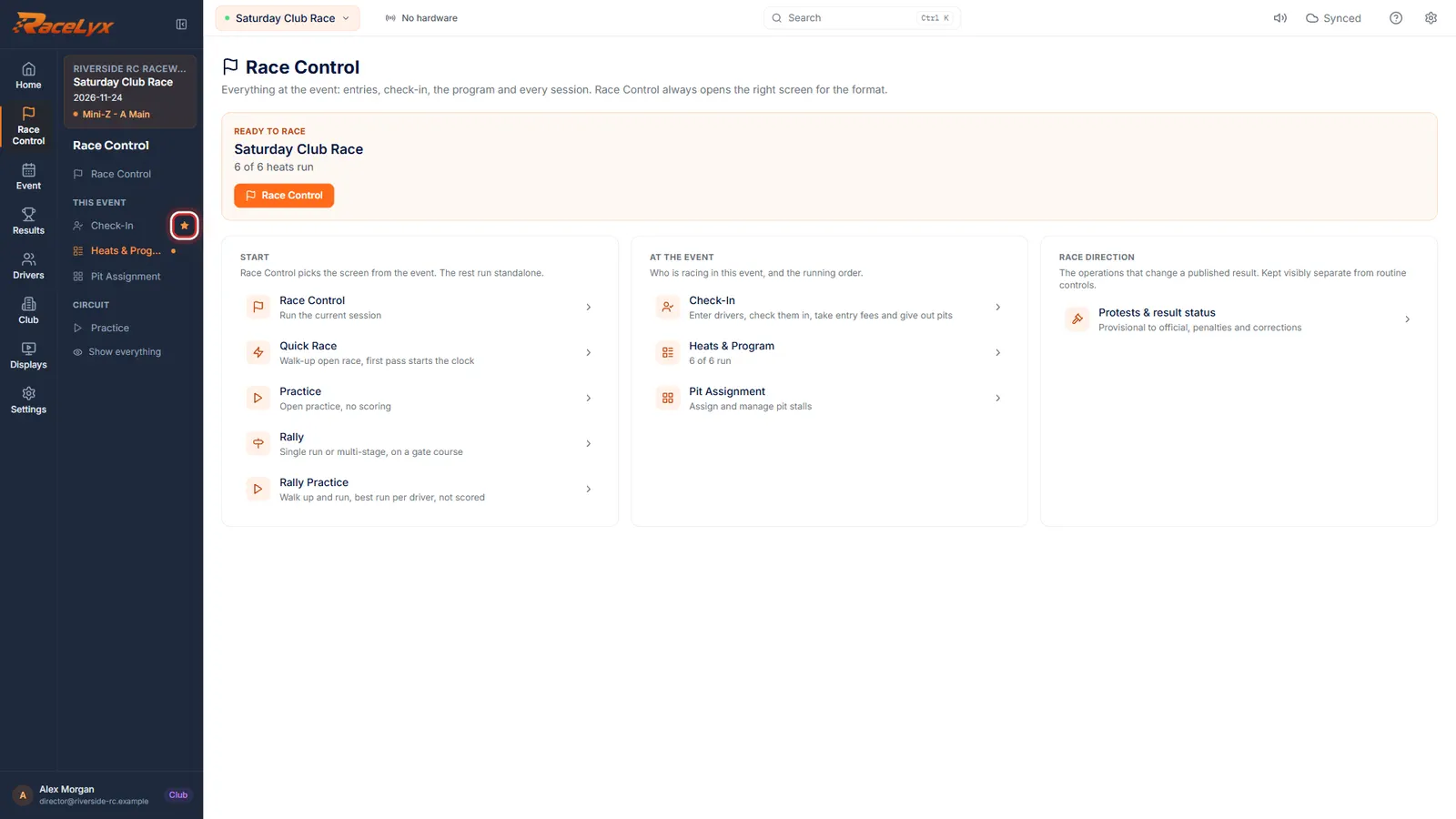
Pin another
Pin as many as you like. Here, Check-In from Race Control.
Pins keep the order you add them in.
- 4
Pinned and Upcoming events
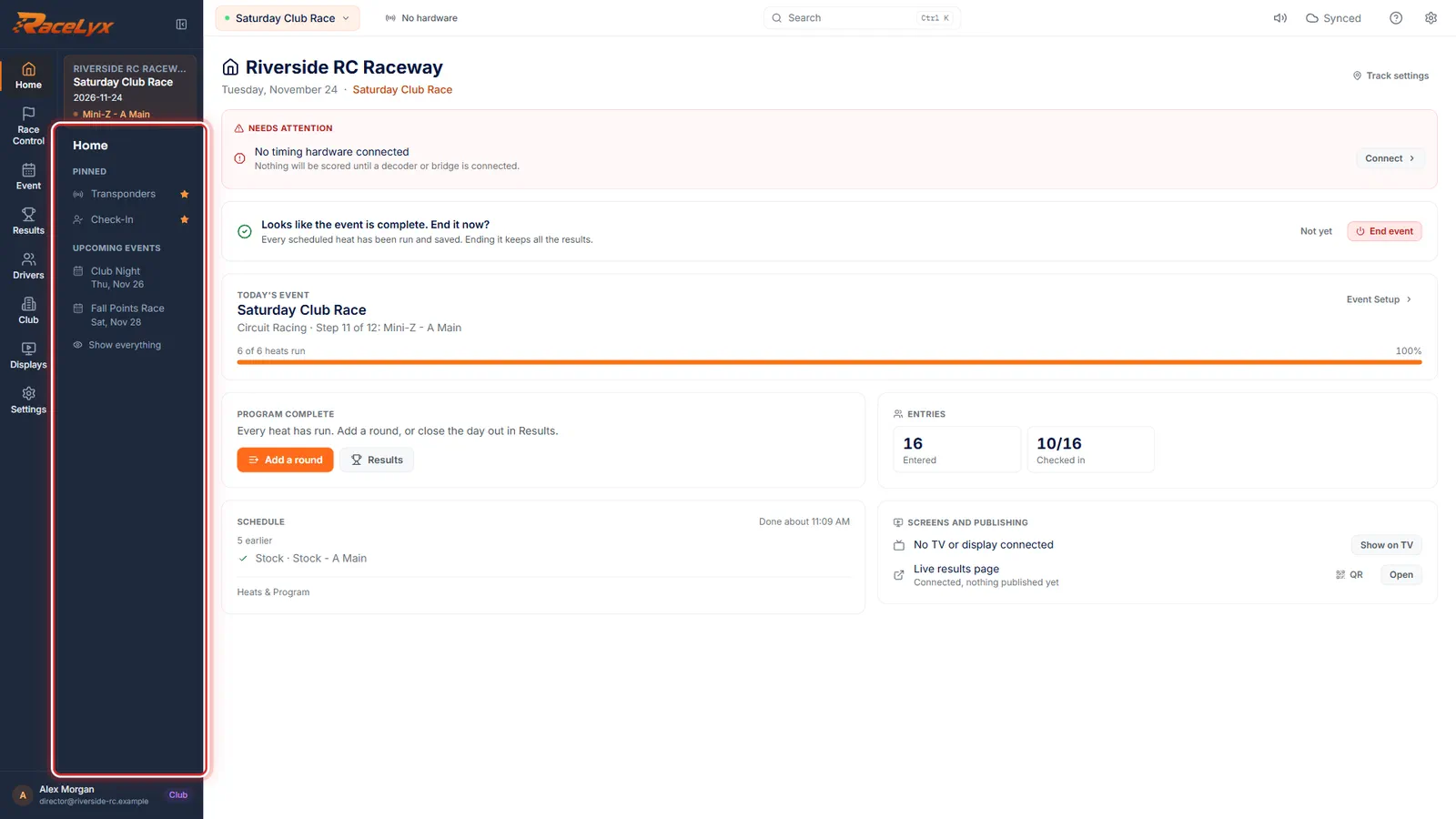
Click Home. Your pinned pages are listed beside the rail, and under them, the next events on your schedule.
Pinned lists your pins. Upcoming events lists the next events with a date, with the day each one runs.
- 5
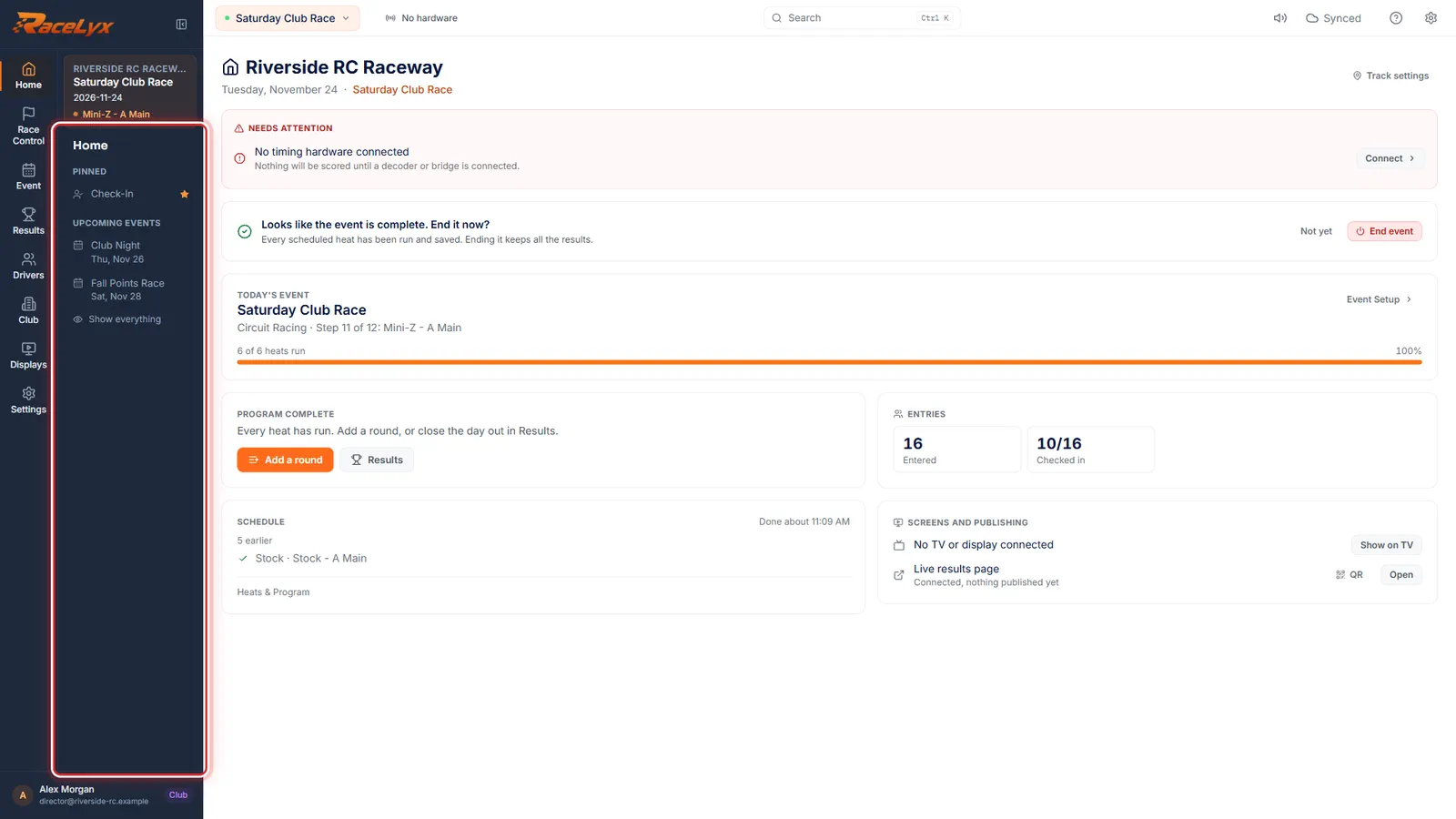
Unpin
To take a page off, click its star again.
Unpinning only changes the list on Home; the page is still in its own area.
Tips
- Pins are kept on this computer, so the timing PC and the desk laptop can each have their own.
- A pinned page that your plan or race night mode hides drops off the list until it is back.
- Click an upcoming event to open Events.
Troubleshooting
- I can't see the star.
- It shows when you hover a page in the list beside the rail. If the list is hidden, click Show the page list at the top of the menu first.
- Upcoming events says Nothing scheduled.
- Only events with a date ahead are listed. Schedule one on Events.
Related guides
Something here does not match what you see? Tell us and we will fix the guide.