If you stream your races, RaceLyx can show the video on your public page. Your track page gets a Watch live button, and Stream mode on the live site plays the video beside the timing board. It needs RaceLyx Cloud: Pro, Club, a trial, or Home Track during its cloud year.
Before you start
- Signed in to RaceLyx Cloud (Settings, RaceLyx Cloud).
- Your stream's embed link from YouTube, Twitch or Facebook. The streaming itself is done in OBS or your streaming app, not in RaceLyx.
Step by step
- 1
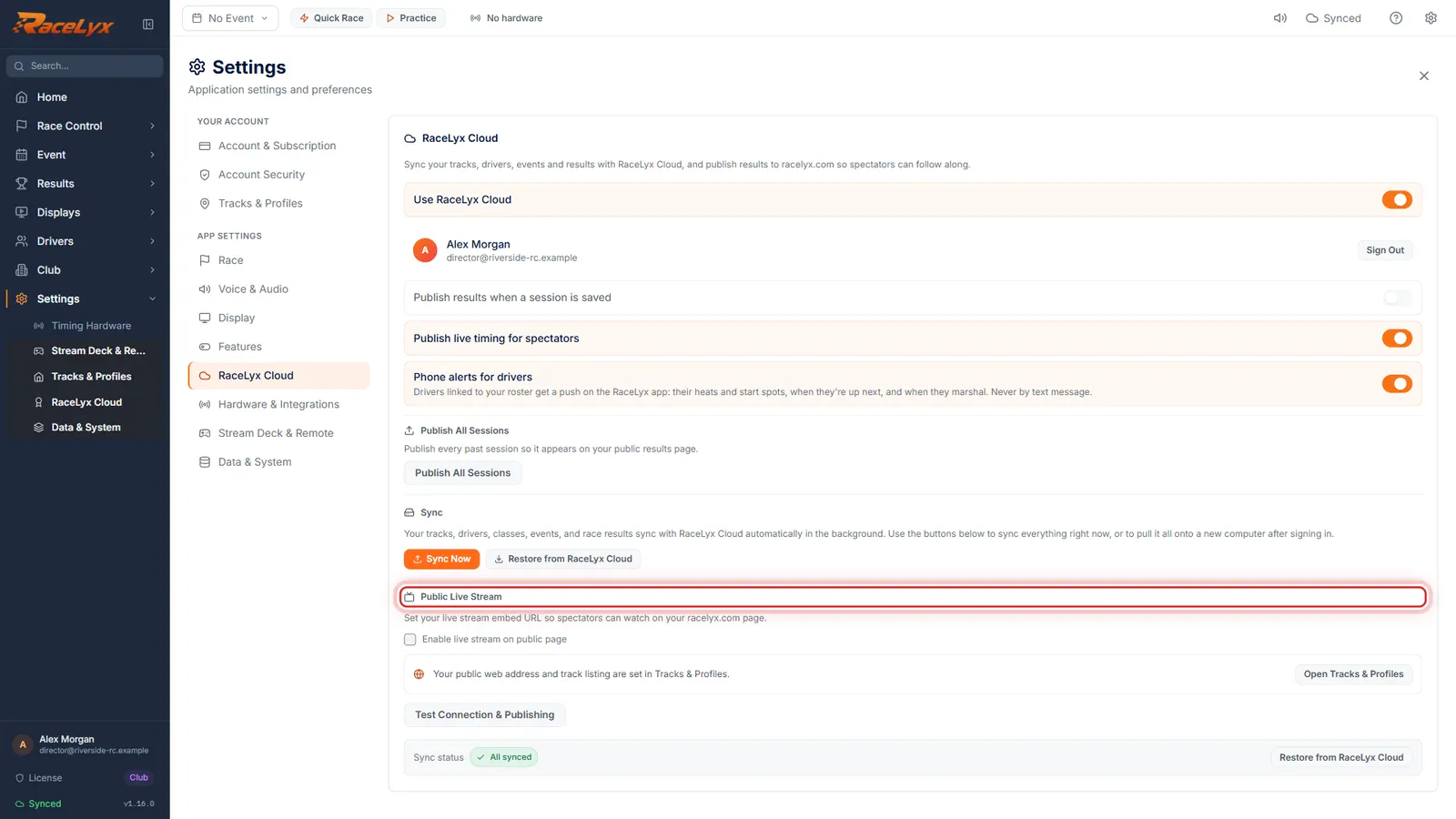
Open Public Live Stream
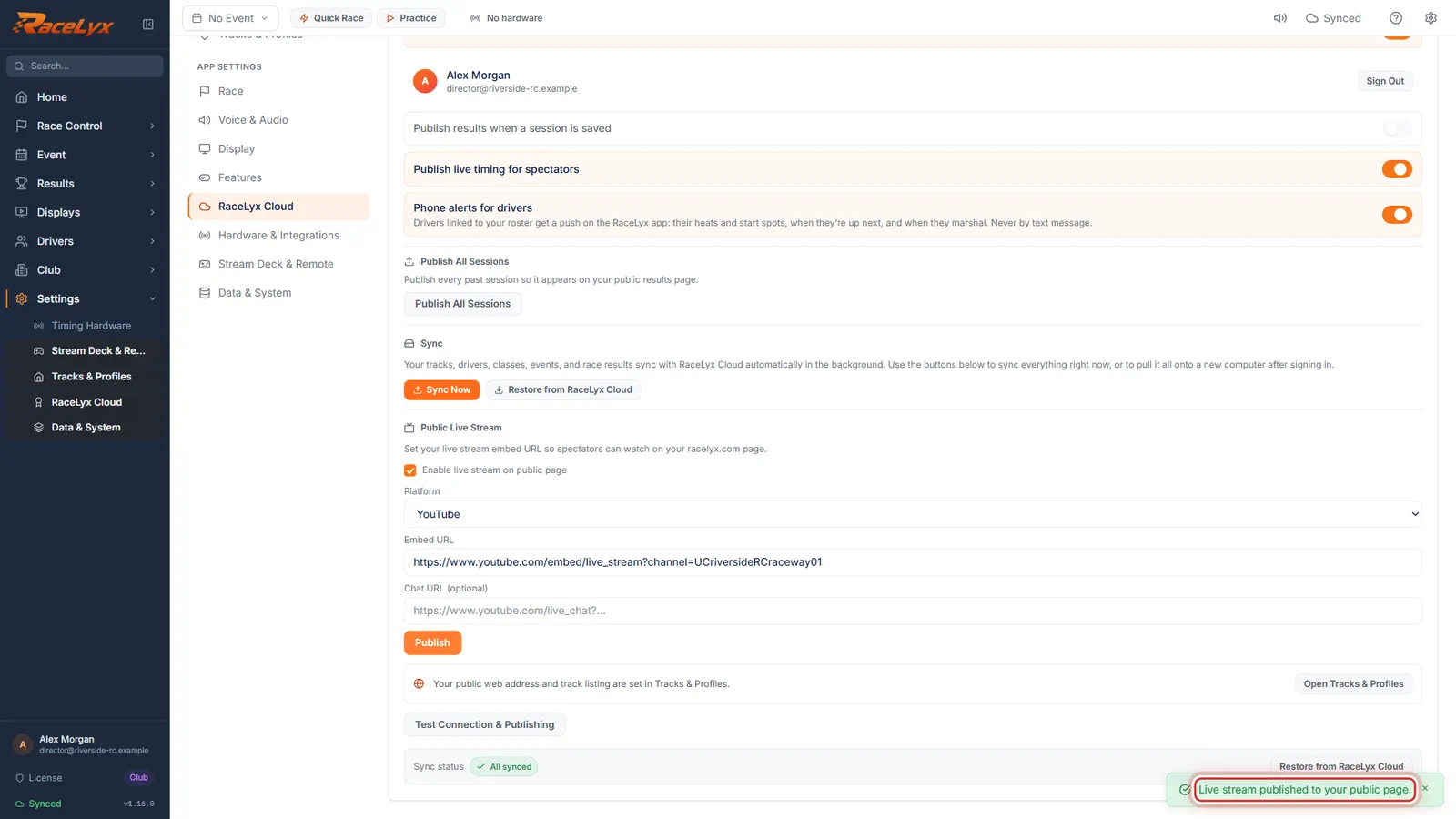
Open Settings, RaceLyx Cloud, and scroll down to Public Live Stream.
It sits below Publish All Sessions and Sync, and shows only while you are signed in on a plan with RaceLyx Cloud.
- 2
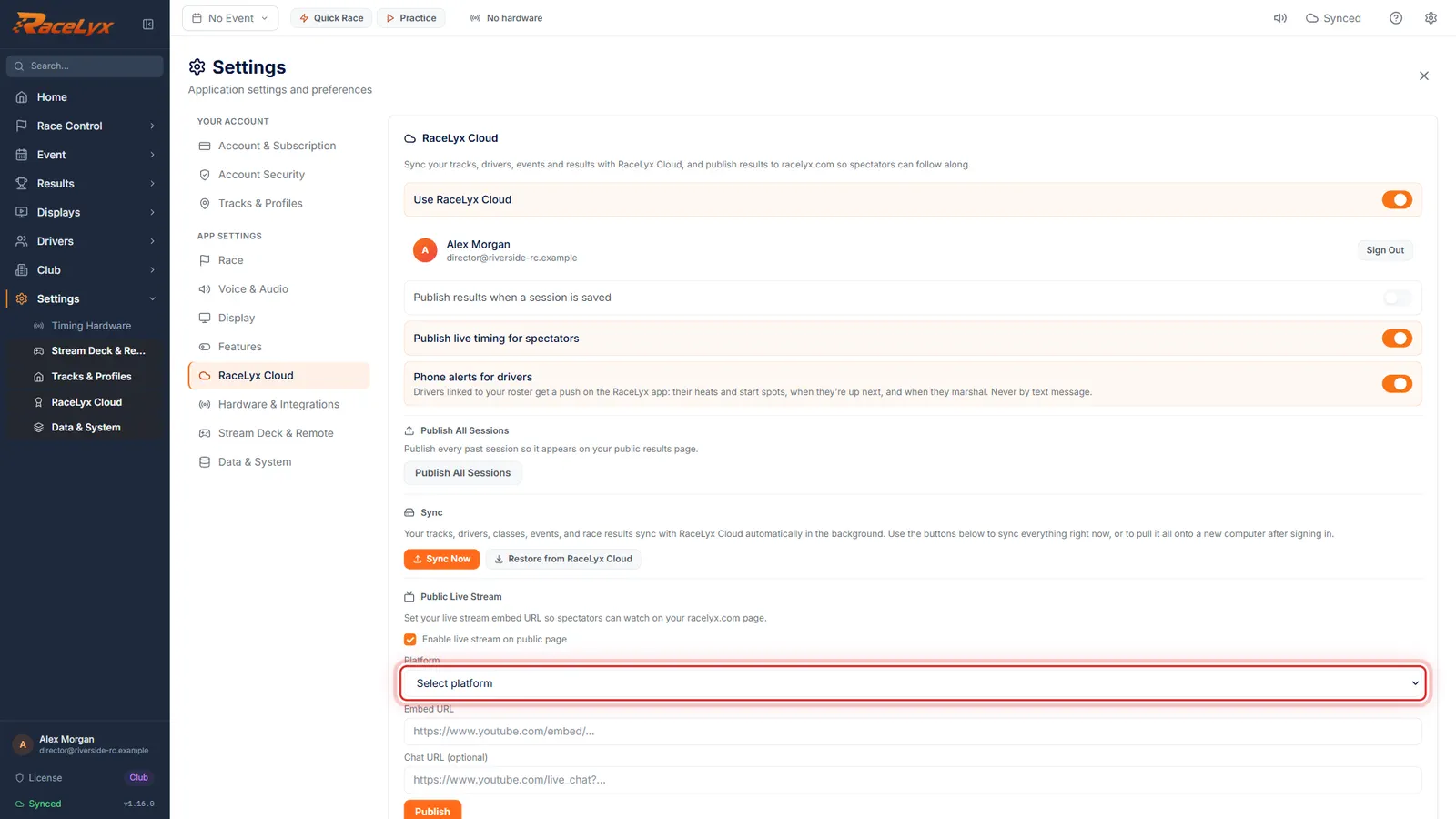
Enable live stream on public page
Tick Enable live stream on public page. Platform and the link boxes open.
Ticking it changes nothing online yet. Your public page only changes when you click Publish.
- 3
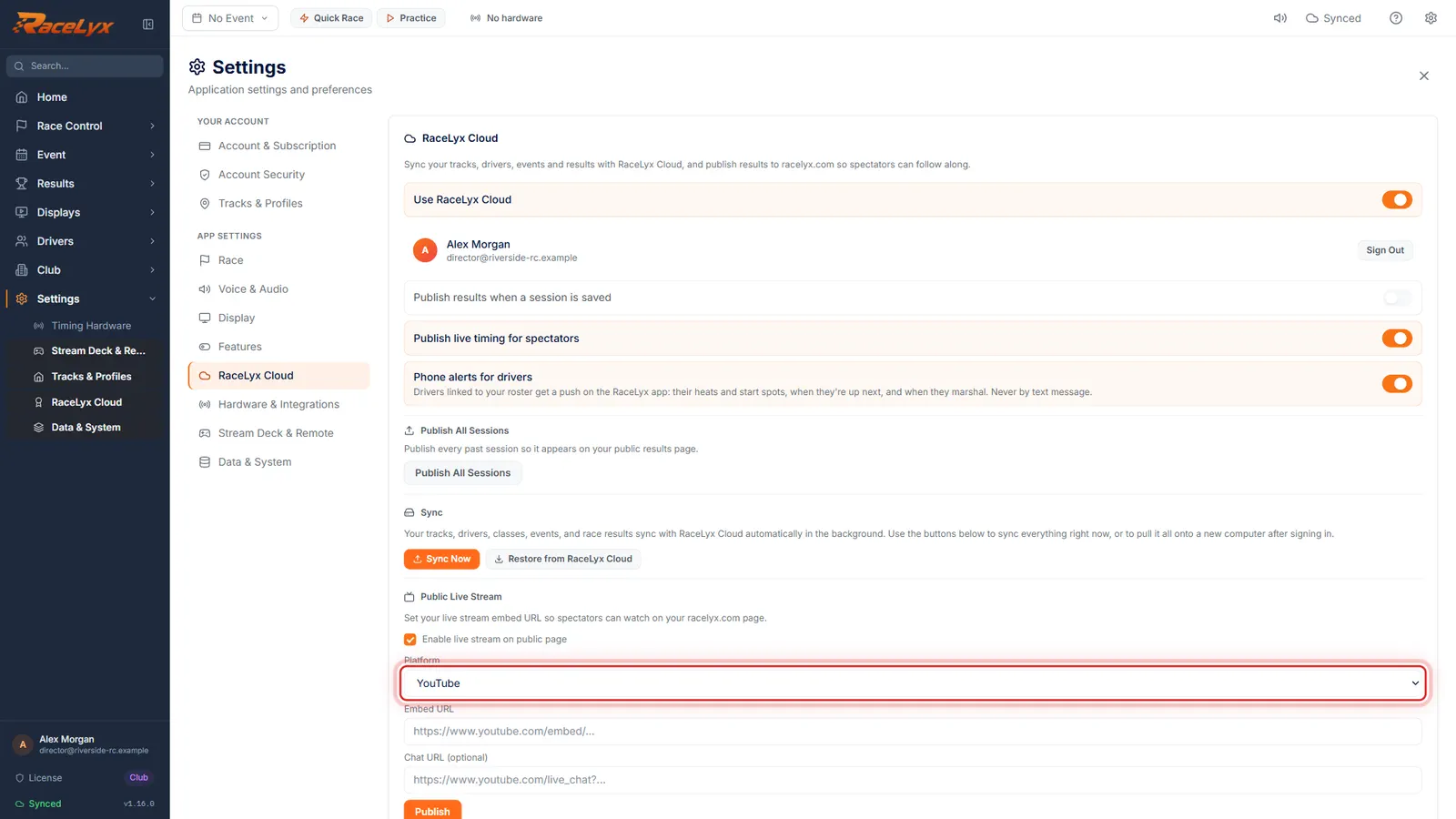
Platform
Pick your Platform. Here, YouTube.
YouTube, Twitch, Facebook Live, or Custom / Other for any player that gives you an embed link. The platform is a label: the Embed URL is what plays.
- 4
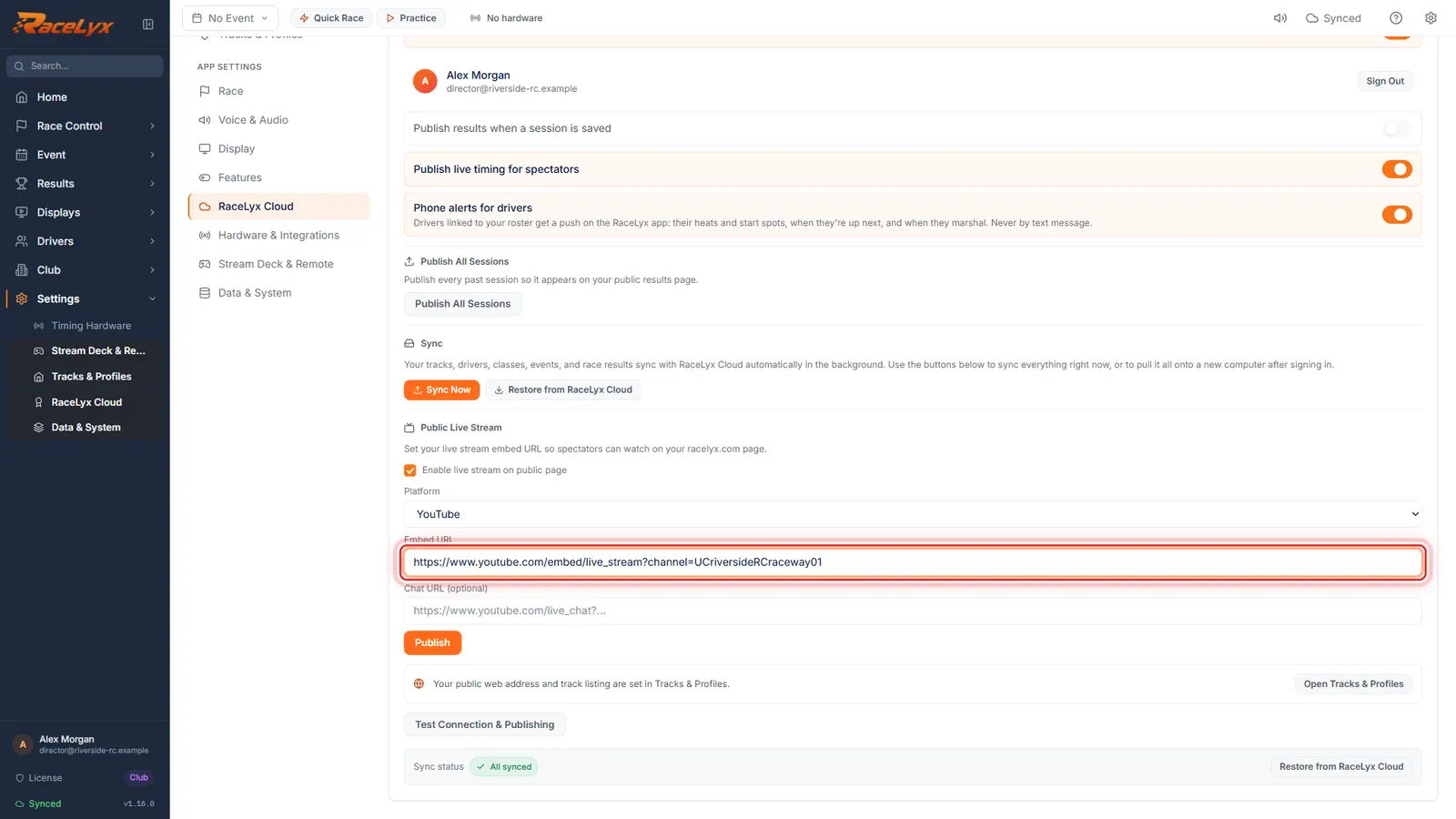
Paste the Embed URL
Paste your stream's embed link into Embed URL. YouTube's live stream link for your channel works every race day.
Use the embed form, not the watch page: https://www.youtube.com/embed/live_stream?channel= and your channel ID. Chat URL (optional) takes the chat window's link, such as YouTube's live_chat address.
- 5
Publish
Click Publish. Live stream published to your public page.
Your track page now shows Watch live on YouTube while you race, the live timing page has Watch live, and Stream mode (under Broadcast on the live site) plays the video beside the board. The button reads Published for a moment.
Tips
- For YouTube, use https://www.youtube.com/embed/live_stream?channel= followed by your channel ID. It plays whatever your channel is streaming now, so you set it once instead of every race day.
- Your YouTube channel ID starts with UC. youtube.com/account_advanced shows it.
- For Twitch, use https://player.twitch.tv/?channel=yourchannel&parent=live.racelyx.com, and add &parent=your-track.racelyx.com if you claimed an address.
- Facebook Live gives each broadcast its own embed link, so paste the new one and click Publish each race day.
- Chat URL (optional) shows the stream chat under the video in Stream mode's Video only layout.
- To take the video down, clear Embed URL and click Publish. Unticking the box alone does not reach your public page.
- A YouTube link under Contact & social on your public track page gives drivers a Watch on YouTube button even with this off.
Troubleshooting
- "The live stream was not published: ..."
- RaceLyx Cloud could not be reached or refused it; the rest of the message says why. Check you are signed in, then click Publish again.
- There is no Public Live Stream section.
- It shows only while you are signed in on a plan with RaceLyx Cloud. On a plan without cloud you see the note about the Pro and Club plans instead.
- Stream mode says "This track has not set up a video stream".
- Enable live stream on public page was off, or Embed URL was empty, when you last clicked Publish. Fill them in and click Publish again.
- The video box shows an error from YouTube.
- Use the embed link (youtube.com/embed/...), not the watch page link, and check embedding is allowed for the stream in YouTube Studio.
Related guides
Something here does not match what you see? Tell us and we will fix the guide.