I-Lap is the decoder most RC clubs run. It talks to the timing PC over a USB serial cable, which Windows shows as a COM port. RaceLyx reads it at the I-Lap's own speed (9600 baud), so the only thing you pick is the port.
Before you start
- The I-Lap powered on, with its loop connected.
- Its USB cable plugged into the timing PC.
Step by step
- 1
Open Timing Hardware
Plug in the I-Lap's USB cable, then open Settings, Timing Hardware.
Or click the decoder chip in the header, which reads "No hardware" until something is connected.
- 2
Choose I-Lap
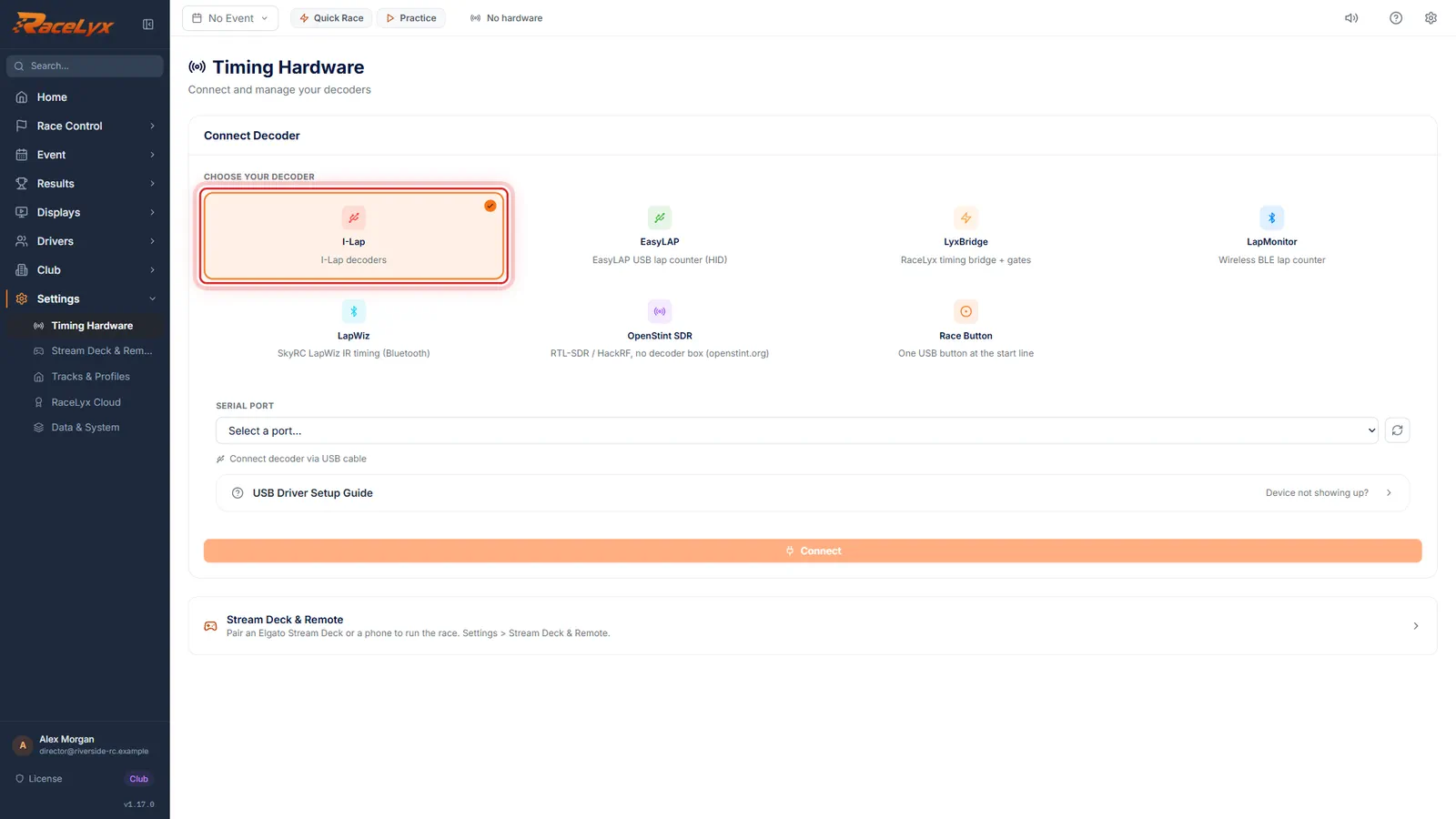
Under Choose your decoder, click I-Lap.
The I-Lap card reads "I-Lap decoders". The form below it asks for a Serial Port, with a refresh button beside the list and the USB Driver Setup Guide underneath.
- 3
Pick its COM port
Open Serial Port and pick the I-Lap's COM port. Not sure which? Unplug the cable, click refresh, plug it back in, and pick the port that appears.
Each port shows its name and, when Windows knows them, the cable's type and maker, for example COM4 followed by its USB chip. The refresh button is Refresh ports. Using the same USB socket each time keeps the same COM port.
- 4
No port? Install the driver
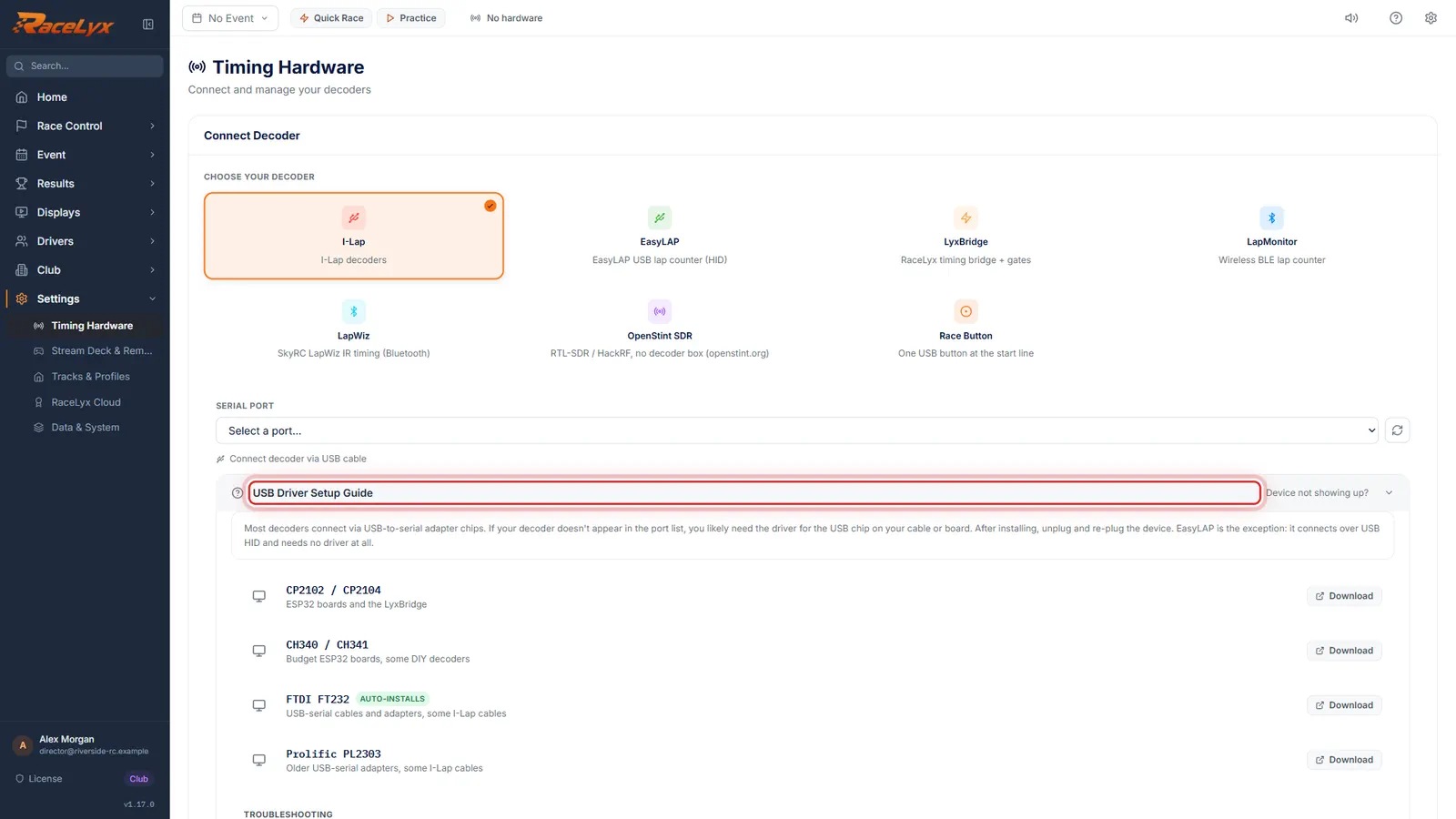
No port at all? Open the USB Driver Setup Guide below, and install the driver for your cable.
It lists the common USB serial chips (CP2102 / CP2104, CH340 / CH341, FTDI FT232 and Prolific PL2303) with their drivers. After installing, unplug and replug the cable. Still nothing? Check Device Manager, Ports (COM & LPT).
- 5
Connect
Click Connect. The card says Connected, and RaceLyx remembers the I-Lap for next time.
Connect stays greyed out until a port is picked. Next time RaceLyx starts it reconnects the I-Lap by itself; Saved Devices at the top reconnects it in one click if you unplugged it.
- 6
Check it is talking
Read the line under the card. The decoder is talking means the I-Lap is sending, even before a car crosses. Then run a car over the loop.
Each pass then shows in the Live Feed with its transponder number. "Sent nothing, not even a heartbeat" means check the I-Lap's power and cable. Unreadable bytes usually means the wrong COM port.
Tips
- Not sure which COM port is the I-Lap? Unplug the cable, click refresh, plug it back in, click refresh again, and pick the port that appeared.
- Plug the cable into the same USB socket every race night and Windows usually keeps the same COM port.
- Plug straight into the PC rather than an unpowered USB hub.
- After the first time the I-Lap is in Saved Devices, and RaceLyx reconnects it by itself when it starts.
Troubleshooting
- No COM port is listed.
- The cable's driver is missing. Open USB Driver Setup Guide (Device not showing up?) under the port list and install the driver for your cable's chip: CP2102 / CP2104, CH340 / CH341, FTDI FT232 or Prolific PL2303. Then unplug and replug the cable.
- Device Manager shows the port with a warning icon.
- The driver needs updating or reinstalling. Use the same guide, then unplug and replug the cable.
- Connected, but the line mentions unreadable bytes or a wrong baud rate.
- Something other than the I-Lap is on that port. Disconnect, pick the other COM port and connect again.
Related guides
Something here does not match what you see? Tell us and we will fix the guide.