If your club keeps a member list with ratings in Excel, you do not have to type the levels in. Import levels reads the list, finds each driver by car number and name, and shows you every change before it saves. People it cannot find can be added as new drivers.
Before you start
- Your drivers on Drivers (for example from Club, Imports, RC Scoring Pro).
- Your member list as an .xlsx or .csv file, with a column for the rating (1, 5, 10 or 15) and the name. A car number column helps it find people. Names can be "Last, First" or "First Last".
Step by step
- 1
Click Import levels
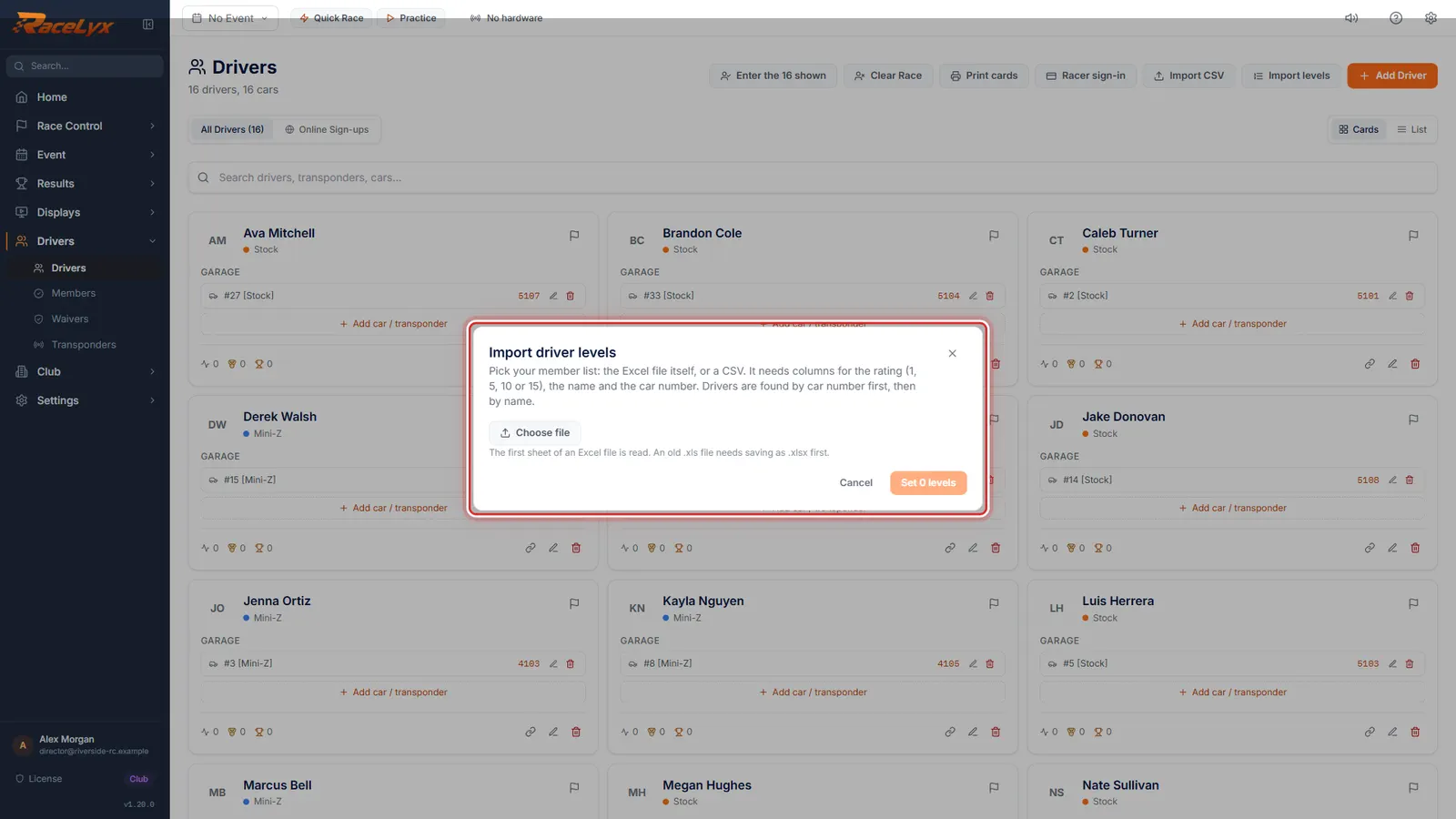
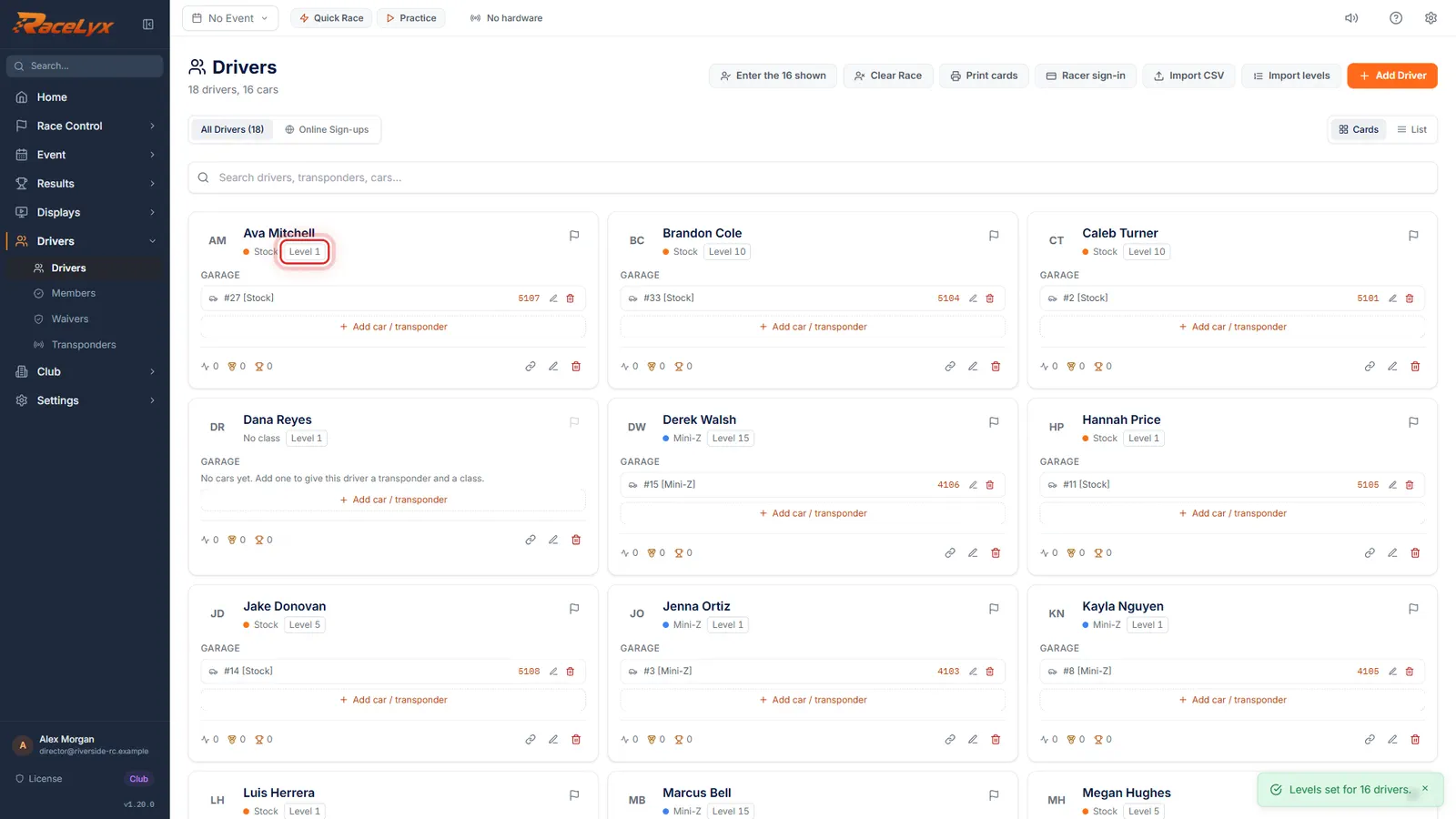
Have your member list in Excel, with each driver's rating? Open Drivers and click Import levels.
Import levels is at the top of Drivers, next to Import CSV and Add Driver. Import CSV is something else: it adds drivers from an RCSignup file.
- 2
Your member list
Click it. Your list needs a column for the rating, one, five, ten or fifteen, and the name. A car number helps it find people.
A header row is optional. RaceLyx looks for columns named like Rating or Level, Name, and Car or Number. Without headings it reads rating, name, car, in that order.
- 3
Choose file
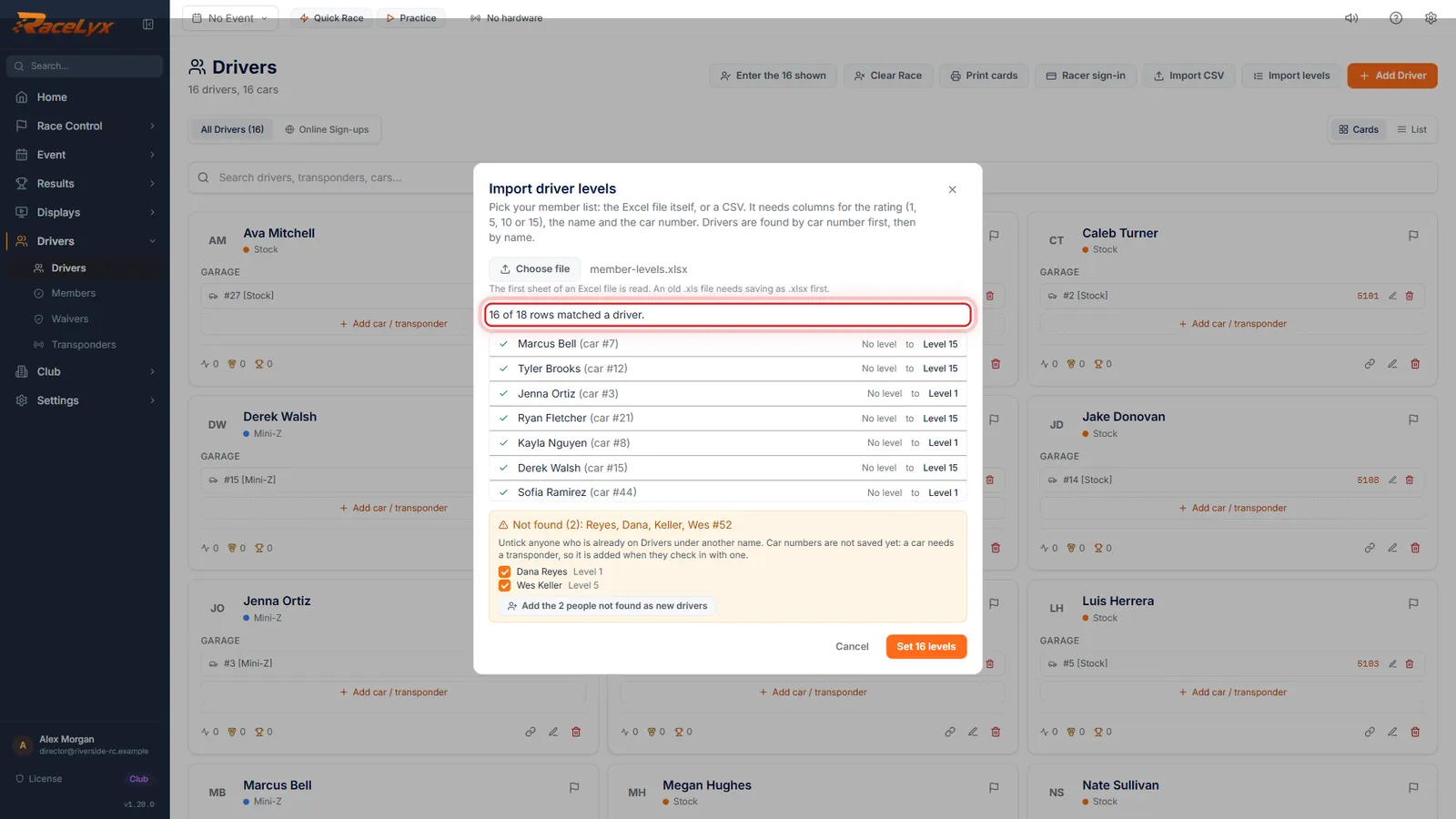
Click Choose file and pick the Excel file. Drivers are found by car number first, then by name.
The summary says how many rows matched a driver. "Last, First" and "First Last" both match.
- 4
Check the changes
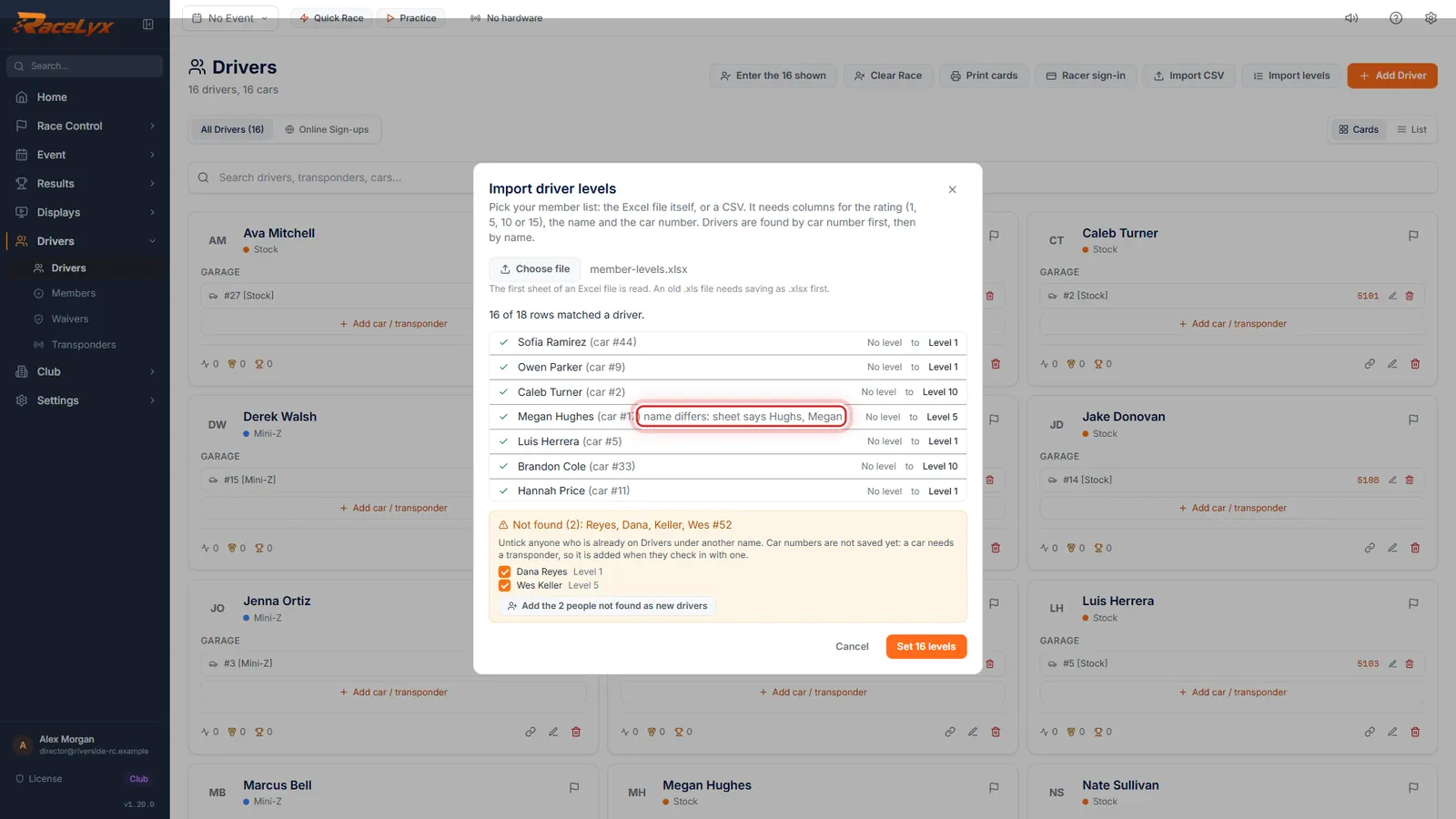
Every driver whose level changes is listed, from the old level to the new one. A name spelled a little differently still matches on the car number.
Each row shows how it was found, by car number or by name, and "name differs" when the sheet spells it another way. A row whose car matches but whose name does not gets a tick box: tick it only if it is the right person.
- 5
People not found
People it could not find are listed below. Untick anyone already on Drivers under another name, then click Add, and the rest become new drivers with their levels.
New drivers get the name and level from the sheet. Their car number is not saved yet: a car needs a transponder, so it is added when they check in with one.
- 6
Click Set levels
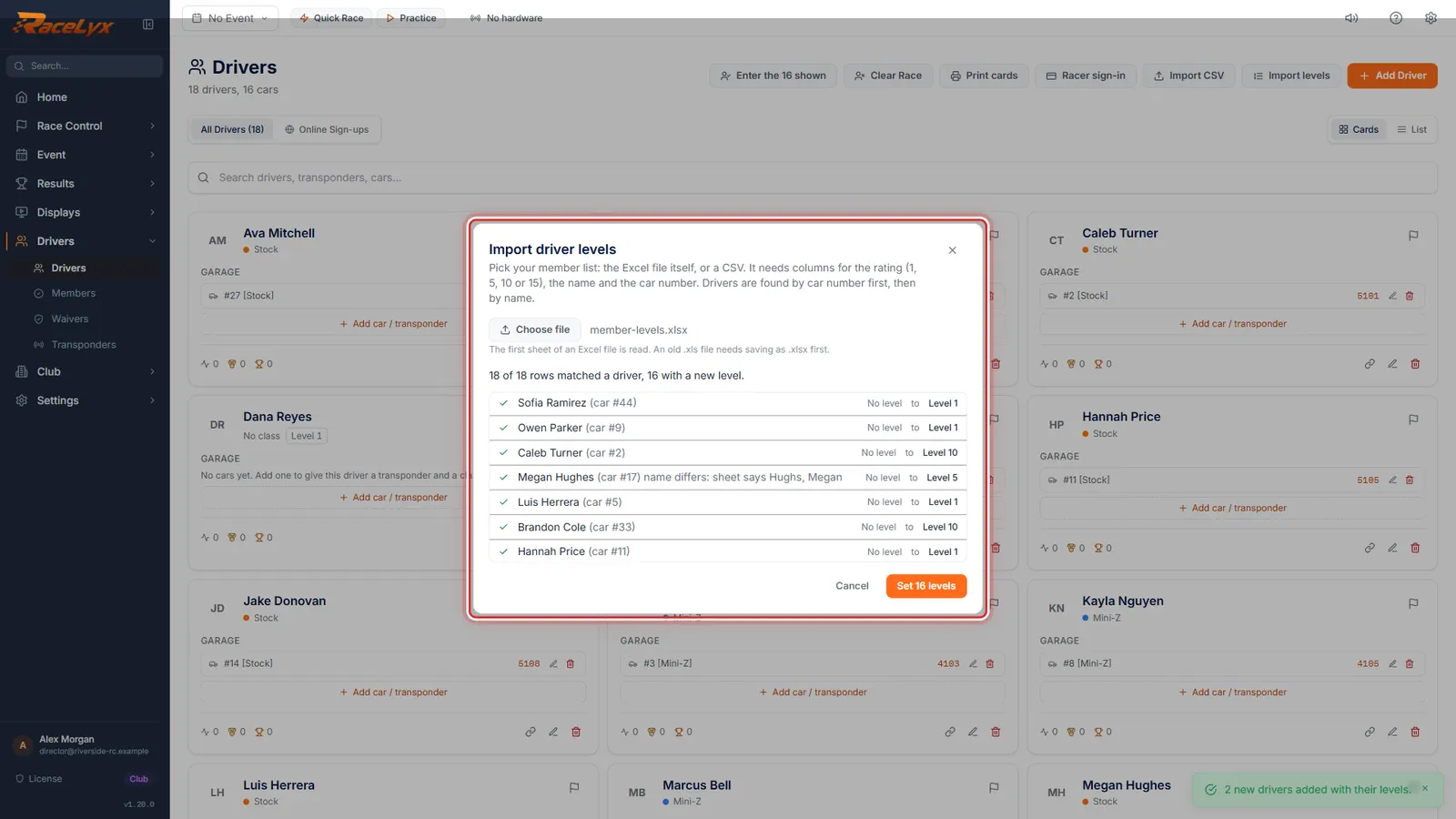
Click Set levels. Every driver on the list now has their level on Drivers.
The button counts the levels it will save. A toast says how many drivers changed.
Tips
- Only the first sheet of an Excel file is read. An old .xls file needs saving as .xlsx first.
- Names are matched whatever the order or punctuation, and common nicknames and small typos still match: Bob finds Robert.
- When a car number matches but the name does not, the row waits for a tick from you: the sheet may have an old owner on that number.
- Click Add the people not found before Set levels: Set levels closes the window.
- Rows with no level and no car (a year at the bottom of the sheet, say) are skipped. A level other than 1, 5, 10 or 15 is listed as Skipped.
- Run it again whenever the list changes. Only drivers whose level changes are touched.
Troubleshooting
- That is an old Excel file (.xls). In Excel, save it as .xlsx and pick it again.
- Open it in Excel, choose File, Save As, Excel Workbook (.xlsx), and pick the new file.
- No members could be read from this file.
- The first sheet needs a rating and a name column. Check the right sheet is first, or save that sheet on its own as a CSV.
- Someone shows under Not found but they are on Drivers.
- Their name on Drivers is too different. Untick them so no second driver is made, and set their level on Drivers by hand.
Related guides
Something here does not match what you see? Tell us and we will fix the guide.