Imports and a busy desk make doubles: "Nate" and "Nathan", or a name typed in lower case. Drivers lists pairs that look like the same person under Possible duplicates. Merge moves everything to the driver you keep, and the old name and card code still find them. A backup is saved first.
Before you start
- Drivers on your Drivers list.
Step by step
- 1
Open Drivers
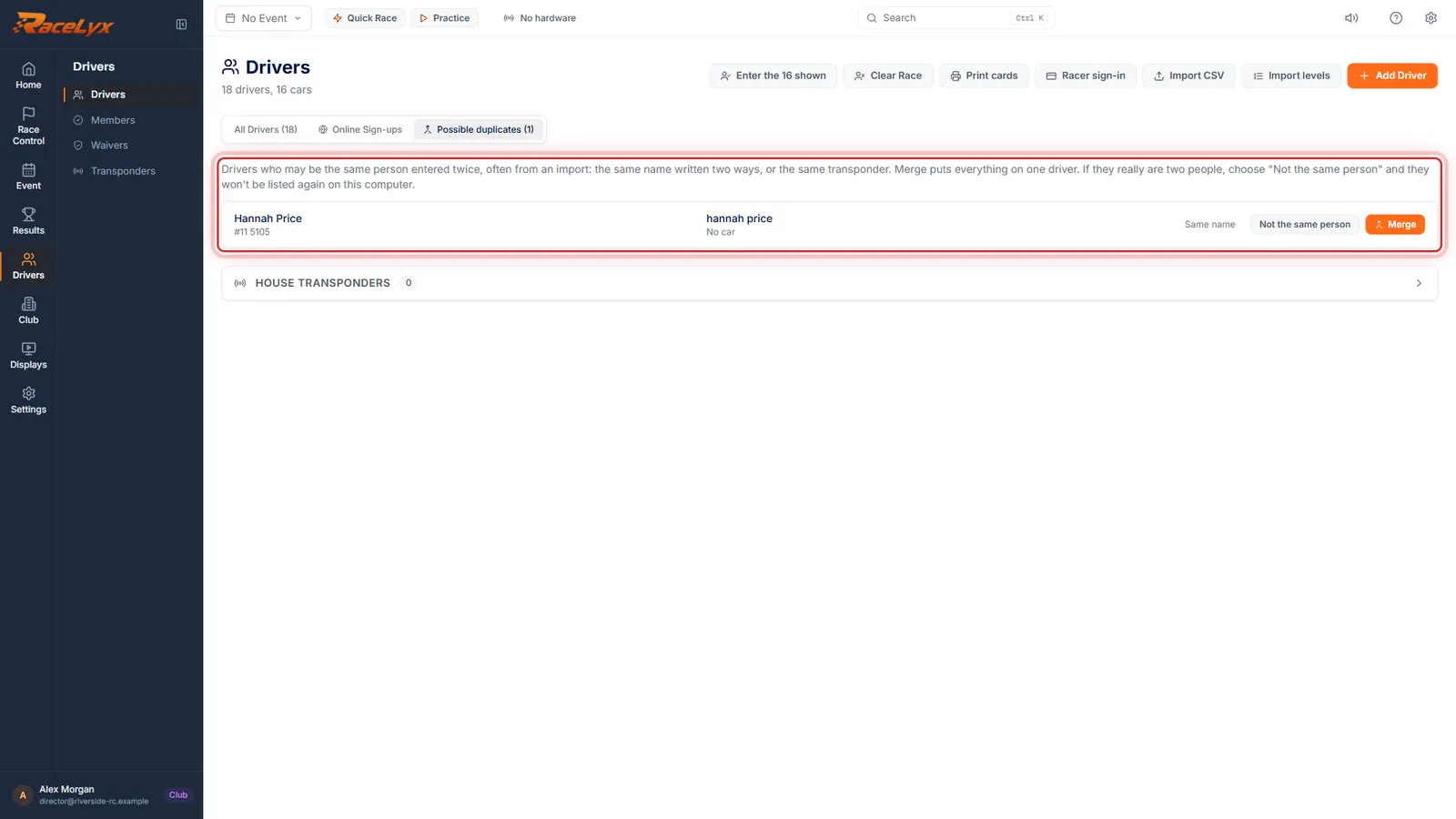
Open Drivers, Drivers. When someone looks like they are here twice, a Possible duplicates tab appears.
The number on the tab is how many pairs there are to look at.
- 2
Possible duplicates
Click it. Each pair shows both drivers, their cars, and why they look alike.
Three reasons: the same name written two ways, a short and long first name with the same last name (Nate and Nathan), or the same transponder.
- 3
Merge
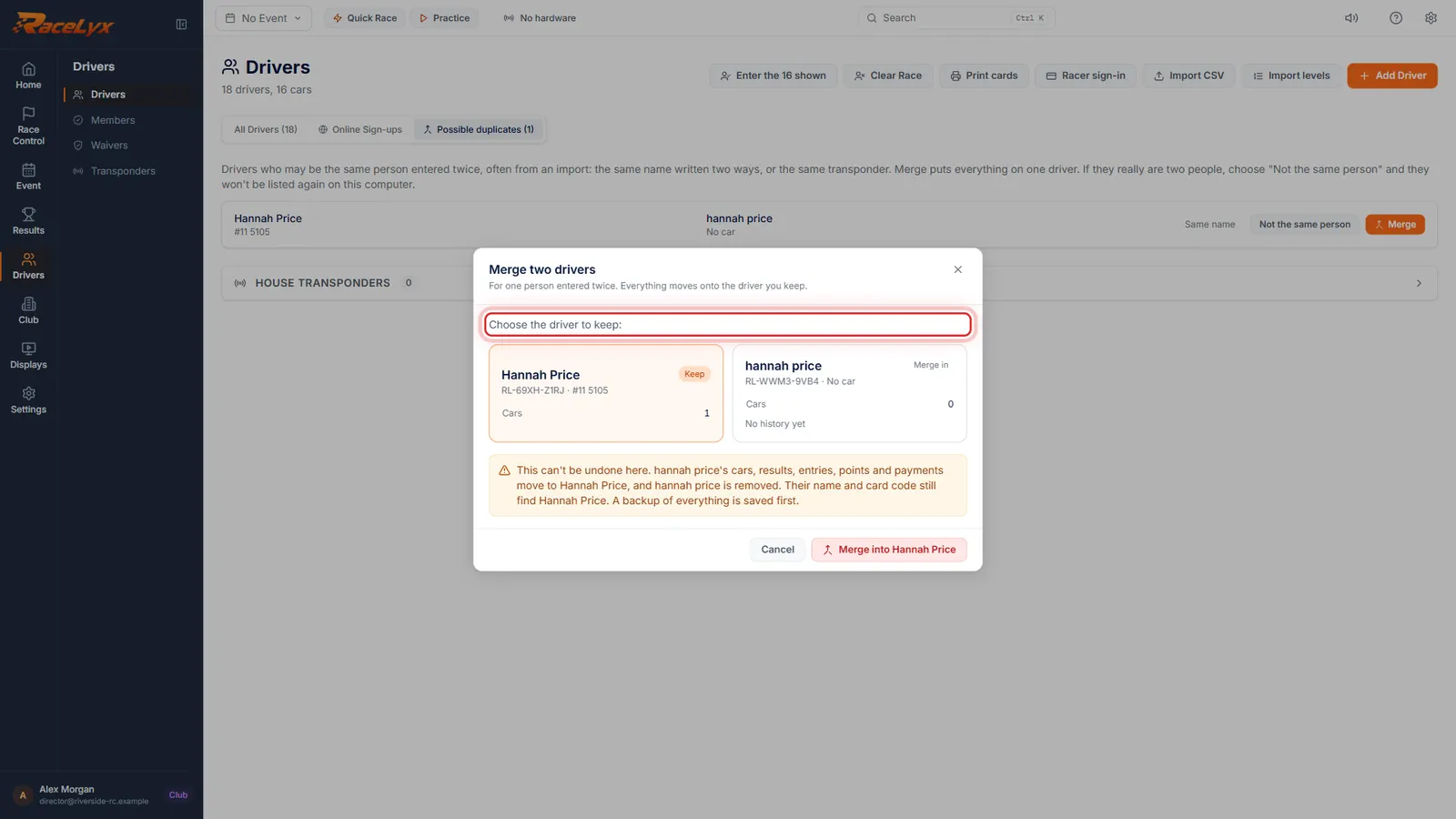
Click Merge on the pair. You see what each one has: cars, results, entries, points, loans and payments.
The driver with more history is picked to keep. Click the other column to keep that one instead.
- 4
Merge into the kept driver
Check the warning, then click Merge into Hannah Price. A backup is saved first.
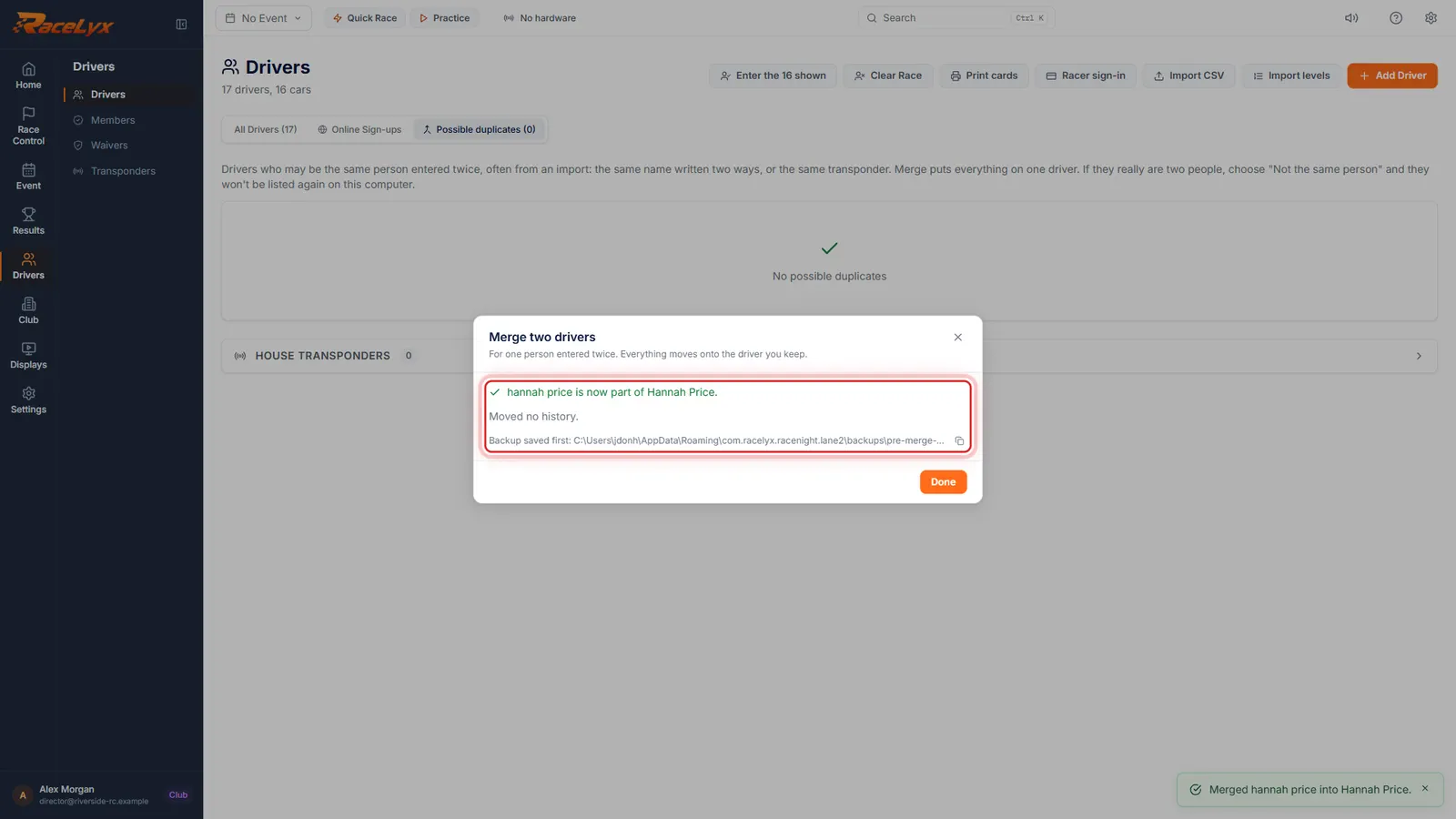
Everything moves to the kept driver and the other is removed. Their name and card code still find the kept driver. The message shows where the backup was saved.
- 5
Done
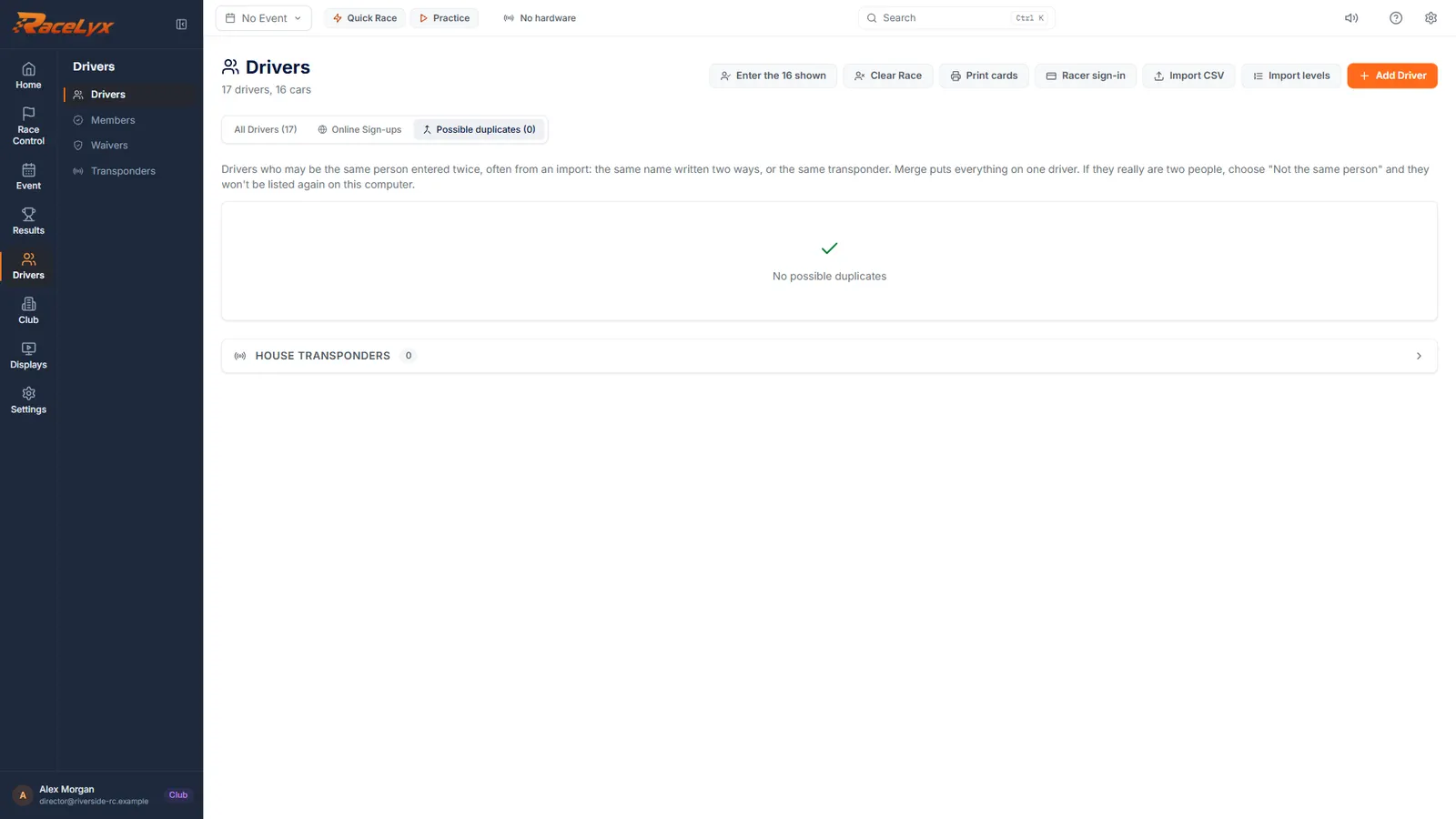
Click Done. One driver, with everything on them.
The pair drops off Possible duplicates.
Tips
- Every driver also has a Merge icon beside Edit and Delete, for a pair RaceLyx did not spot.
- If two drivers really are two people, click Not the same person and the pair is not listed again on this computer.
- The imports link to Possible duplicates after they finish.
Troubleshooting
- I merged the wrong way round.
- There is no undo on the page. The merge saved a backup first: Settings, Data & System, Restore database puts everything back as it was.
- There is no Possible duplicates tab.
- It only shows when a pair looks like one person. Use the Merge icon on the driver instead.
Related guides
Something here does not match what you see? Tell us and we will fix the guide.