RaceLyx Cloud keeps your drivers, events and results, but not your books (Financials) or expense receipts. The sure way to move is a Backup Database copy: it holds the whole database, and the receipts go in a folder beside it. Your licence runs on up to 3 computers at once, so release the old one when you are done.
Before you start
- A USB stick.
- The old PC still working.
- Your RaceLyx sign-in.
Step by step
- 1
On the old PC: Data & System
On the old PC, open Settings, Data & System.
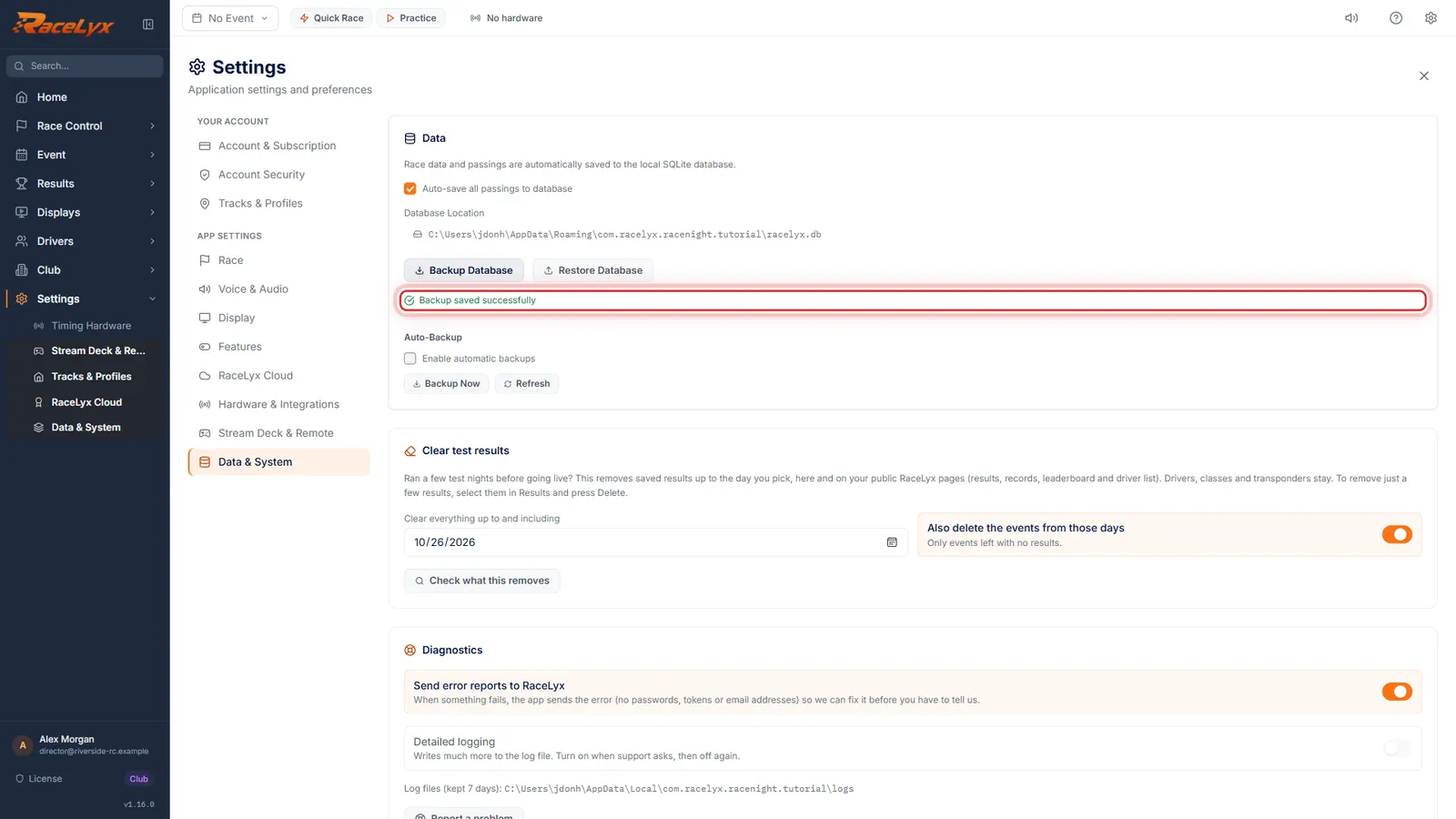
Open Settings from the sidebar and pick Data & System. Backup Database and Restore Database are under Data, with the Database Location above them.
- 2
Backup Database to the USB stick
Click Backup Database and save it to the USB stick. Copy the receipts folder beside it too.
Click Backup Database. In the Save window, pick the USB stick and keep the name, like racelyx-backup-2026-10-26.db. RaceLyx puts your receipts in a folder beside it ending in -receipts. Both must go to the new PC. Backup saved successfully shows when it is done.
- 3
On the new PC: install and sign in
On the new PC, install RaceLyx from racelyx.com, sign in with the same account, and open Settings, Data & System there too.
Download RaceLyx from racelyx.com and sign in with the same RaceLyx account. Skip setting anything up: the restore brings it all back. Plug in the USB stick.
- 4
Restore Database
Click Restore Database and pick the backup file on the USB stick. When it says Backup restored, close RaceLyx and open it again.
RaceLyx asks Restore this backup? first, saves whatever the new PC had to its backups folder, then restores the database and the receipts folder beside it. After the restart, check Financials and a receipt, then release the old PC on Settings, Account Security, Licensed computers.
Tips
- Restore replaces everything on the new PC. Do it before you set anything up there.
- Move between race nights, not on the day.
- Release the old PC on Settings, Account Security, Licensed computers, so it stops using a licence slot.
- Reconnect the decoder on Timing Hardware on the new PC: its COM port number is usually different.
- Displays, Stream Deck and OBS use the new PC's address. Copy it again from Displays & Overlays.
- If the old PC is dead, restore the newest Backup Database copy you have. Without one, sync and restore brings back drivers, events and results from RaceLyx Cloud, but not the books.
Troubleshooting
- Backup restored. Restart RaceLyx so every screen shows it.
- Close RaceLyx and open it again.
- The receipts are missing on the new PC.
- The -receipts folder was not beside the .db file when you restored. Copy it next to the backup file and restore again.
- RaceLyx says the licence is on too many computers.
- On a PC that works, open Settings, Account Security, Licensed computers and click Release on the old one. Releases are limited each month; contact support if you run out.
Related guides
Something here does not match what you see? Tell us and we will fix the guide.