A screen across the pits needs bigger text, and a projector in daylight needs a light theme. A network screen's look is set by its address; a screen plugged into this PC is set in Show on TV. Settings, Display keeps the timing PC from going to sleep.
Before you start
- The display server running, for the network screens.
Step by step
- 1
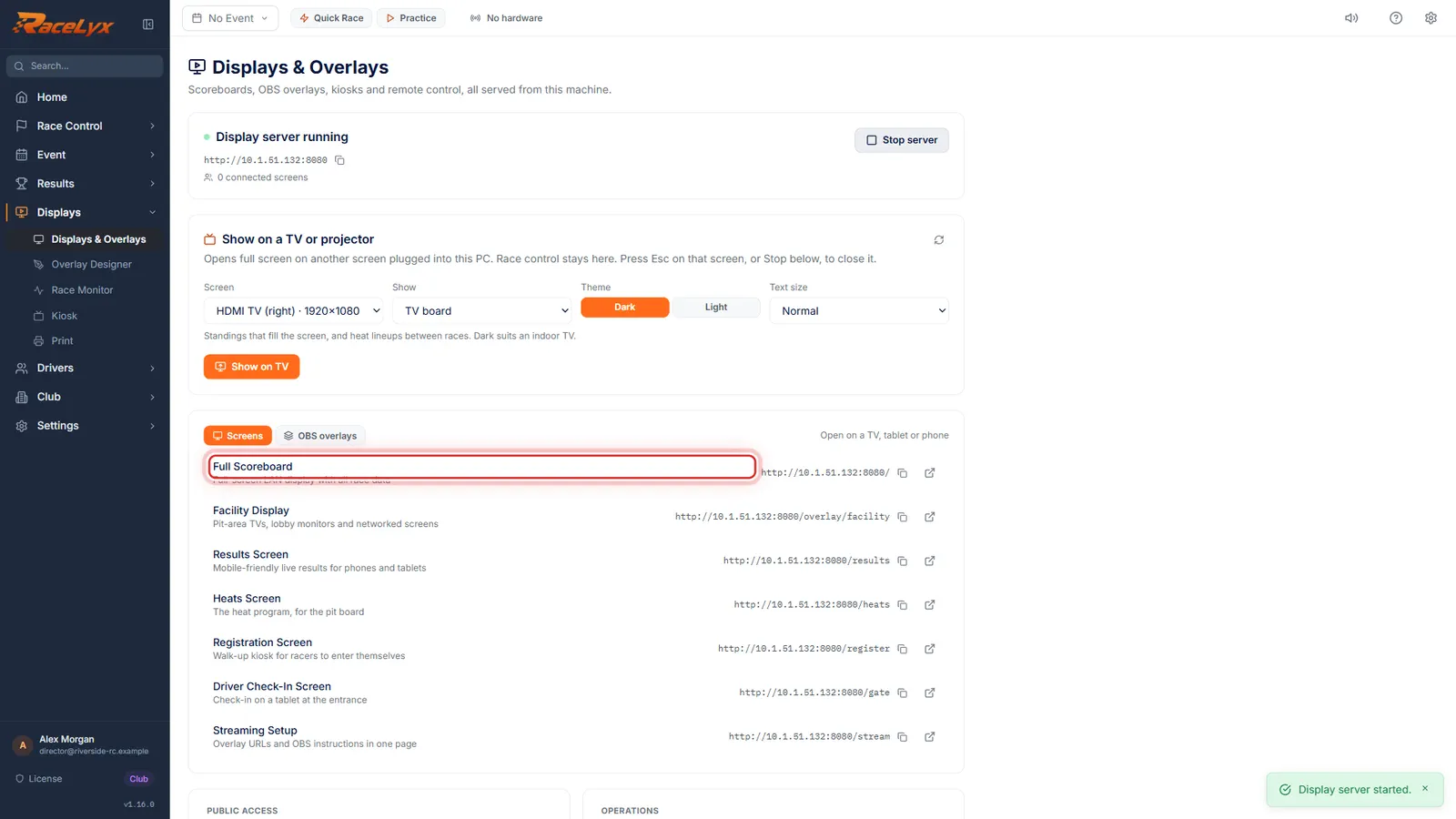
Screens and their addresses
On Displays, click Start server. Each screen on the Screens tab has its own address.
Full Scoreboard, Results Screen, Heats Screen and the rest each have an address to copy, for example http://192.168.1.20:8080/ for the Full Scoreboard.
- 2
Theme and size in the address
For a light board, add theme equals light to the screen's address. For bigger text, add scale, for example 1.5.
Type ?theme=light at the end of the address, for example http://192.168.1.20:8080/?theme=light. Add &scale=1.5 for one and a half times bigger, anything from 0.5 to 4: /?theme=light&scale=1.5. Streaming Setup's Look builds the same addresses for you.
- 3
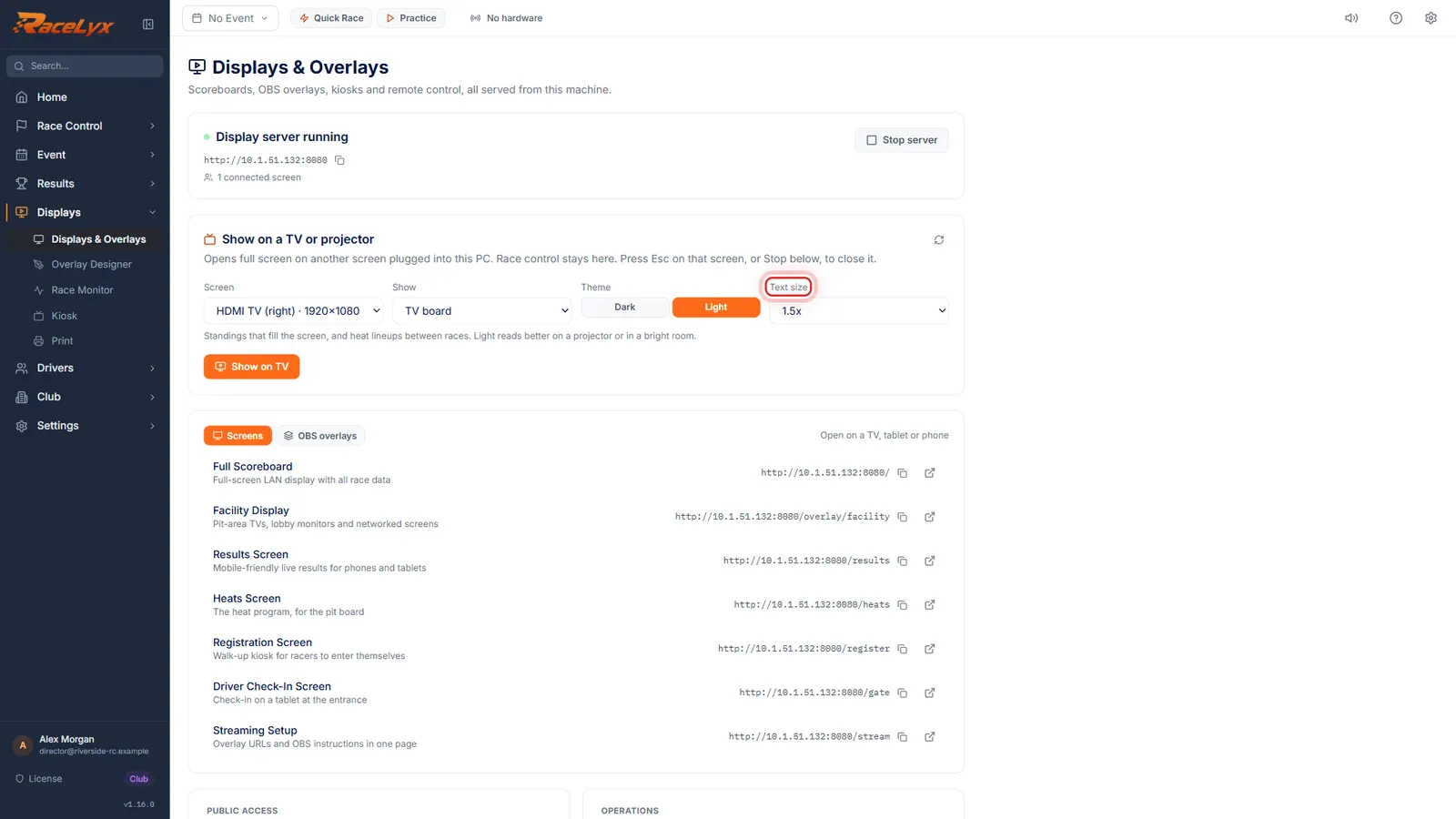
Show on TV: Theme and Text size
For a TV plugged into this PC, Show on TV has its own Theme and Text size.
Light reads better on a projector or in a bright room; Dark suits an indoor TV. Text size goes up to 2x for a big room. Show on a TV or projector covers the rest.
- 4
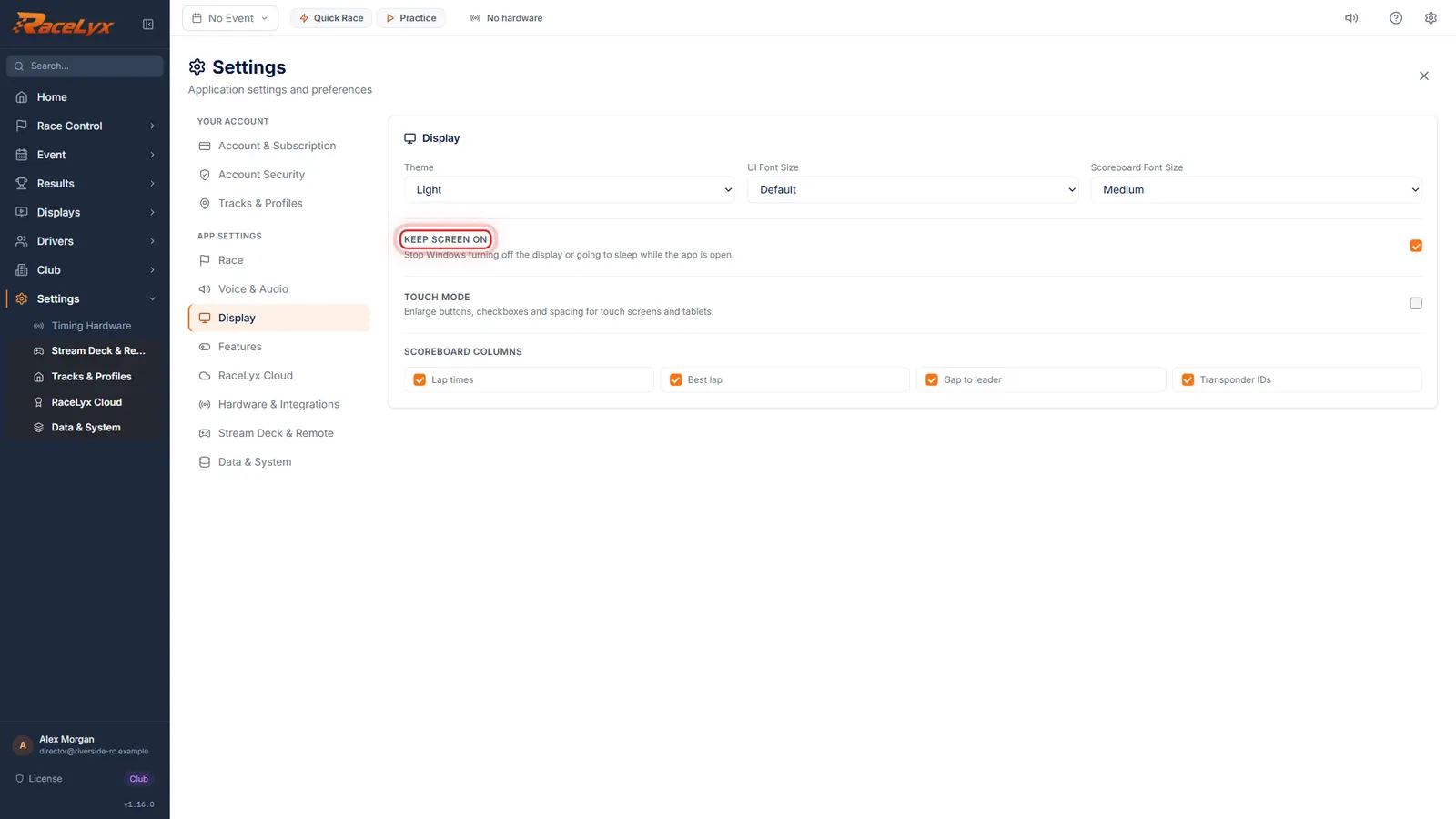
Keep Screen On
Open Settings, Display, and tick Keep Screen On. Windows will not sleep while RaceLyx is open.
Use it on the timing PC, and on any PC showing Kiosk or Show on TV. Touch Mode, below it, makes RaceLyx's own buttons bigger on a touch screen.
- 5
Scoreboard settings
Scoreboard Font Size and Scoreboard Columns are here too. In this version they do not change the network screens.
To change a network screen, use its address options, or Text size in Show on TV. Theme and UI Font Size on this page change RaceLyx itself, not the screens.
Tips
- Add ?theme=light to a screen's address for a projector or daylight, and ?scale=1.5 (anything from 0.5 to 4) for bigger everything. Join both with &: /?theme=light&scale=1.5.
- Streaming Setup's Look builds these addresses for you: pick Theme and Screen size, then copy.
- Show on TV has its own Theme and Text size for a screen plugged into this PC.
- Settings, Display: Scoreboard Font Size and Scoreboard Columns do not change the network screens in this version. Use the address options instead.
- Touch Mode, in Settings, Display, makes RaceLyx's own buttons bigger on a touch screen at the desk.
Troubleshooting
- I changed Scoreboard Font Size and the TV did not change.
- That setting does not reach the network screens yet. Add ?scale=1.5 to the screen's address.
- The timing PC's screen went to sleep mid-race.
- Tick Keep Screen On in Settings, Display.
Related guides
Something here does not match what you see? Tell us and we will fix the guide.