Display changes how RaceLyx looks on this computer: dark or light, bigger text for an outdoor desk in the sun, and bigger buttons for a touch screen. It changes this computer only; TVs and the live site are set up elsewhere.
Before you start
- Nothing; any plan.
Step by step
- 1
Open Settings, Display
Open Settings, Display.
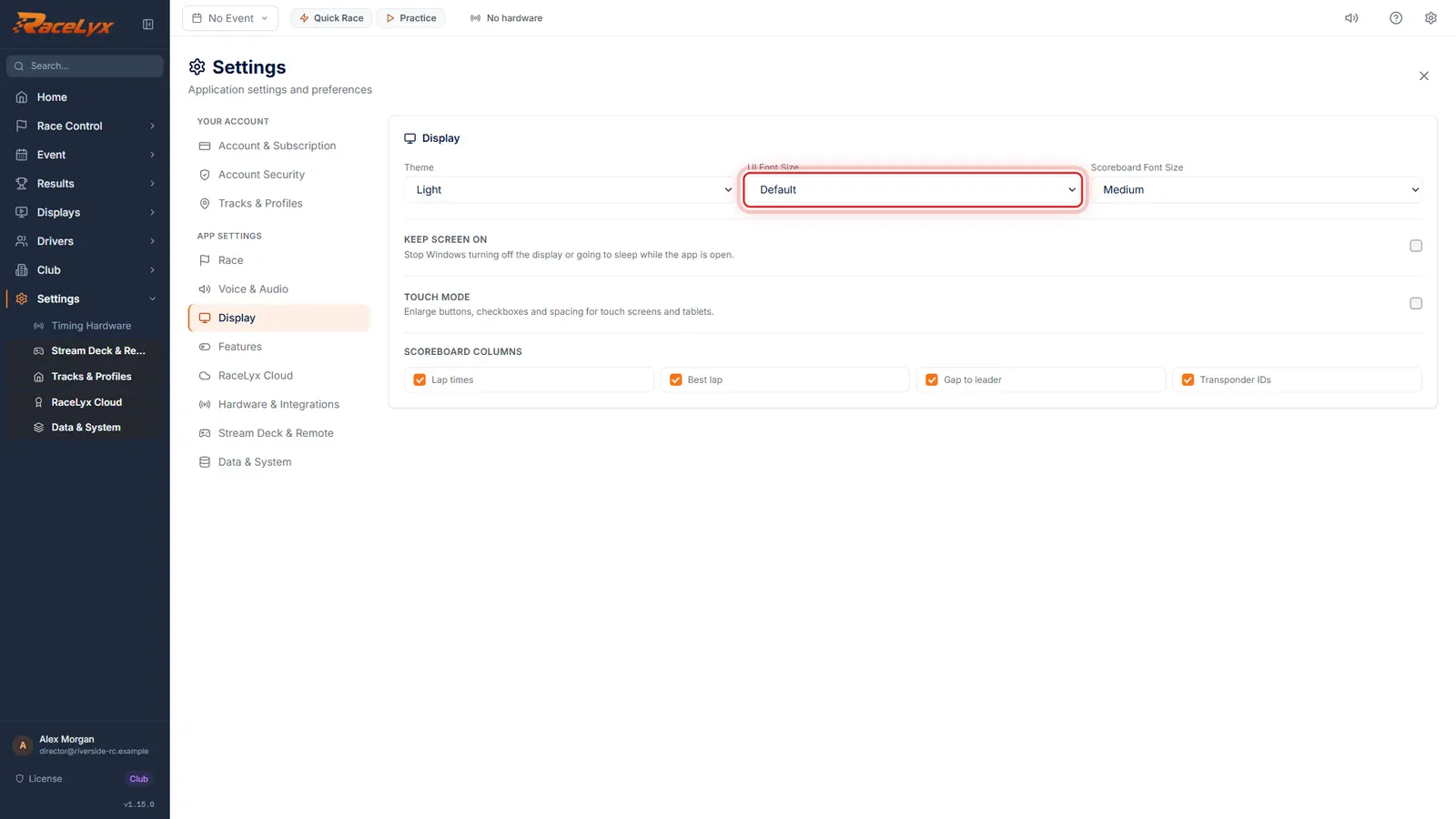
The Display card has Theme, UI Font Size and Scoreboard Font Size, then Keep Screen On, Touch Mode and Scoreboard Columns.
- 2
Theme
Theme picks Dark, Light, or System, which follows Windows.
The change is instant. Light reads better in sunshine at an outdoor desk; Dark is easier on the eyes at night.
- 3
UI Font Size
UI Font Size makes the text on every screen bigger or smaller. Large helps when you stand back from the desk.
The sizes are Compact, Default, Large and Extra Large. It applies to the whole app on this computer straight away.
- 4
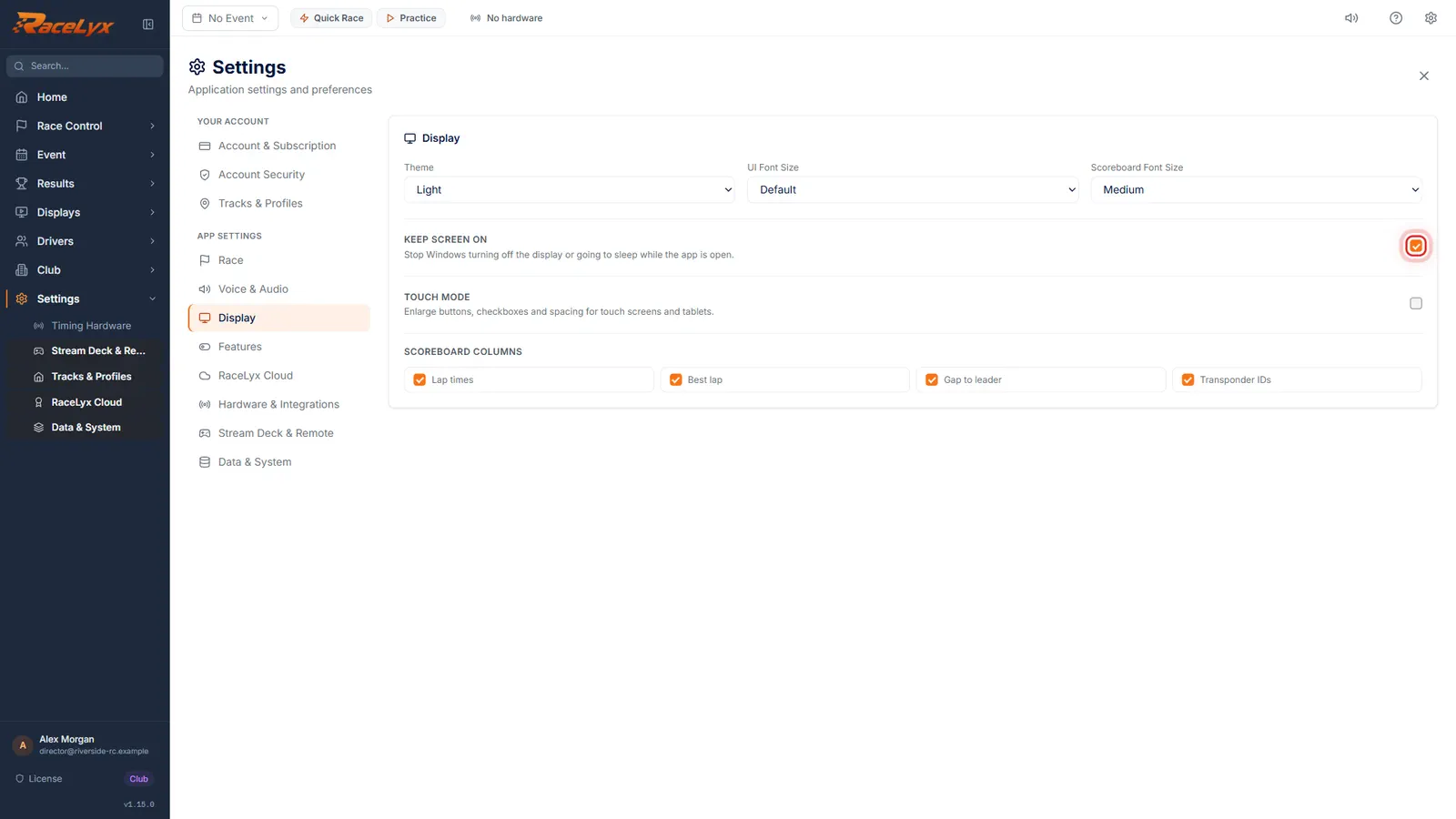
Keep Screen On
Switch on Keep Screen On, so Windows never sleeps in the middle of a heat.
It stops Windows turning off the display or going to sleep while RaceLyx is open, and it is switched on again every time RaceLyx starts.
- 5
Touch Mode
Using a touch screen or a tablet? Touch Mode makes buttons and boxes bigger.
It enlarges buttons, checkboxes and spacing. Scoreboard Font Size and the Scoreboard Columns ticks are saved, but they do not change any screen in this version.
Tips
- Light reads better in sunshine. Dark is easier on the eyes at night. System follows Windows.
- Keep Screen On stops Windows sleeping in the middle of a heat.
- Scoreboard Font Size and the Scoreboard Columns ticks are saved but do not change any screen in this version.
Troubleshooting
- The text is too small to read from the desk.
- Set UI Font Size to Large or Extra Large.
- The screen went to sleep during a heat.
- Switch on Keep Screen On. It is applied again every time RaceLyx starts.
Related guides
Something here does not match what you see? Tell us and we will fix the guide.