Most clubs run the same night every week: the same classes, rounds and mains. A template keeps that whole setup under a name, so next time New Event fills every step in and you only check the name and date. RaceLyx offers to save one each time you apply a new event. Templates belong to the track you have selected.
Before you start
- Classes set up. You save the first template at the end of a normal Event Setup.
Step by step
- 1
Set up the night as usual
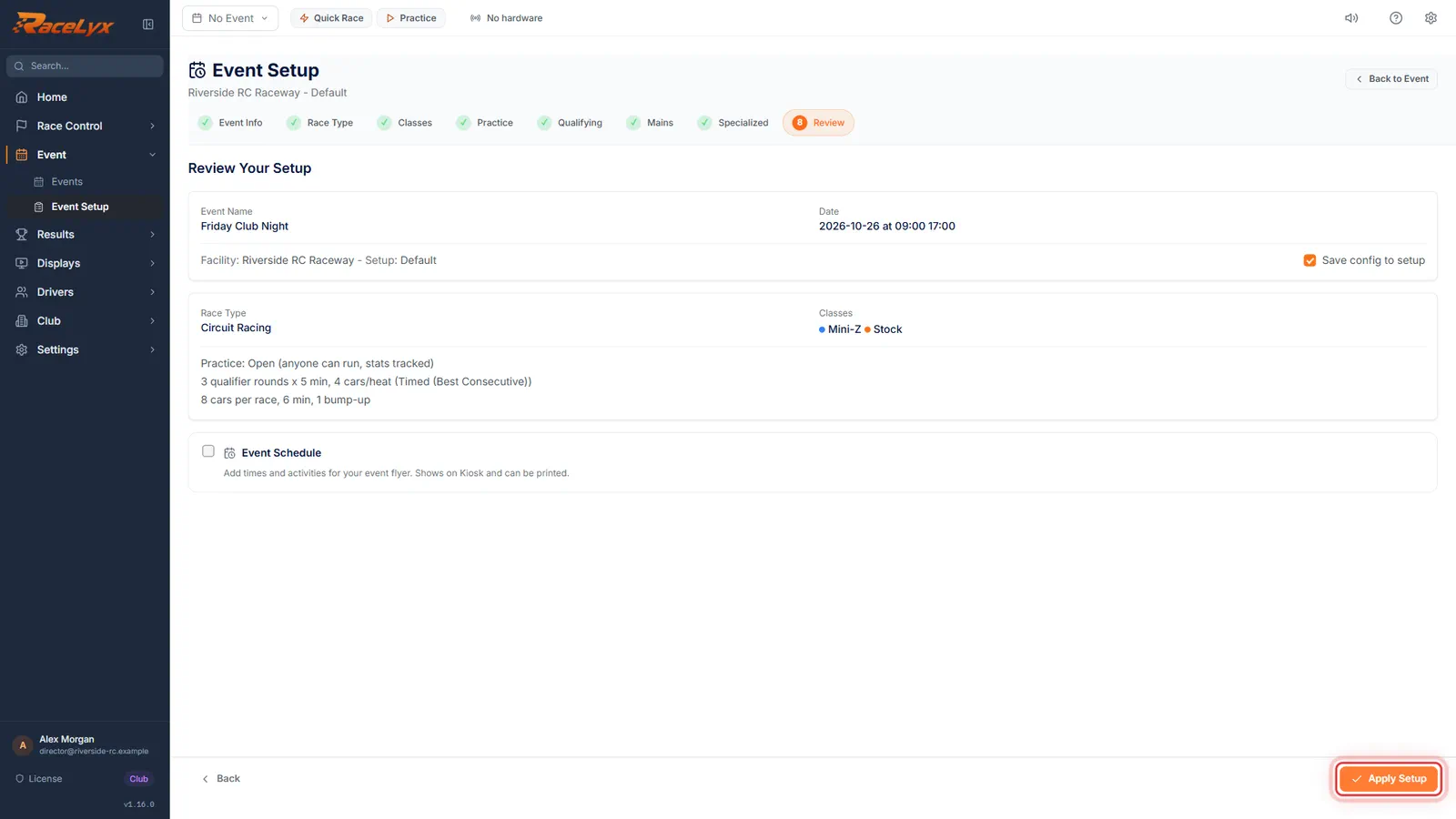
Set up the event as usual. Here a Friday club night: Circuit Racing, both classes, and the usual settings.
Event Setup, Standalone Event, then the name, Race Type, Classes, Practice, Qualifying, Mains and Specialized, as in Create an event. Whatever you set here is what the template will hold.
- 2
Save as Template?
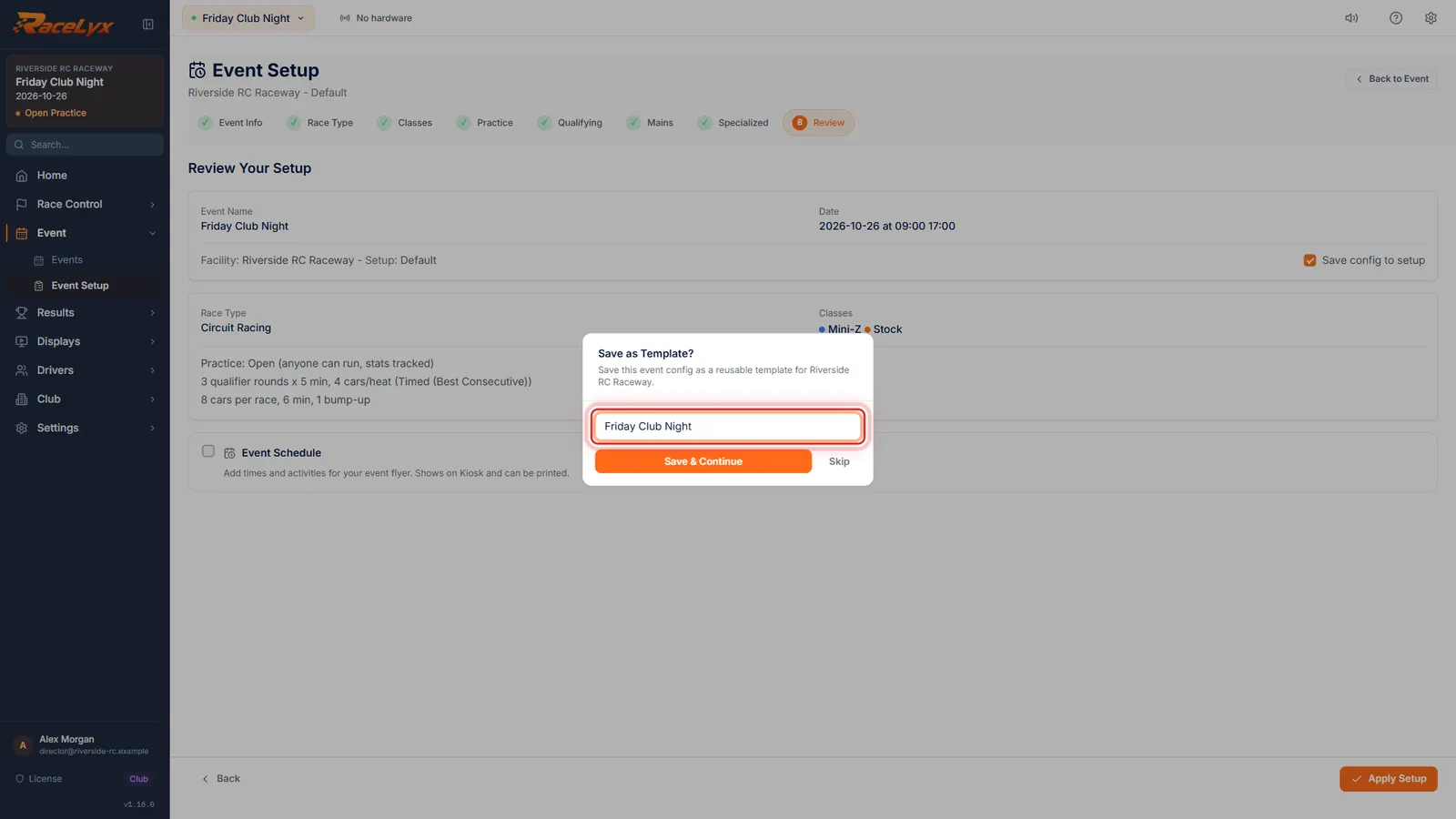
Click Apply Setup. RaceLyx asks Save as Template? Give it a name for the night, not the date.
The box says it saves this event config as a reusable template for your track. The name starts as the event name plus "template". Press Enter or click Save & Continue. Skip goes on without saving.
- 3
Save & Continue
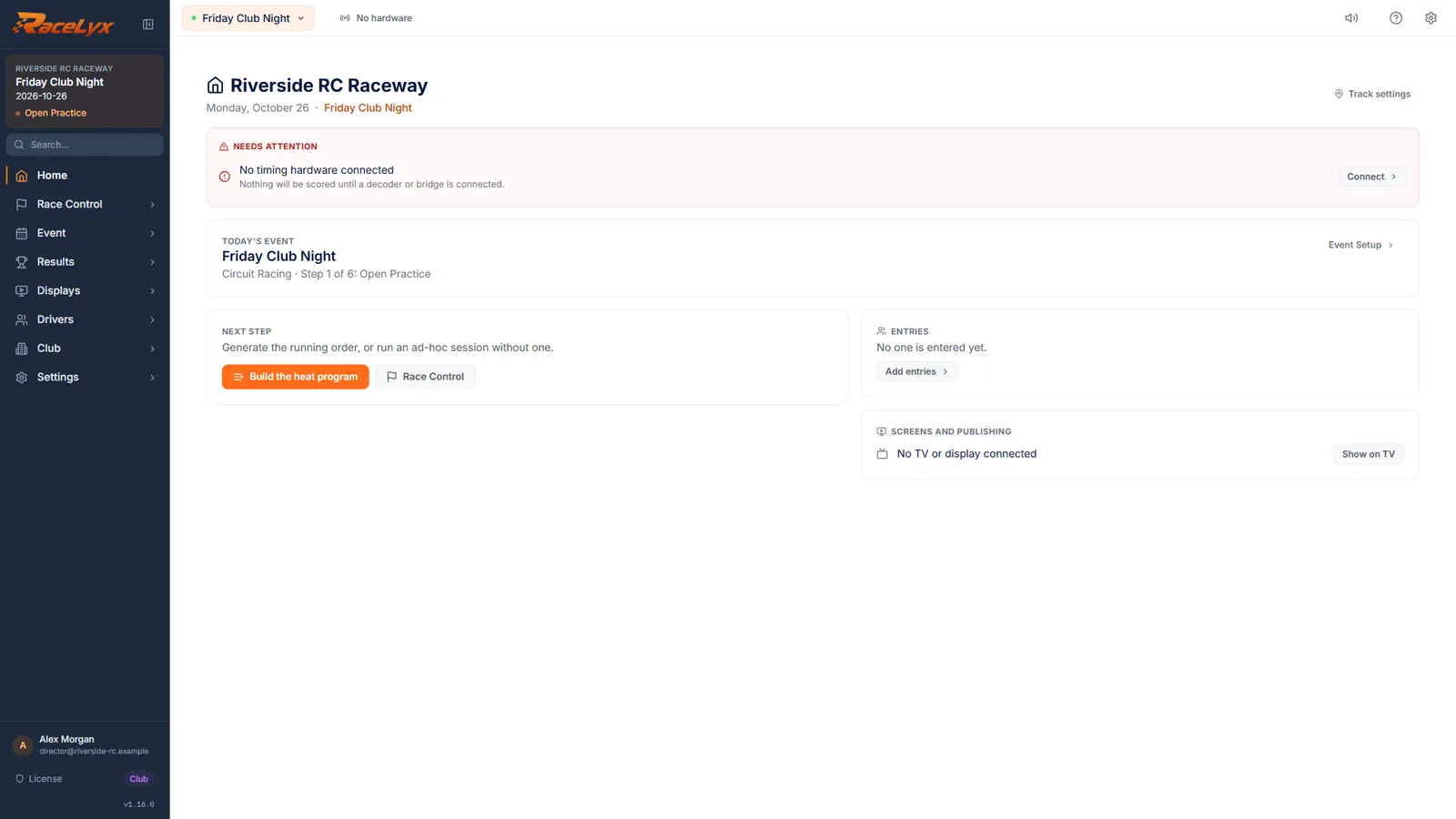
Click Save & Continue. The event starts, and the template is kept for next time.
The template holds the whole setup: race type, classes, practice, qualifying, mains, specialized settings and the agenda. It does not hold entries, heats or results.
- 4
New Event
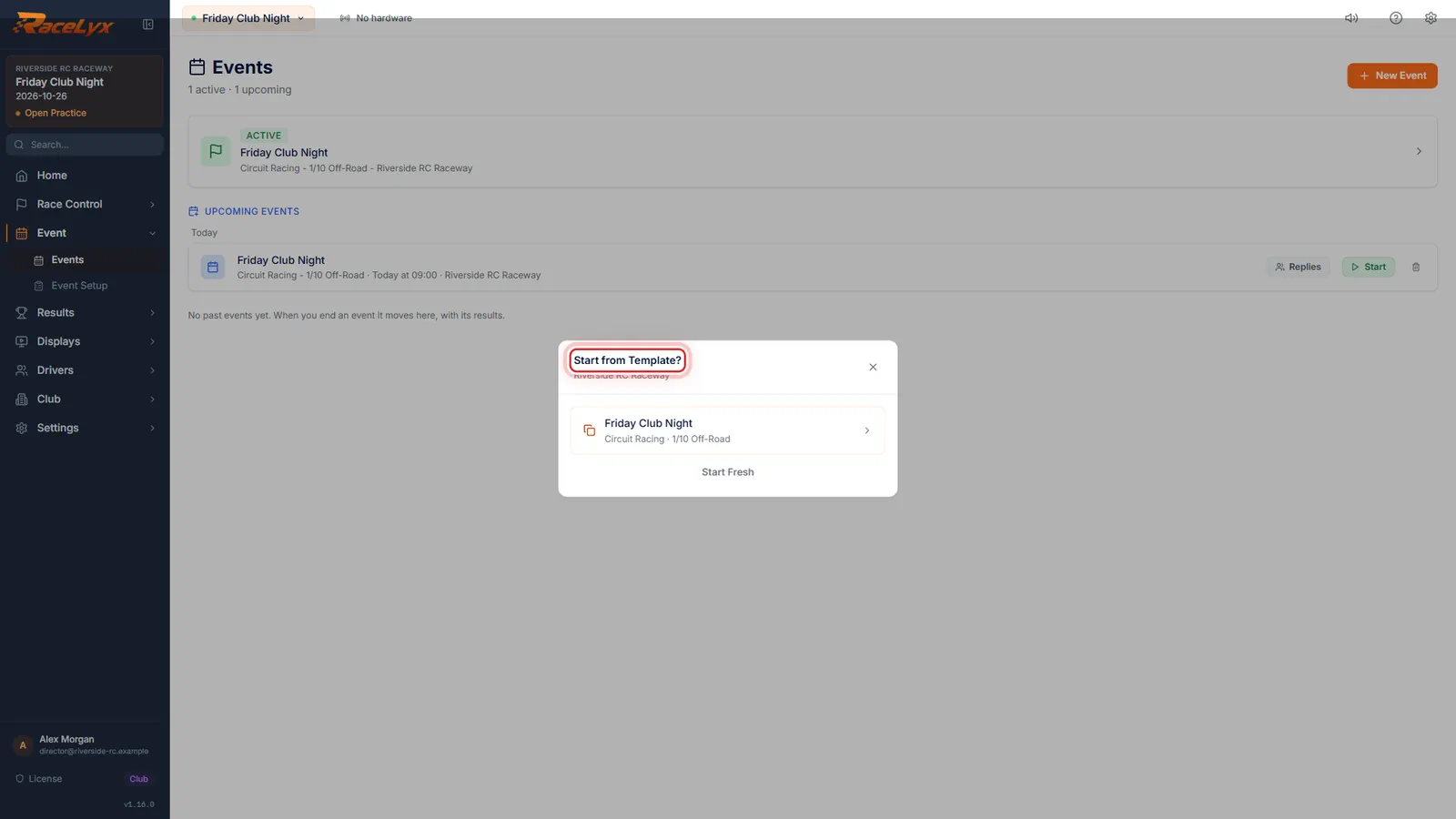
Next week, open Event, Events and click New Event. RaceLyx asks Start from Template? and lists yours.
Start from Template? lists every template for your track with its race type, plus Start Fresh for a blank setup. Event Setup's own start screen has the same choice as a Start from Template card when no event is running.
- 5
Pick the template
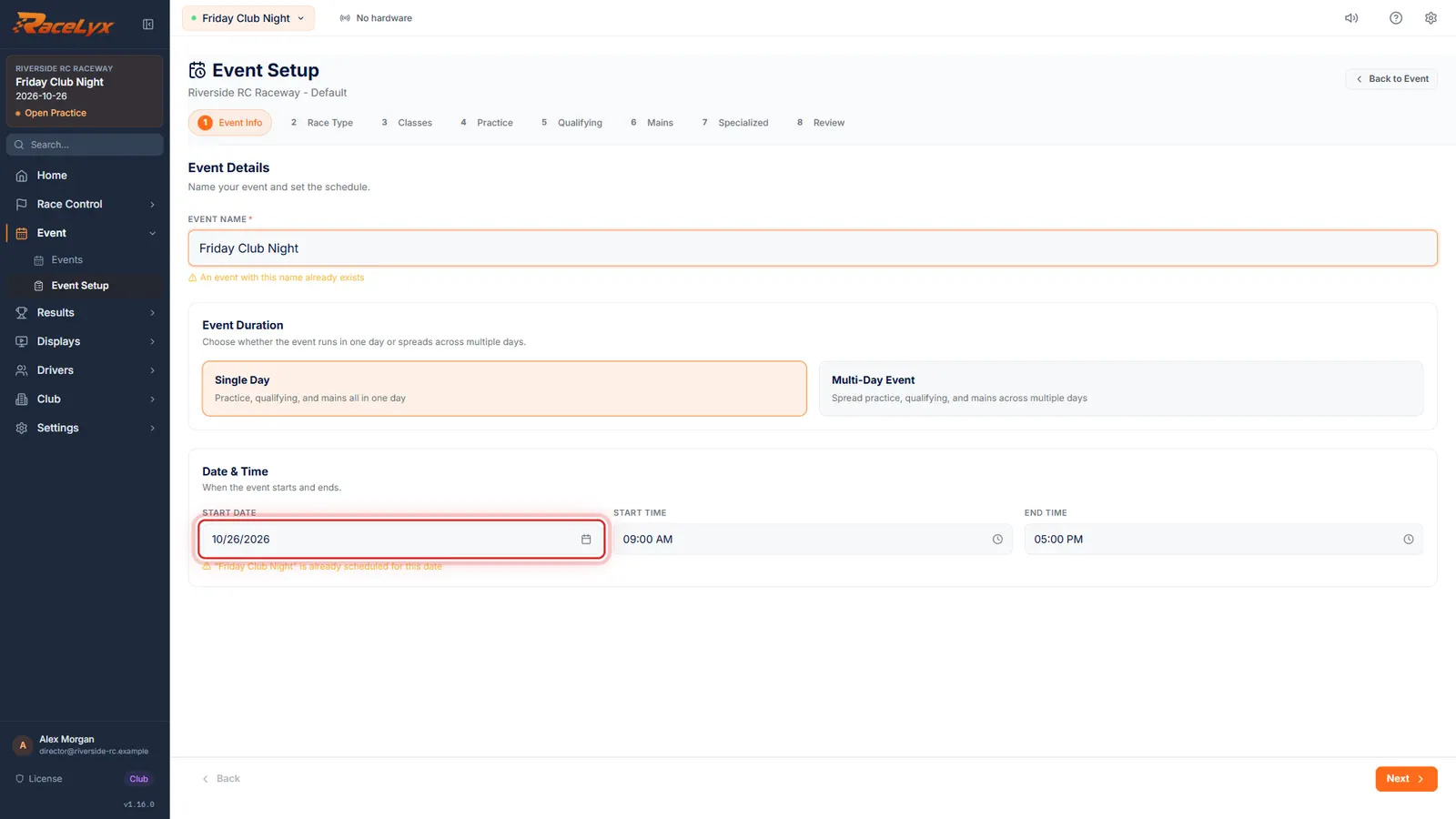
Click the template. Event Setup opens with every step filled in. Change the name and check Start Date: a template keeps the date it was saved with.
Event Info shows the template's name and its saved date. Type tonight's name, and set Start Date to today, or to a future date to schedule it. The other steps are exactly as saved.
- 6
Update or save as new
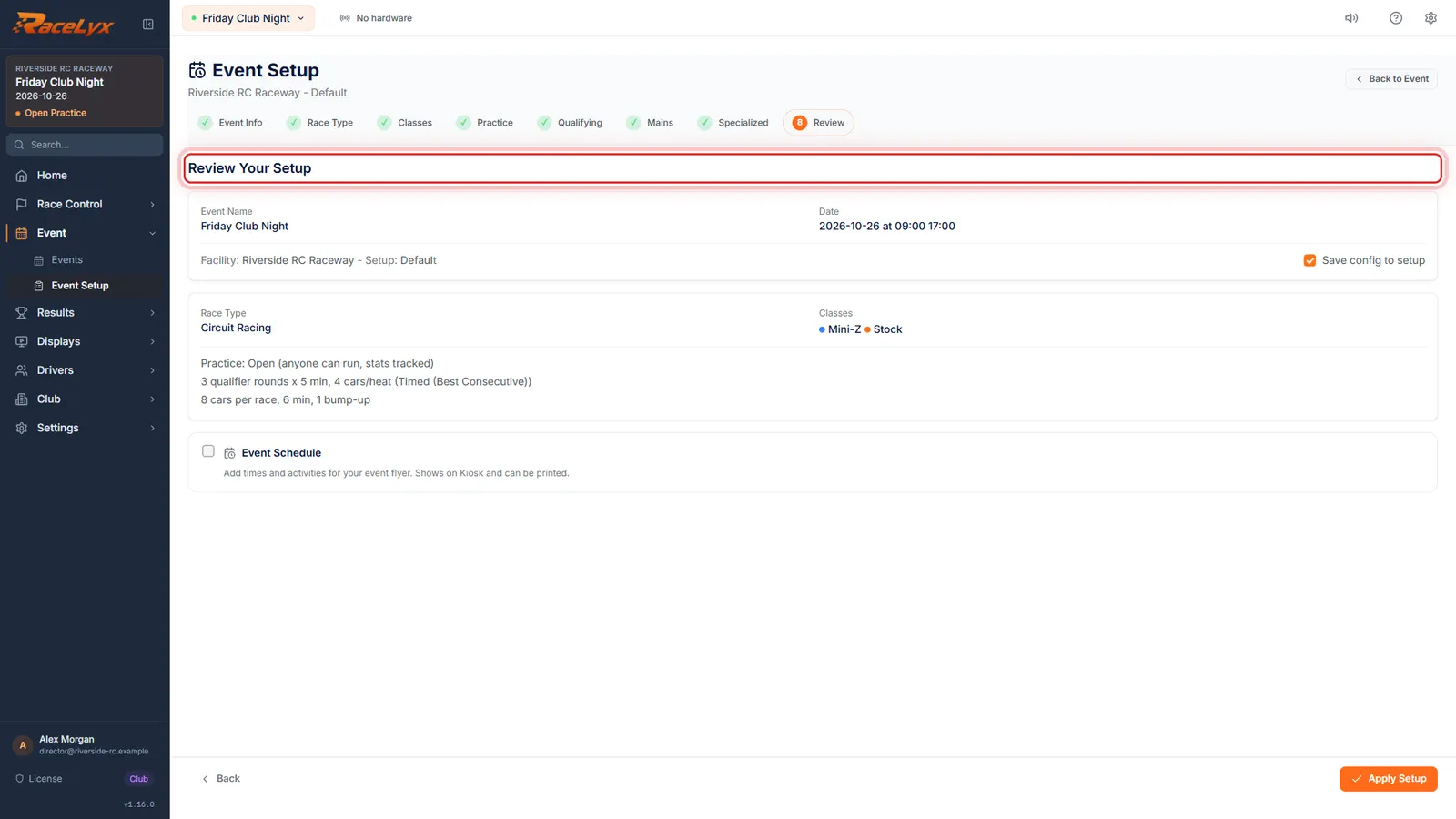
Review shows the whole setup. After Apply Setup, Update Template keeps any change in this template, and Save as New makes a second one.
Started from a template, the box after Apply Setup is Update Template?, with Update Template, Save as New and Skip. Save as New asks for a name, then Save & Continue. Skip leaves the template as it was.
Tips
- Name templates for the night, not the date: Friday Club Night, Summer Points Round, Mini-Z Night.
- A template keeps everything, including the event name and the date it was saved with. Change both before you click Apply Setup.
- Started from a template and changed something? After Apply Setup, Update Template keeps the change in the template; Save as New makes a second template and leaves the first alone.
- To delete one, open Event Setup with no event running (or New Event), click Start from Template, then Delete on its card. It goes at once, with no confirm.
- There is no rename. Save as New under the new name, then delete the old one.
- A future Start Date schedules the event instead, and no template prompt comes up.
Troubleshooting
- No Save as Template? box came up after Apply Setup.
- It is skipped when the event was set up from your track's saved setup rather than started fresh, and when the event was scheduled for a later date. Start the next one with New Event to get the prompt.
- Start from Template is missing.
- It shows only when the selected track has at least one template. Check the track in Settings, Tracks & Profiles.
- The event started with last week's date.
- The template kept the date it was saved with. Edit Event, Event Info, and set Start Date to today.
Related guides
Something here does not match what you see? Tell us and we will fix the guide.