With timing gates, a beam or transponder gate at the start and another at the finish time every run, so nobody presses START or FINISH. You pick the gates once in Event Setup; Rally Control then stages each car and the beams do the rest. Rally is free on every plan.
Before you start
- A LyxBridge with its gates checked in, or a decoder at the start and another at the finish, connected on Timing Hardware.
- Classes and drivers set up.
Step by step
- 1
Start a rally event
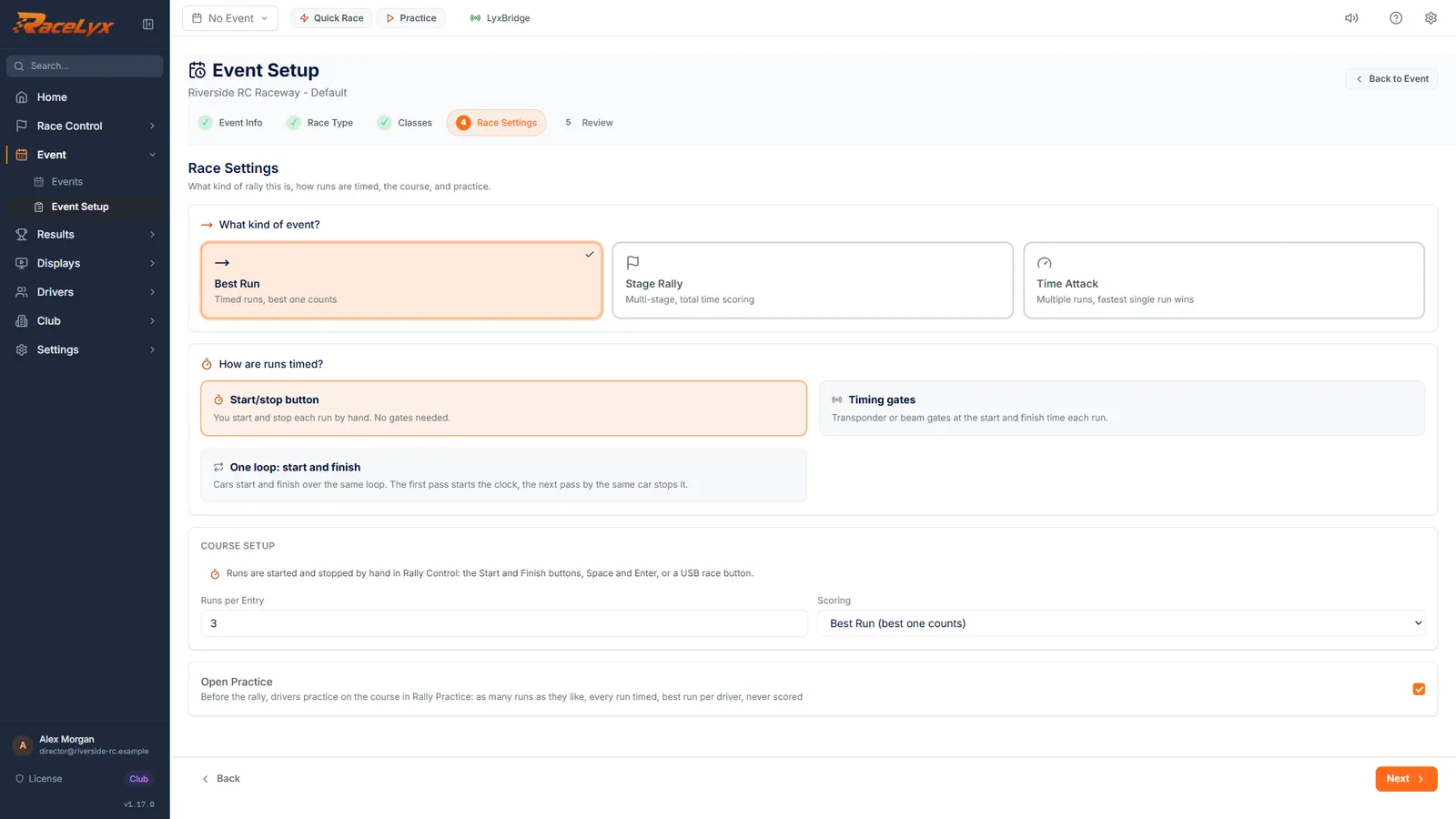
In Event Setup, choose Standalone Event and name the rally. Pick Rally, tick your classes, and on Race Settings choose Best Run.
Event Info, Race Type and Classes come first. Race Settings sets the kind of rally, the timing and the course. Best Run is timed runs where the best one counts; pick it before the timing, because it resets the timing to the start/stop button.
- 2
Choose Timing gates
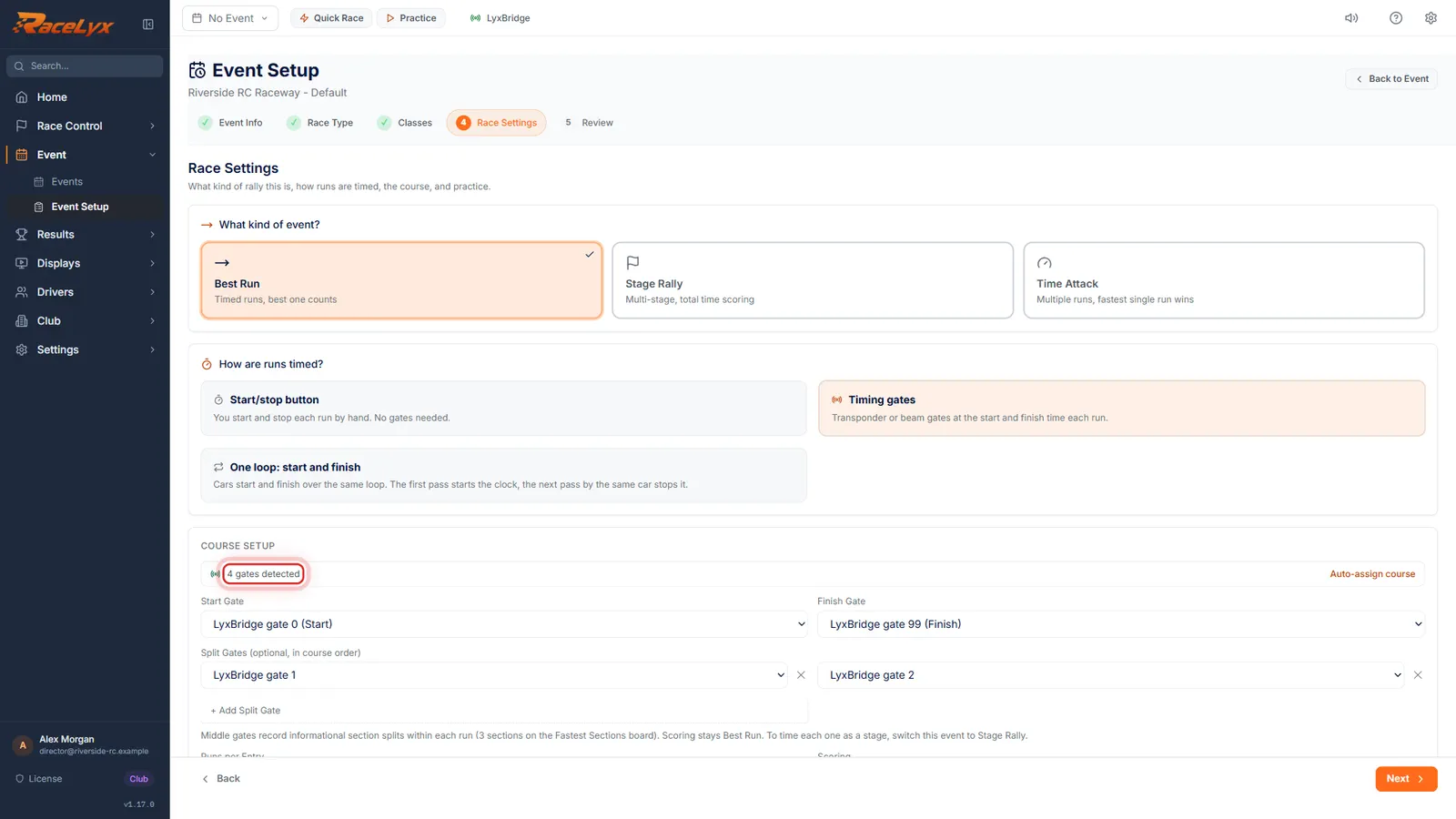
Under How are runs timed?, choose Timing gates. RaceLyx says how many gates it can see.
Timing gates: transponder or beam gates at the start and finish time each run. The line above the course says how many gates are detected and offers Auto-assign course. With none, it says No timing gates detected: connect them on Timing Hardware first.
- 3
Start Gate and Finish Gate
Check the Start Gate and the Finish Gate. RaceLyx fills them in when it sees two or more gates.
LyxBridge gate 0 is the start and gate 99 the finish; with decoders, pick the one at each end. Each list leaves out the gate the other one uses. Middle gates go under Split Gates (optional, in course order): they record section times without changing the scoring, and + Add Split Gate adds one.
- 4
Runs and scoring
Set Runs per Entry and the Scoring, then click Next.
3 runs scored on Best Run (best one counts) suits most club rallies. Average of all runs rewards consistency instead.
- 5
Review and Apply
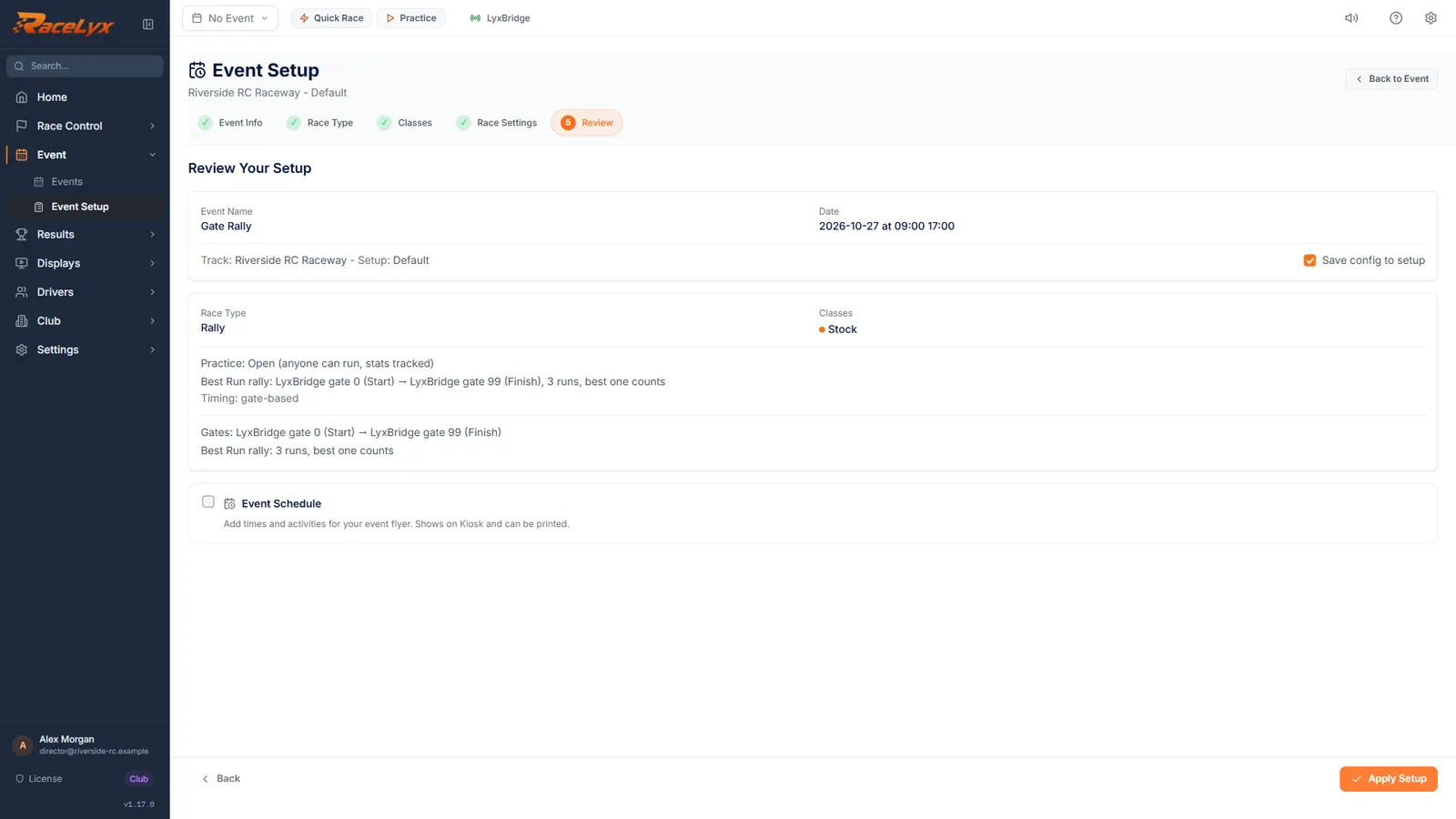
Review shows the gates, start to finish. Click Apply Setup.
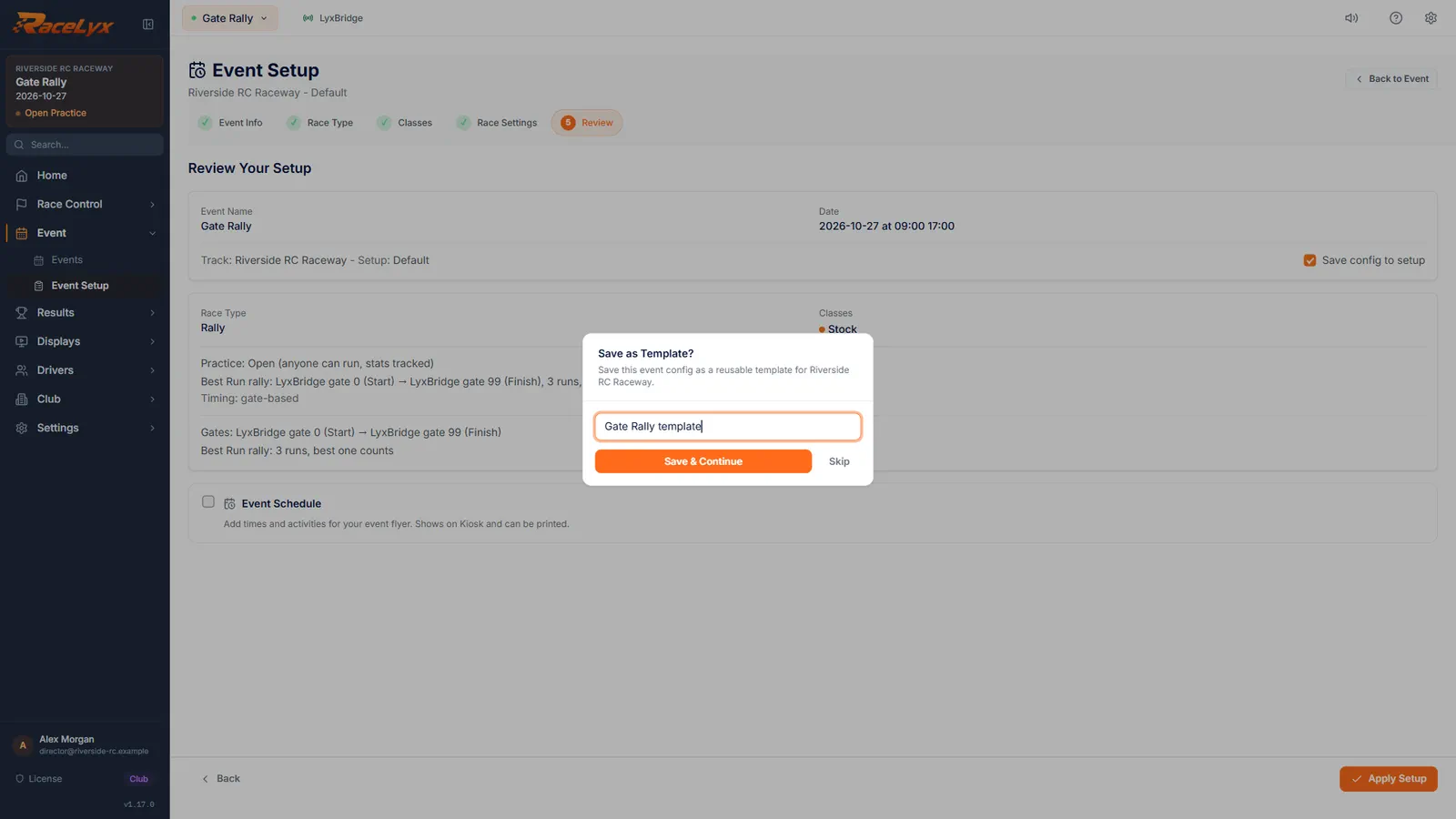
Review names the start gate and the finish gate, or says start not set. Apply Setup makes this the active event.
- 6
Start the rally
Open Race Control, Rally, select the drivers, and click Start Best Run Rally.
Event Configuration says Gate-based timing (transponder). If the event has no gates set, a warning says No timing gates are set, with a link back to Race Settings.
- 7
Stage the car
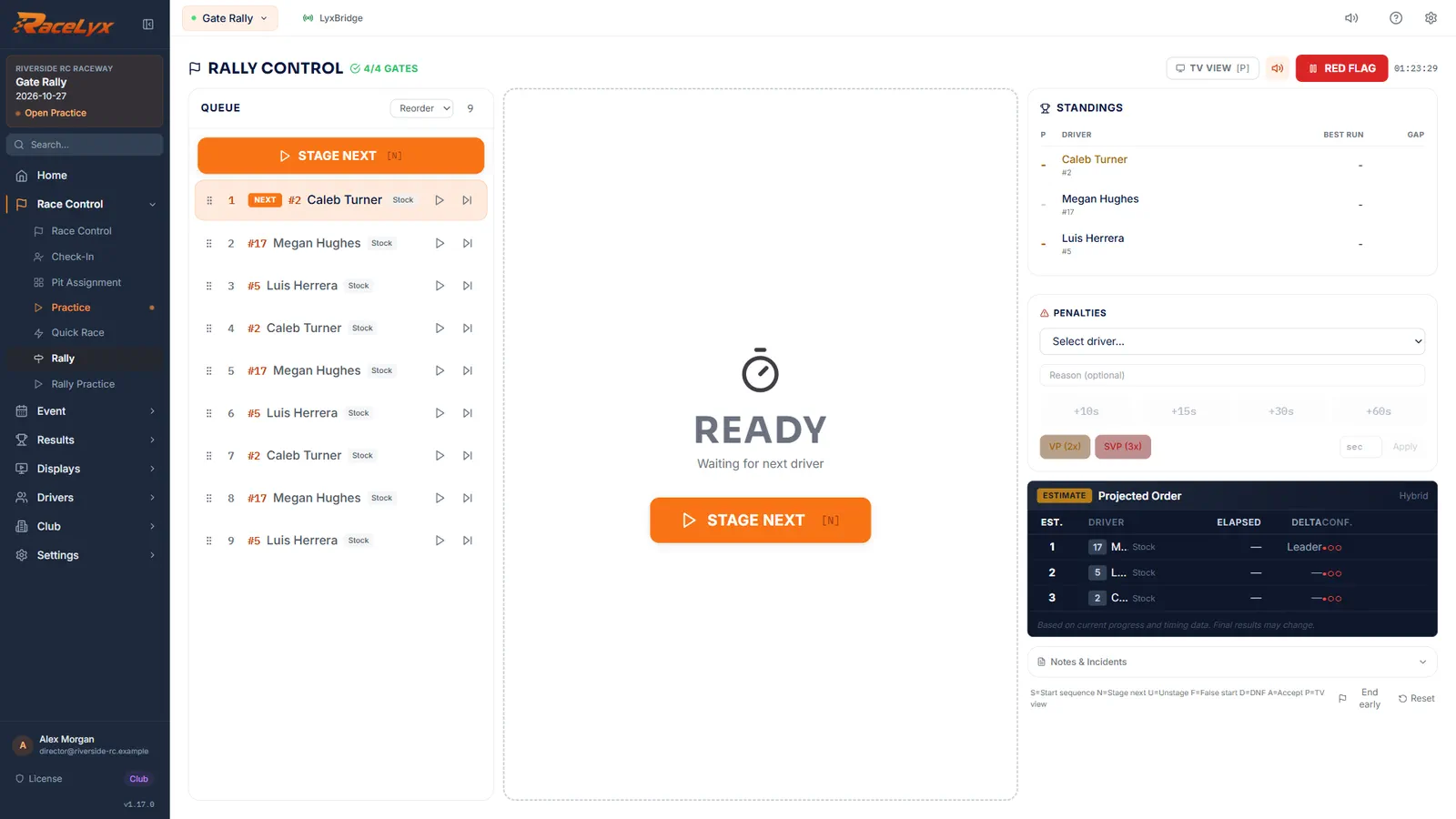
Click STAGE NEXT, or press N. There is no START button: the gates start the clock.
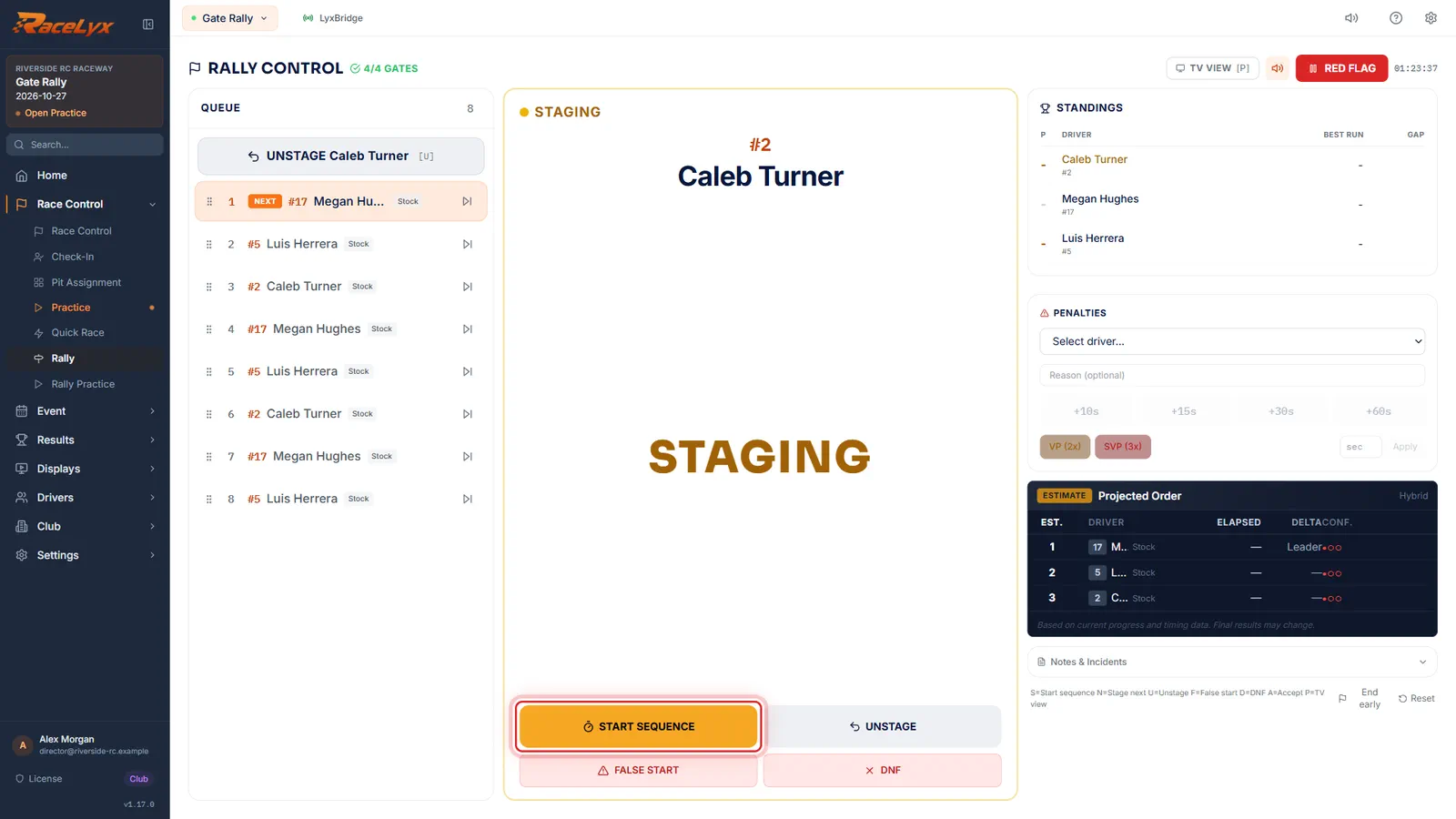
The car rolls up to the start beam. START SEQUENCE (or S) runs a 3-2-1-GO countdown and starts the clock on GO. Without it, the clock starts when the car breaks the start beam. UNSTAGE puts a wrong car back in the queue.
- 8
The beams time the run
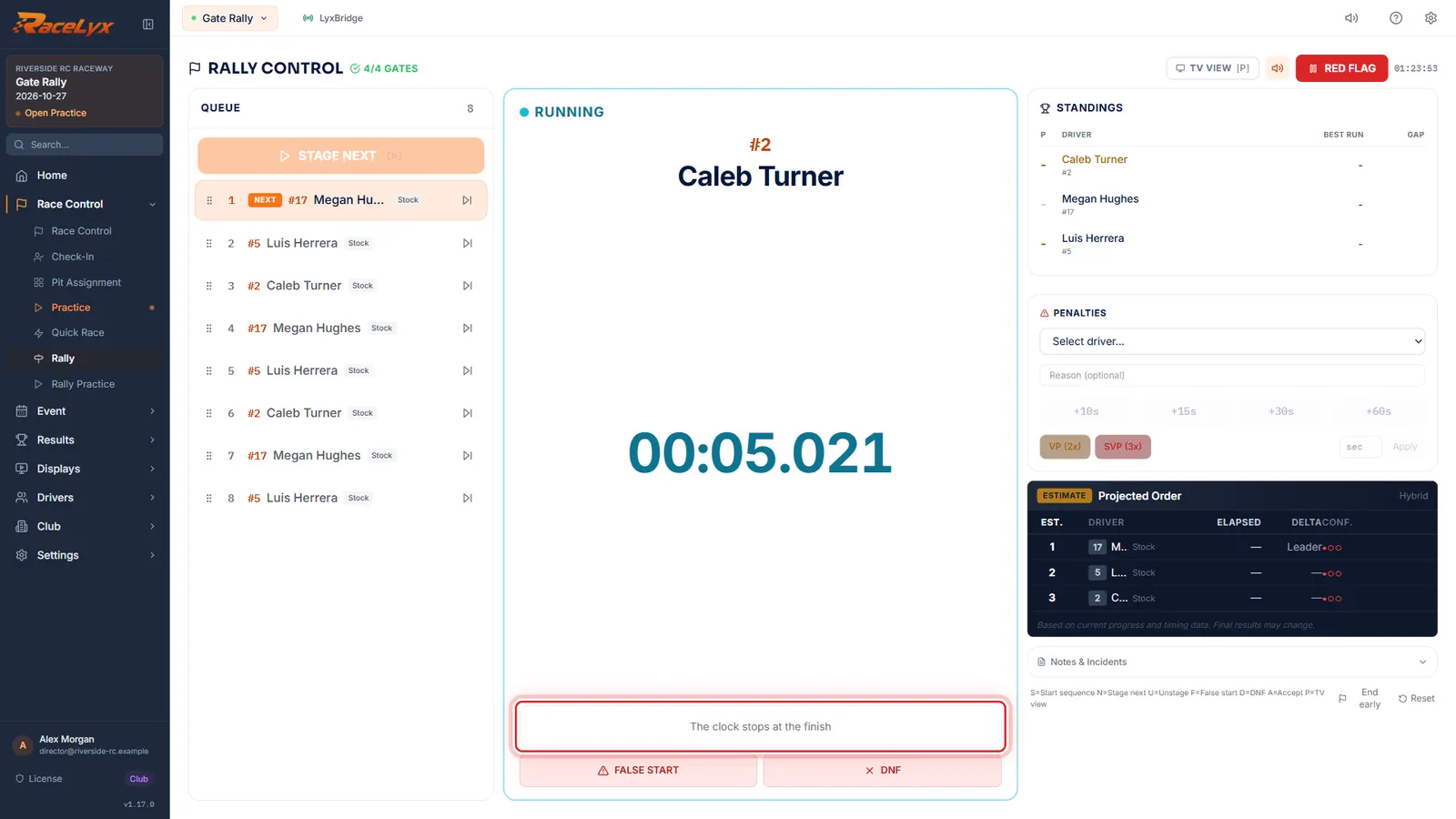
Press START SEQUENCE. The clock runs, and the finish beam stops it.
While the car is out, the panel says The clock stops at the finish. Split gates fill in Split 1, Split 2 under the clock. When the finish beam fires the time shows under the clock: press ACCEPT (or A), and the next car is staged.
- 9
When a gate misses a car
If the finish misses the car, the run goes overdue. Press DNF, or hold the race button to scratch the run and go again.
DNF ends the run with no time. Holding a USB race button scratches the run: the driver goes back to the front of the queue and nothing counts. FALSE START also sends them back, but counts a false start. A finished run's time can be corrected later with the pencil in the Run Log.
Tips
- LyxBridge gate 0 is the start and gate 99 the finish. With two or more gates checked in, RaceLyx fills Start Gate and Finish Gate by itself, and Auto-assign course does it again.
- Split Gates are optional middle gates: they give section times on the Fastest Sections board but do not change scoring.
- START SEQUENCE (or S, or the race button) counts 3-2-1-GO and starts the clock on GO. Without it, the start beam starts the clock.
- A beam cannot tell cars apart, so the first car out is taken as the first to finish. Keep one car on course, or use transponder gates.
- Gates are stored by name, so an event built with the hardware unplugged (gates marked [saved]) binds to it on race day.
Troubleshooting
- "No timing gates are set" when you start the rally.
- Event Setup has no start and finish gate for this rally. Set them in Event Setup, Race Settings, or switch the event to Start/stop button.
- The finish beam missed the car and DNF (OVERDUE) is flashing.
- Press DNF to end the run. To run it again with nothing counted, hold the USB race button to scratch it. FALSE START also sends the driver back, but counts a false start against them.
- A gate shows offline in Rally Control.
- Its battery may be flat or it is out of range. Ping it on Timing Hardware.
- "Selected gate no longer detected".
- That gate is switched off or out of range. Switch it on, or pick another gate.
Related guides
Something here does not match what you see? Tell us and we will fix the guide.