The usual real Stage Rally is one course with gates along it: gate 1 to gate 2 is Stage 1, gate 2 to gate 3 is Stage 2, and so on. Each car runs the chain and its stage times add up; the fastest total wins. You set the chain once in Event Setup, with Timing gates.
Before you start
- LyxBridge gates checked in on Timing Hardware, or remembered from an earlier event.
- Classes and drivers set up.
Step by step
- 1
Start a Stage Rally
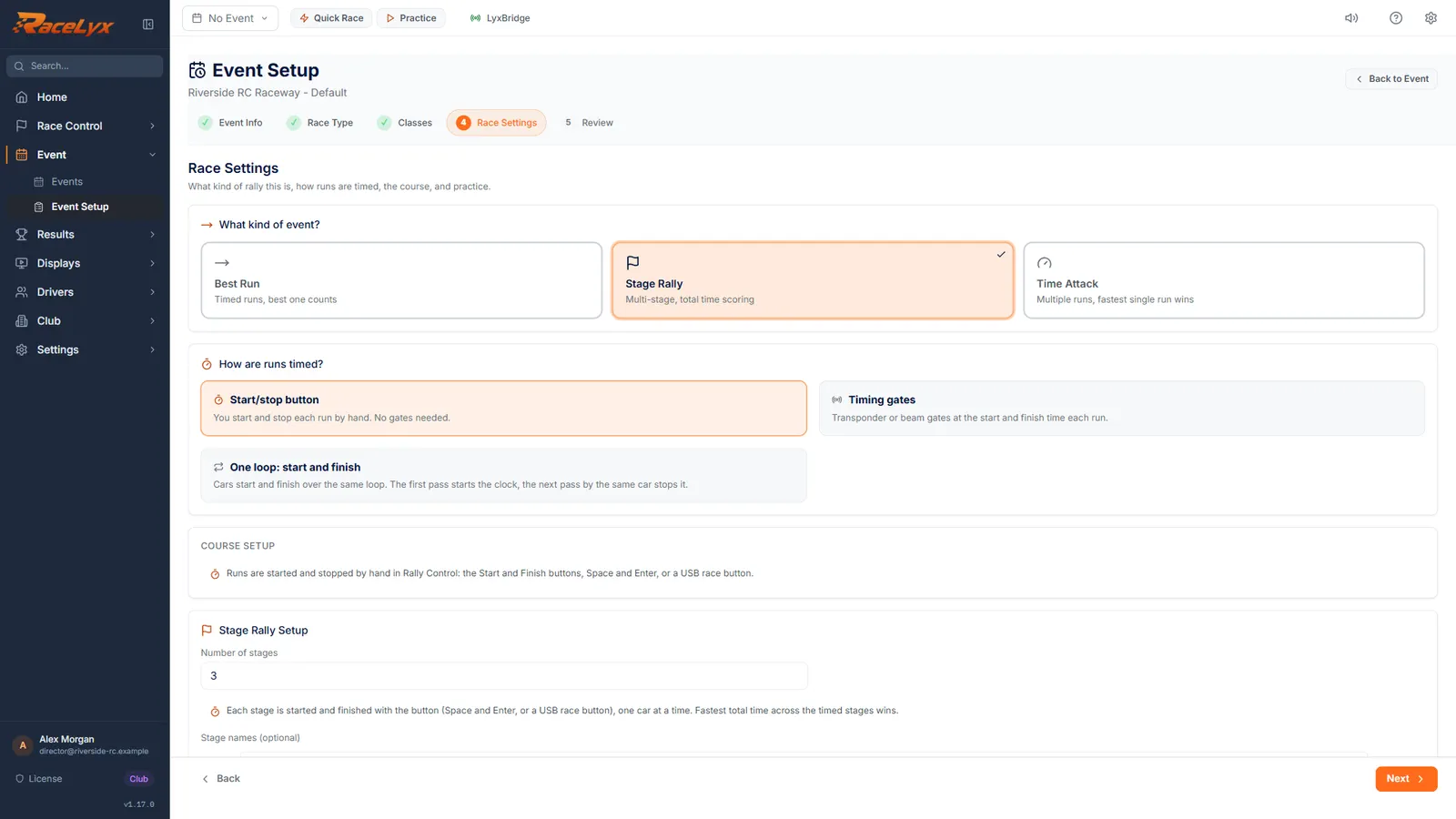
In Event Setup, choose Standalone Event and name the rally. Pick Rally, tick your classes, and on Race Settings choose Stage Rally.
Stage Rally scores the total time across stages; the fastest total wins. It starts on the start/stop button, so the timing is changed next.
- 2
Choose Timing gates
Under How are runs timed?, choose Timing gates. The Stage Rally Setup card now builds the course from gates.
Leave Rally Model on Gate-chain rally: stages run gate to gate along the course. The legacy choice, independent stages each with its own start and finish gate, is for old events.
- 3
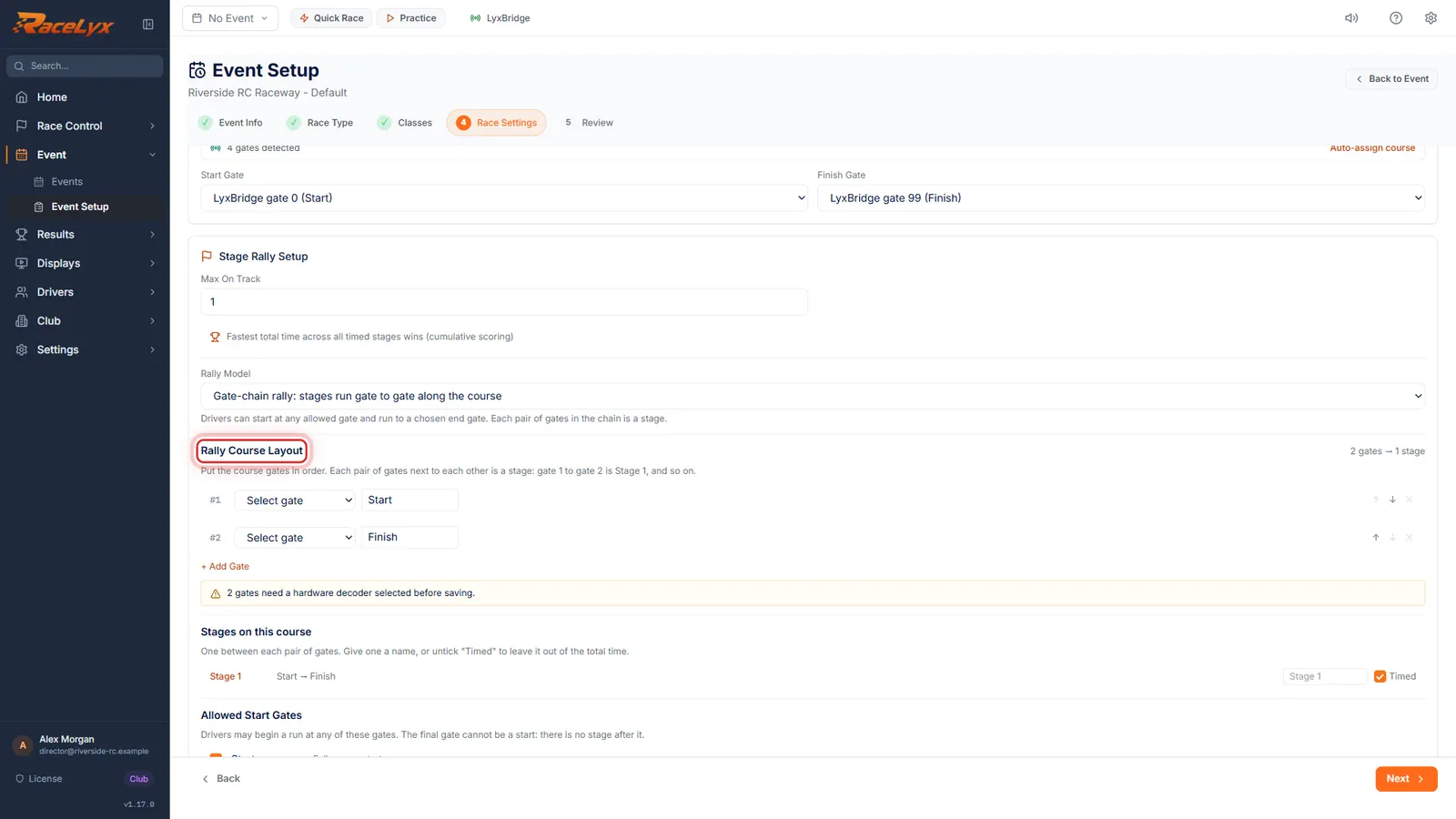
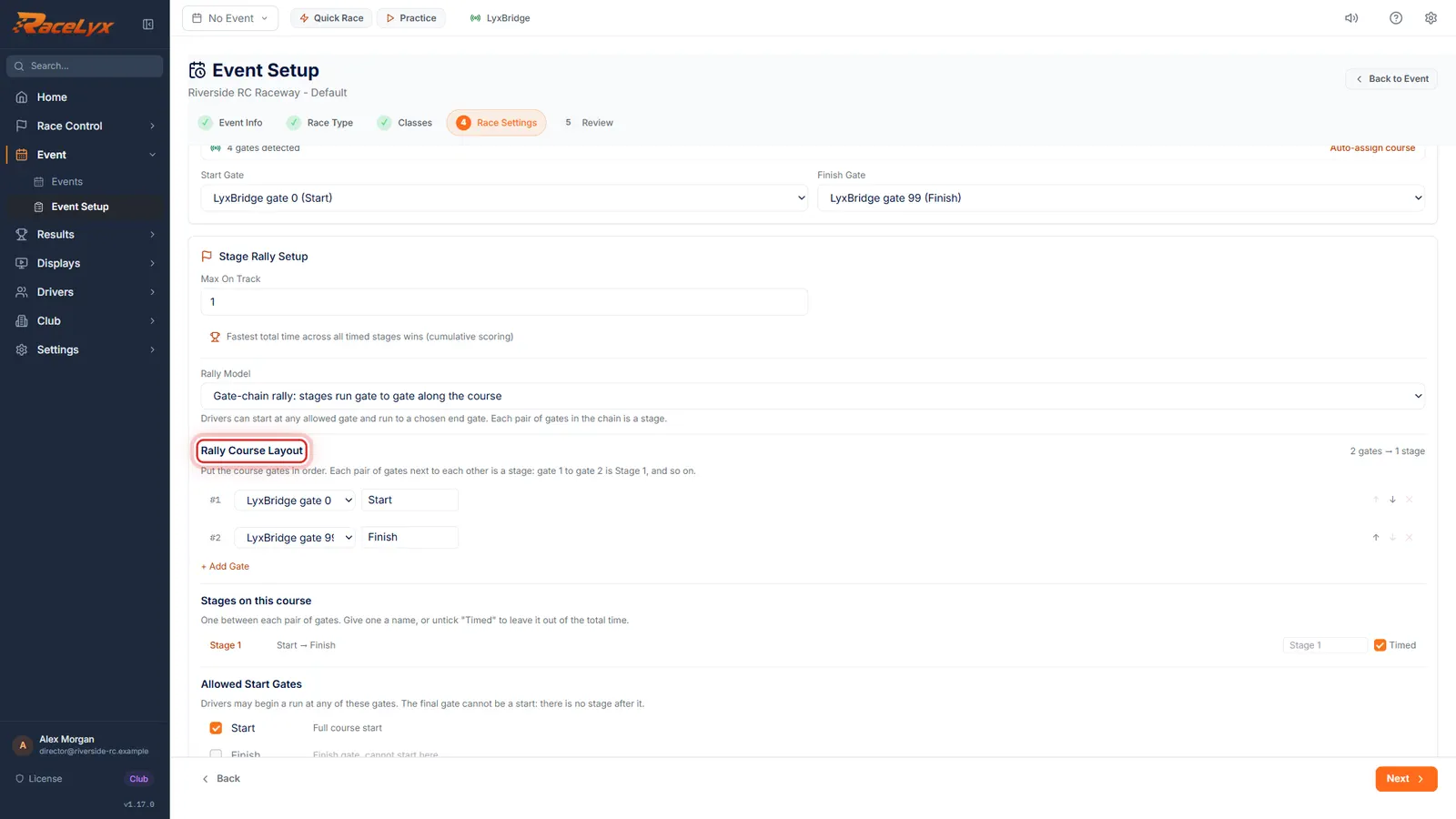
Rally Course Layout
Pick the gate for each position, in course order. Start is first and Finish is last.
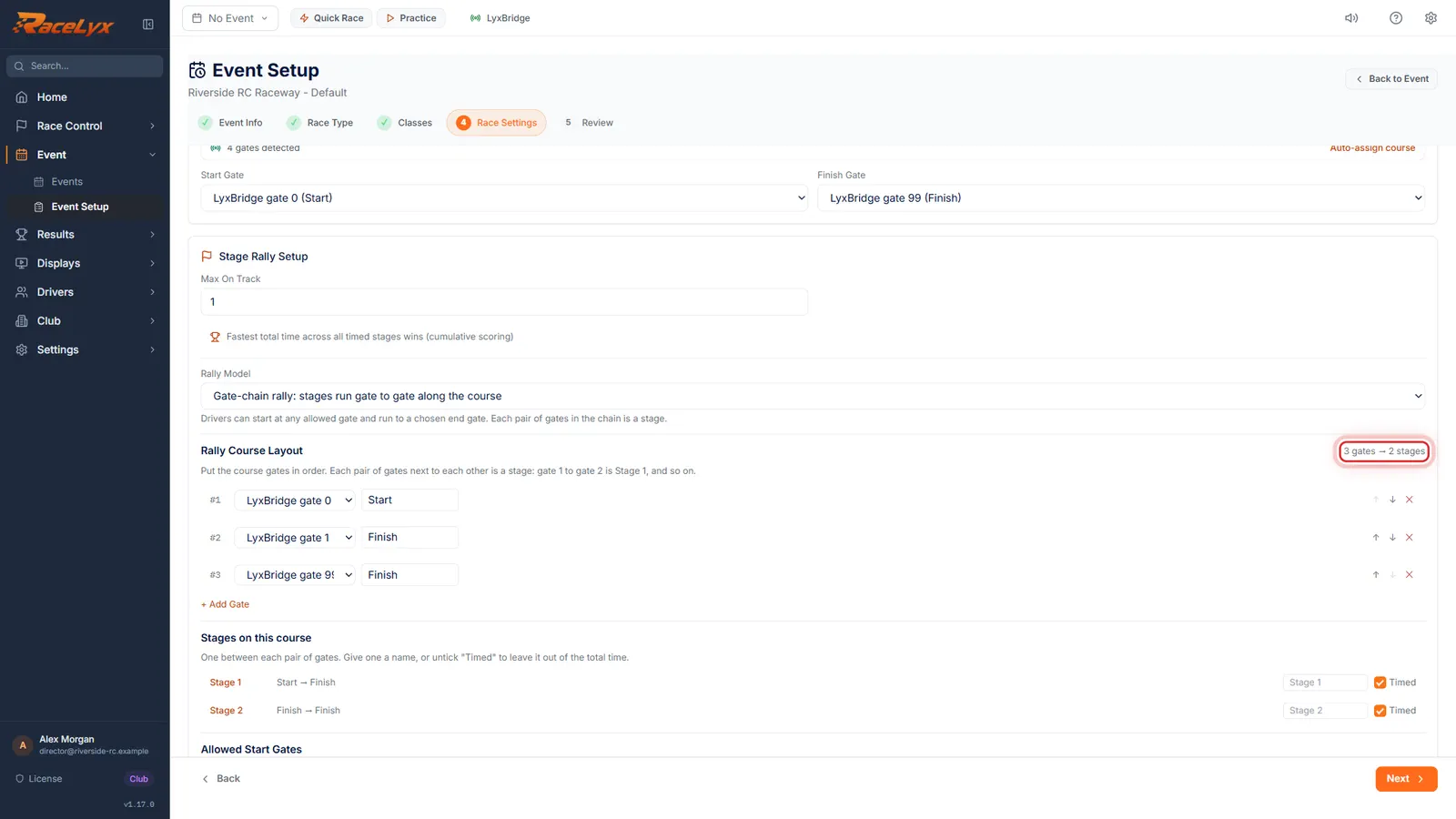
Each row is a gate: pick its hardware and, if you like, a name. Gate 1 to gate 2 is Stage 1, and so on; the count beside the heading says how many stages the gates make.
- 4
Add a gate
Click Add Gate for a gate in the middle. Pick it, then move it up into place.
+ Add Gate adds a row at the end. The arrows move a gate up or down the chain and the cross removes it. A warning appears if two positions share a gate or a row has none picked.
- 5
Stages on this course
Name each stage if you like. Untick Timed for a transit that should not count.
There is one stage between each pair of gates. Untimed stages are left out of the total, and the line at the top of the card says how many stages count.
- 6
Starts and cars on track
Under Allowed Start Gates, tick where a driver may begin. Max On Track sets how many cars run at once.
Every gate but the last can be a start; a later start runs part of the course. Max On Track, at the top of the card, is 1 by default, and stays 1 on beam gates. Ignore Default Run Mode: it has no effect yet. Run Assignments gives one driver a different run.
- 7
Review and Apply
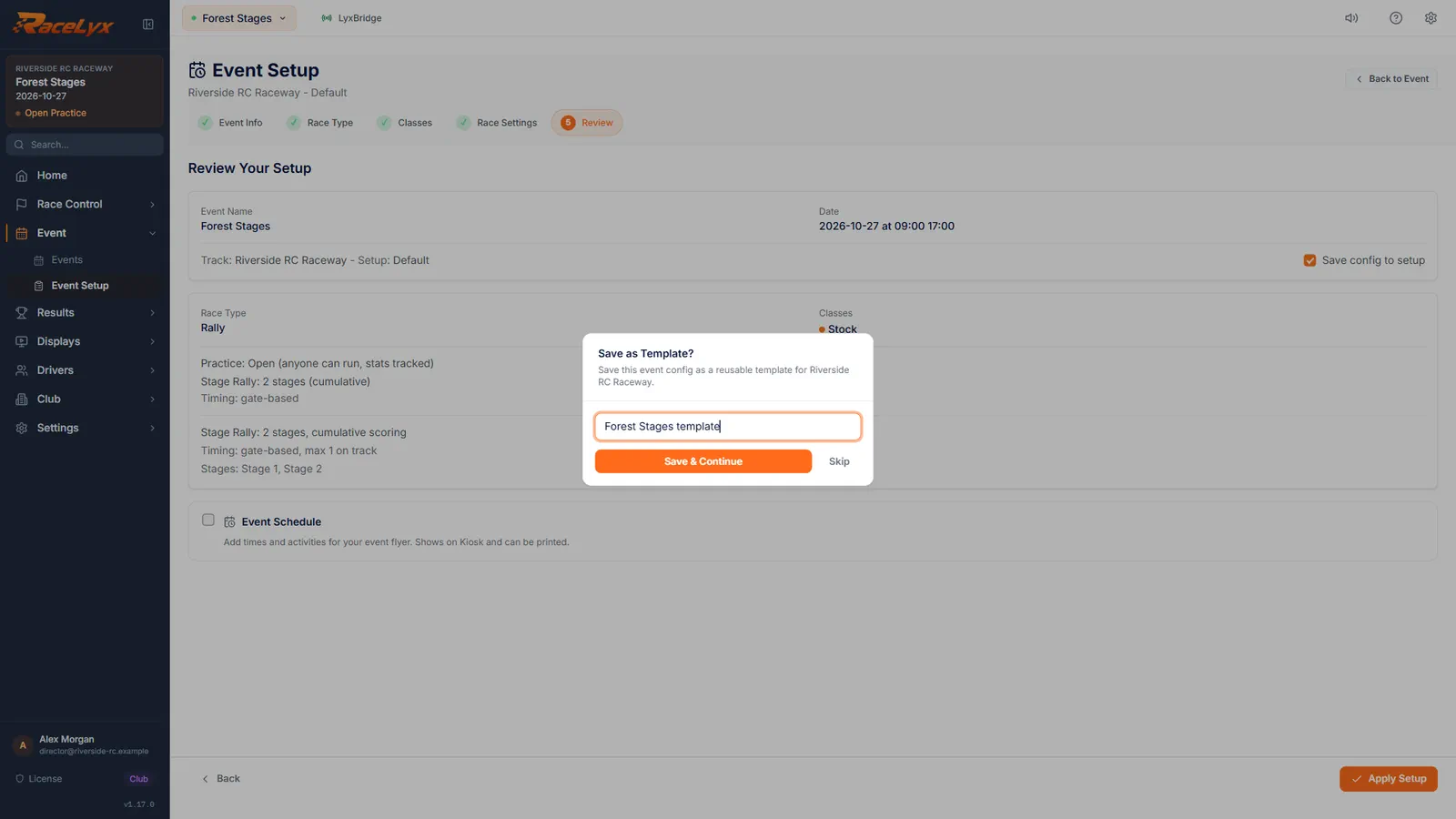
Click Next, check the stages on Review, and click Apply Setup.
In Rally Control the start button names the number of stages. Each car runs the chain, and its stage times fill in as it passes each gate.
Tips
- Put the gates in course order with the arrows. A rally needs at least 2 gates.
- Untick Timed on a stage to make it a transit that does not count.
- Allowed Start Gates lets a driver begin part way round. The last gate can never be a start.
- Max On Track above 1 lets several cars run at once. Beams cannot tell cars apart, so keep it at 1 on beam gates.
- Run Assignments gives one driver a different run, such as only part of the course. Ignore Default Run Mode for now: it has no effect yet.
- Rename Stage, for example to Section, in Settings, Race, Stage Label (singular).
Troubleshooting
- "1 gate needs a hardware decoder selected before saving."
- A row in Rally Course Layout has no gate picked. Pick one, or remove the row with its cross.
- "Duplicate gate hardware"
- Two positions use the same gate. Each position normally needs its own gate.
- A car missed a middle gate.
- That run gets no total, rather than a short one made of only the stages it did record. Decide it under your rules, and log the decision in Notes & Incidents.
Related guides
Something here does not match what you see? Tell us and we will fix the guide.