A rally course knows which gate is which by its ID. The start gate is 0, the finish gate is 99, and gates in between take 1 to 10. Every new gate checks in as Gate 1, so set each gate's ID once, before the event; the gate keeps it from then on.
Before you start
- The LyxBridge connected on Timing Hardware.
- The gate switched on and showing in the gate grid.
Step by step
- 1
The new gate checks in
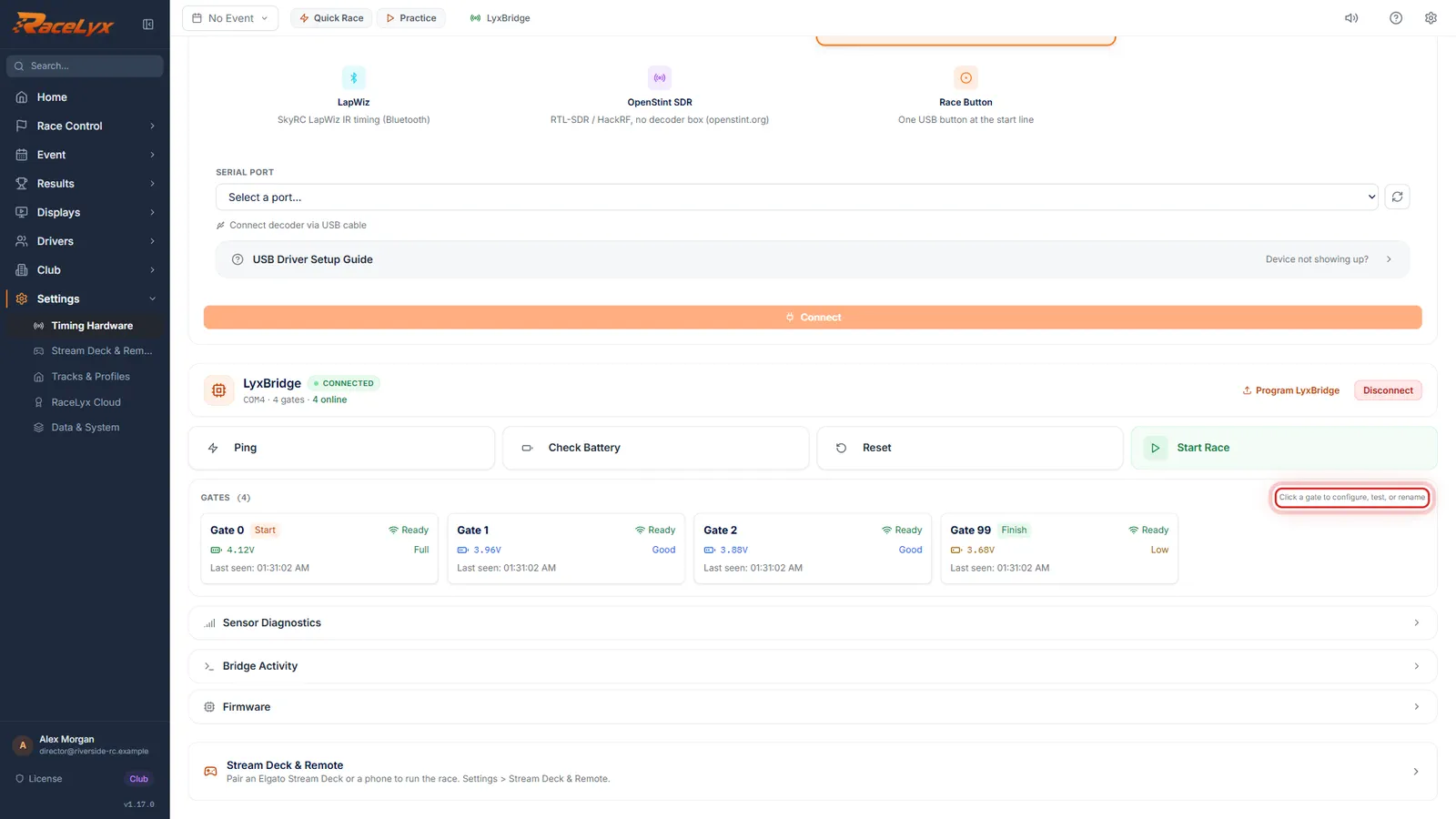
With the LyxBridge connected, switch on the new gate. It checks in as Gate 1.
Each card shows the gate's ID, Ready or Offline, and its battery. Gate 0 is marked Start and Gate 99 Finish.
- 2
Open the gate
Click the gate's card to open it.
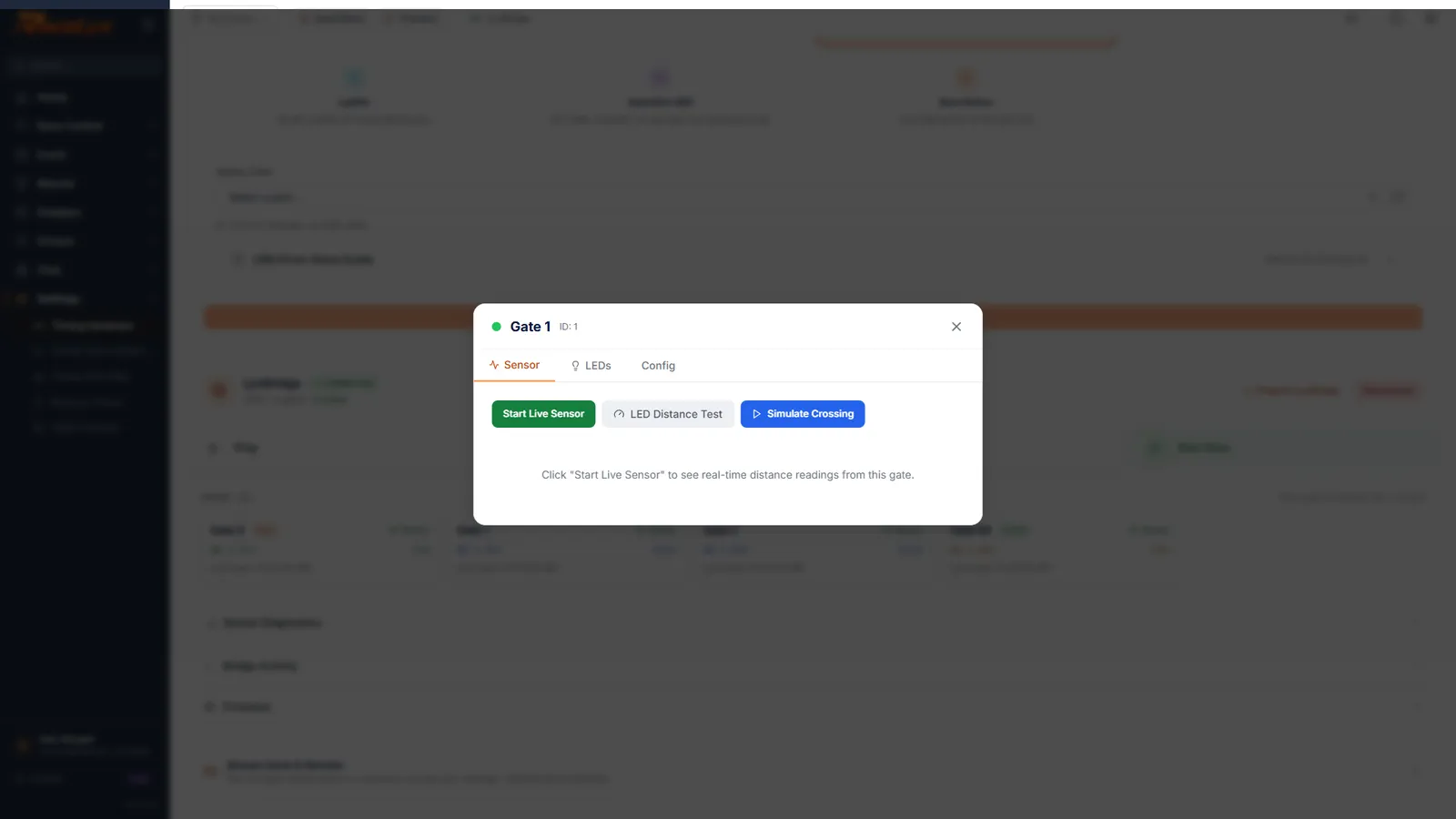
The gate window has three tabs: Sensor, LEDs and Config. Its title is the gate's name: Start Gate for 0, Finish Gate for 99, otherwise Gate and its number.
- 3
Open Config
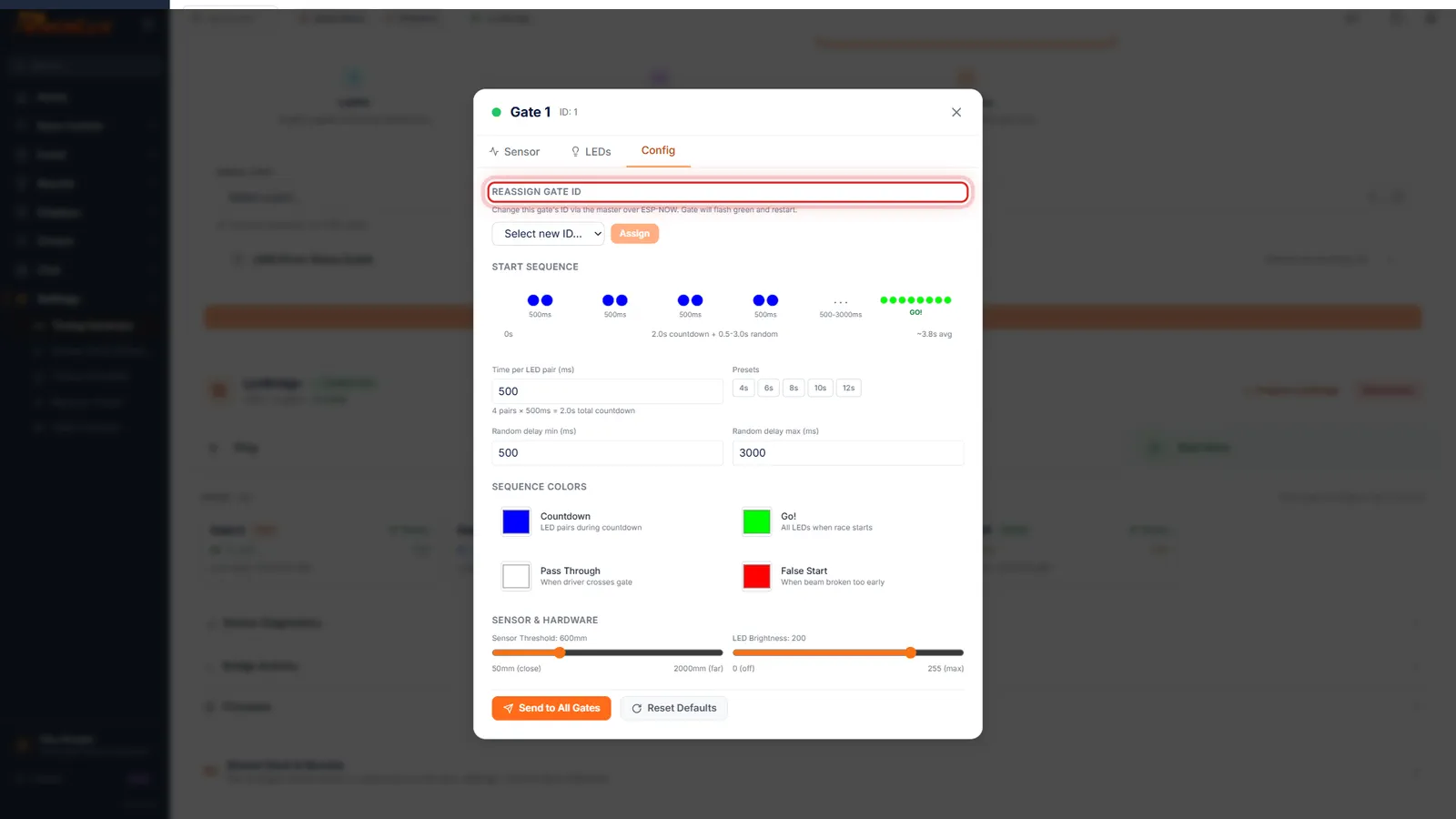
Click Config. Reassign Gate ID is at the top.
It reads: "Change this gate's ID via the master over ESP-NOW. Gate will flash green and restart."
- 4
Pick the new ID
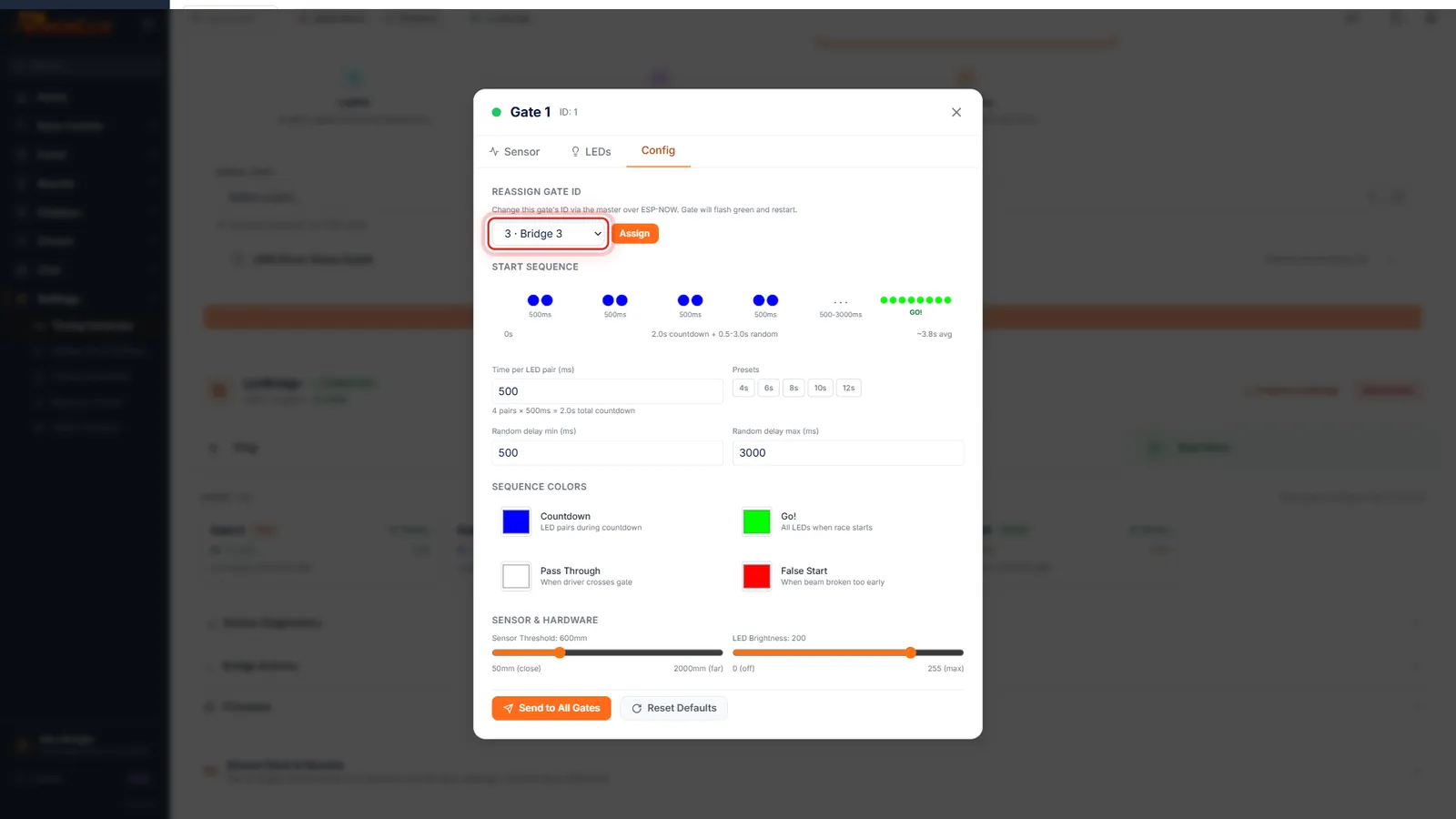
Pick the new ID: 0 for the start, 99 for the finish, or 1 to 10 for a gate in between. Here, 3.
The list starts with 0 · Start Gate and ends with 99 · Finish Gate; the IDs in between show as Bridge and a number. This course already has a start, a finish and gates 1 and 2, so the new gate becomes 3.
- 5
Assign
Click Assign. The gate flashes green, restarts, and checks in with its new ID.
The line under Assign says the gate is being reassigned and will restart. The gate stores its ID, so it keeps it after a restart or a flat battery.
- 6
Check the sensor
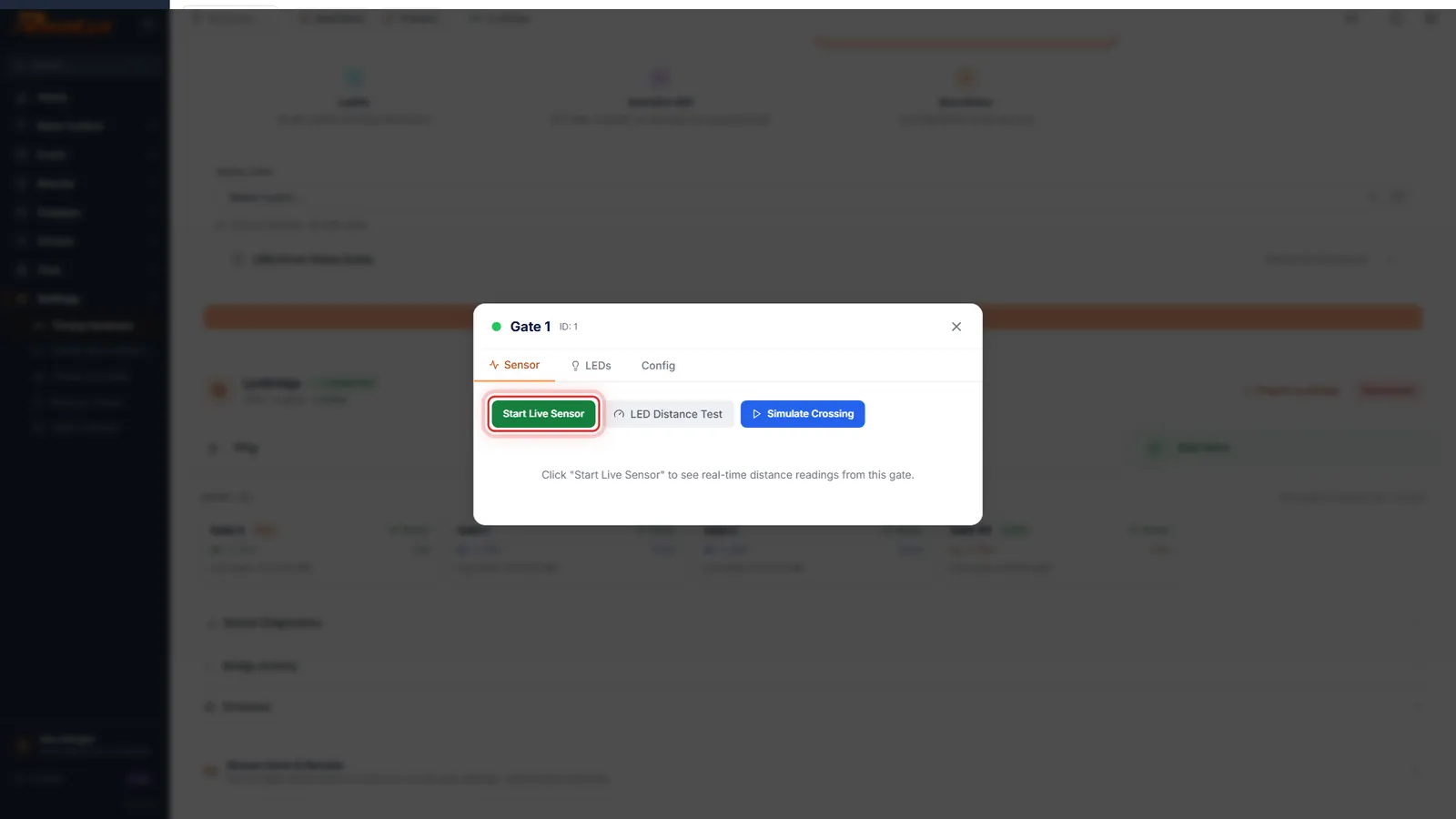
On the Sensor tab, Start Live Sensor shows the gate's distance reading. Wave a hand across it to check it triggers.
Simulate Crossing fires a pass into the timing without a car, for a quick check of the course. LED Distance Test shows the distance on the gate's own lights. Sensor Diagnostics on Timing Hardware shows every gate's reading at once.
Tips
- Set one gate at a time: switch on only the new gate, so you know which Gate 1 you are changing.
- Write each gate's ID on its case once it is set.
- Course setup lists the gates by these IDs: LyxBridge gate 0 (Start), and so on.
- LED Distance Test shows the sensor distance on the gate's own lights: green far, red close, a white blink when it triggers.
Troubleshooting
- "Already that ID".
- The gate already has the ID you picked. Pick another.
- Two new gates are on, but only one Gate 1 card shows.
- Gates with the same ID share one card. Switch all but one off, give it its ID, then switch the next one on.
- The gate did not come back with its new ID.
- It may be out of range of the bridge. Bring it next to the bridge, and read the line under Assign for an Error.
Related guides
Something here does not match what you see? Tell us and we will fix the guide.