Kiosk mode turns RaceLyx on the timing PC, or on a second Windows laptop or touch-screen PC running RaceLyx, into a waiver station. It fills the screen, hides the rest of RaceLyx, and clears itself for the next person after each signature. Only someone who types EXIT can leave it. It is part of the Windows app, so an iPad or Android tablet cannot run it: for phones and tablets, use your online waiver page. Waivers work on every plan.
Before you start
- Your waiver text set (Settings, Tracks & Profiles, Edit public page).
- A touch screen is nice, but a mouse works too.
Step by step
- 1
Sign a waiver (kiosk)
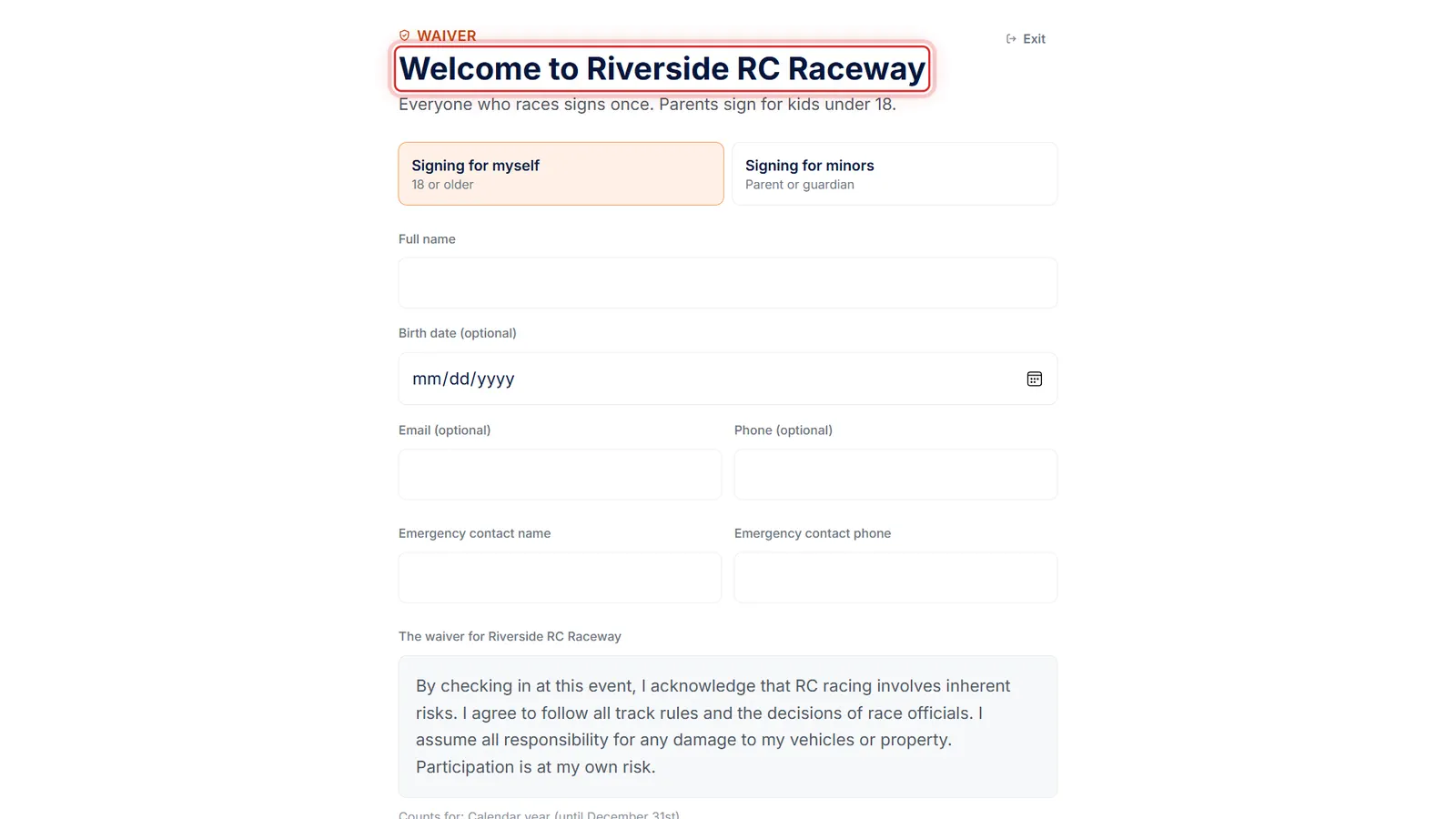
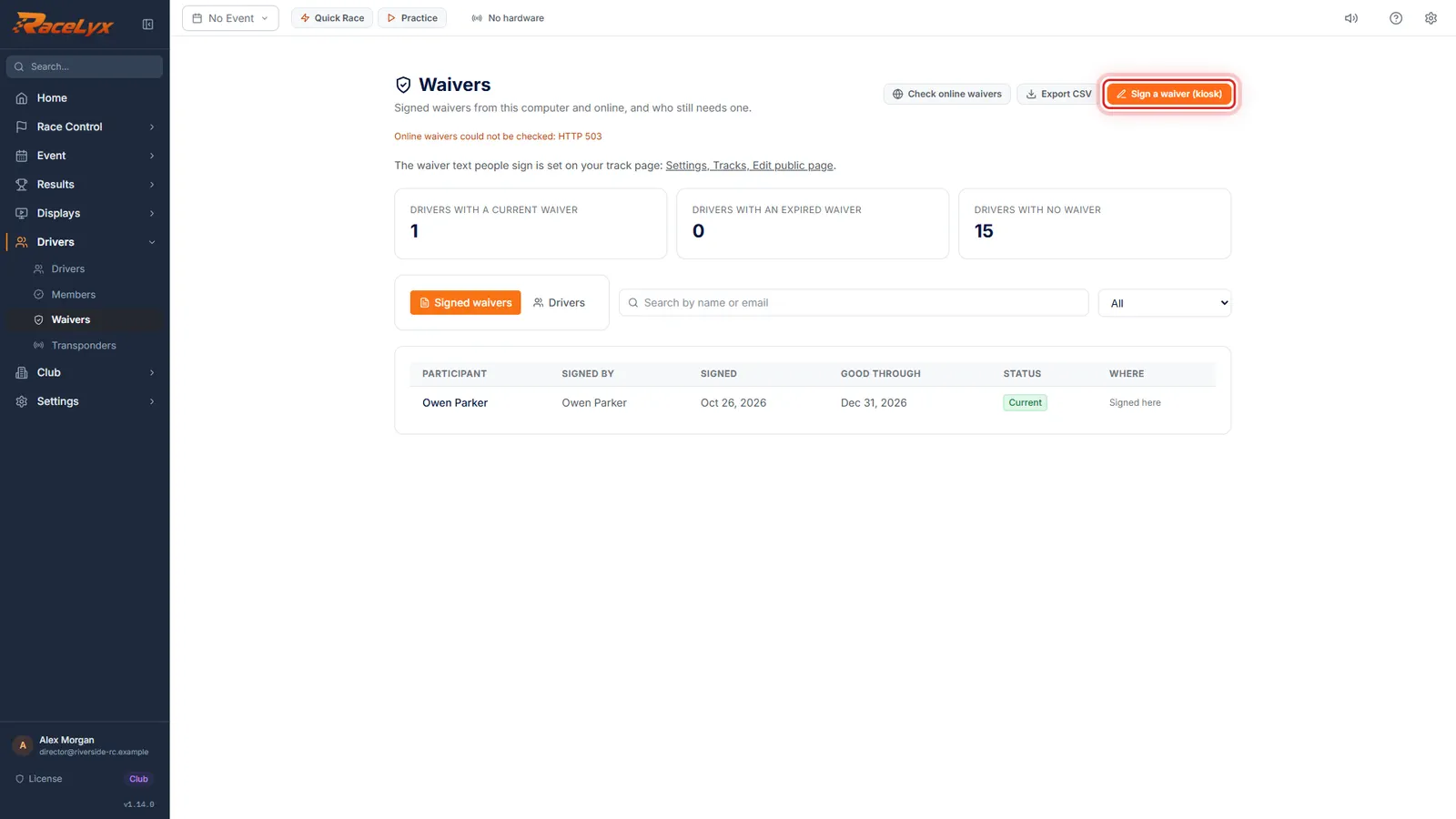
Open Drivers, Waivers, and click Sign a waiver, kiosk.
Use it on the timing PC between heats, or on a second Windows laptop or touch-screen PC with RaceLyx at the gate. Waivers signed on a second computer stay on that computer.
- 2
They fill it in
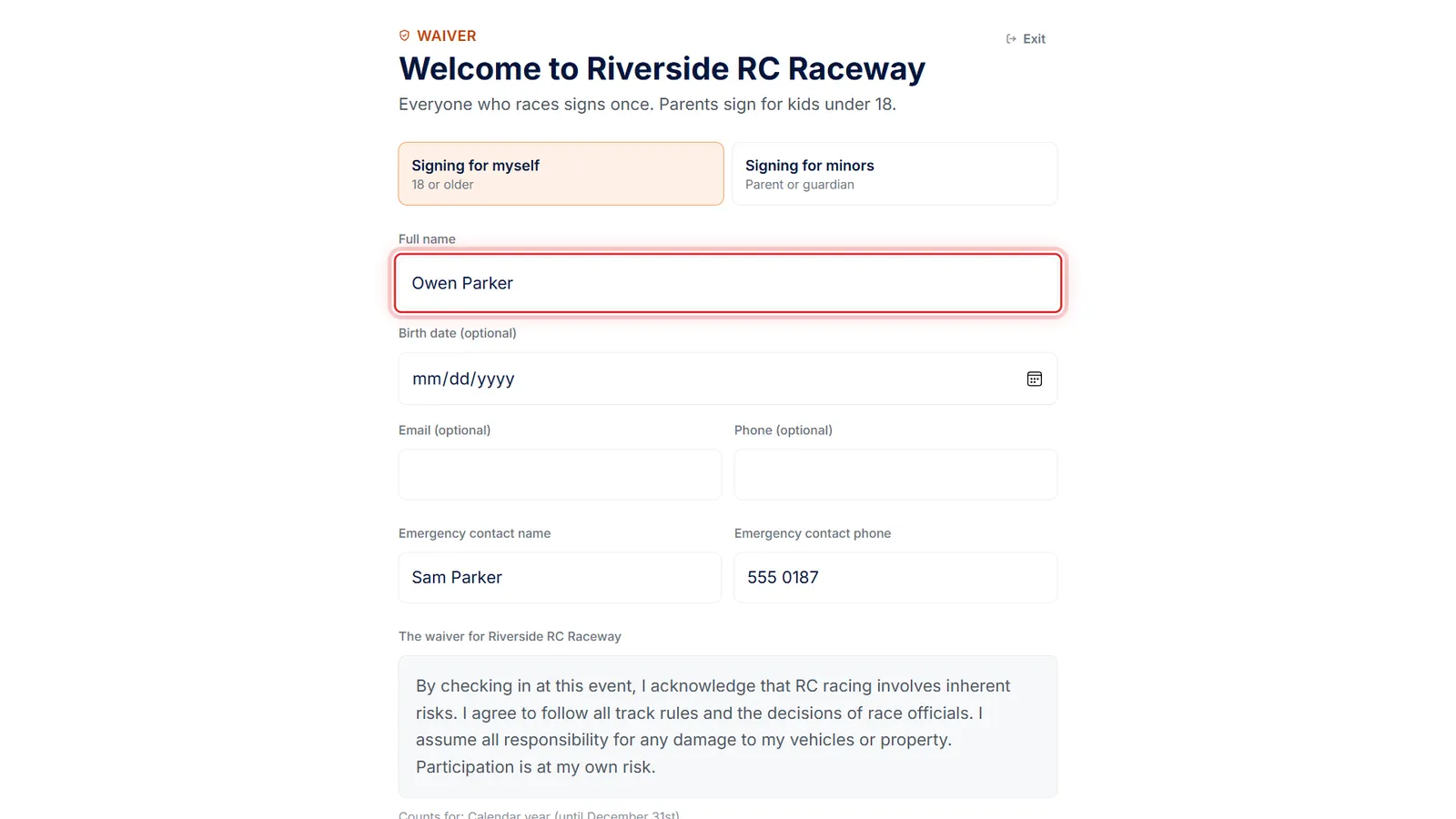
The waiver fills the screen. Each driver types their name and an emergency contact, reads the waiver and ticks that they agree.
Parents pick Signing for minors and add each child. The rest of RaceLyx is out of reach while the kiosk is up.
- 3
Sign and save the waiver
They sign in the box and tap Sign and save the waiver.
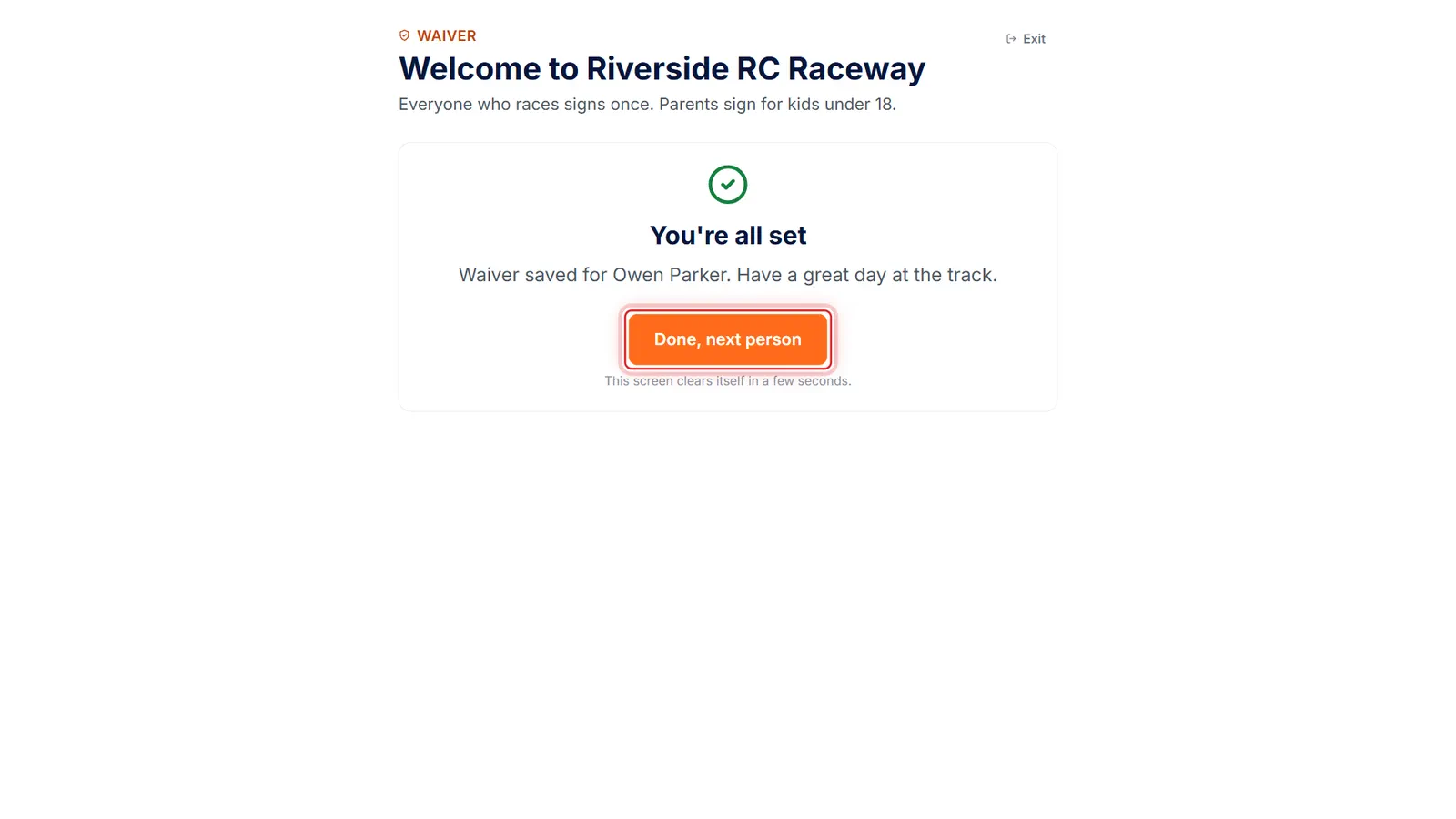
The kiosk says You're all set and names who the waiver was saved for.
- 4
Done, next person
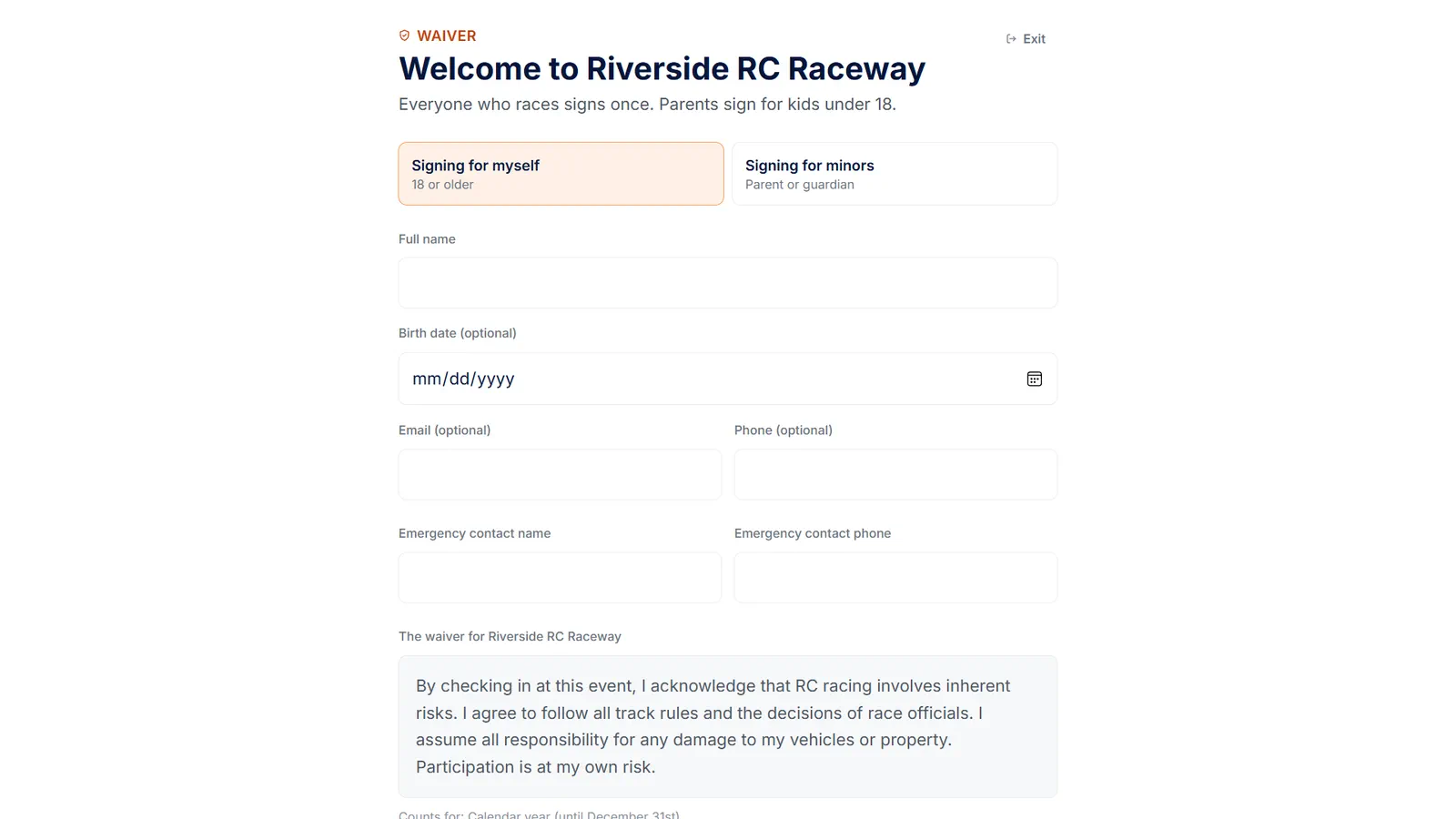
Done, next person clears it for the next signer. It also clears itself after a few seconds.
The waiver is saved on this computer and shows on its Waivers page right away. It is not sent to RaceLyx Cloud.
- 5
Type EXIT to leave
To leave, click Exit, type EXIT, and click Leave sign-in mode. Drivers can't wander into your timing software.
Back and reload do not leave the kiosk: Back asks for EXIT, and F5 reopens it.
Tips
- Waivers signed in the kiosk are kept on the computer they were signed on. They are not sent to RaceLyx Cloud, so a second laptop's waivers do not show on the timing PC: look them up, or Export CSV, on that laptop.
- For a gate without a spare Windows PC, share your online waiver page so people sign on their own phones. Those reach the timing PC through Check online waivers.
- Drivers who check in on your online check-in page sign the waiver there too.
- The form gets bigger on a big screen, so people can read and sign it.
- The mouse or keyboard Back button asks for EXIT too, so it cannot be used to get out.
- Pressing F5 to reload brings the kiosk straight back.
- After Done, next person, or a few seconds on its own, the screen clears for the next signer.
Troubleshooting
- Leave sign-in mode?
- This is the Exit box. Type EXIT and click Leave sign-in mode. Cancel keeps the kiosk running.
- There is no waiver text to sign yet.
- Set your waiver under Settings, Tracks & Profiles, Edit public page, then open the kiosk again.
Related guides
Something here does not match what you see? Tell us and we will fix the guide.