Club, Messages replaces the group chat and the RSVP app: write one message and RaceLyx sends it to your members as a phone notification in the RaceLyx app and as an email. About an event, it can carry Going / Maybe / Can't make it buttons, and the answers land on that event's Replies list. Before you send, it tells you exactly how many people it reaches and how. It is part of the Club plan and needs this computer signed in to RaceLyx Cloud.
Before you start
- The Club plan (or a trial), and this computer signed in under Settings, RaceLyx Cloud.
- Your members on Drivers, Members, with an email address for the ones who want email. Members who use the RaceLyx app get it on their phone once their account is linked to their driver.
- For Going / Maybe / Can't make it: the event on your schedule.
Step by step
- 1
Open Club, Messages
Open Club, Messages. One message goes to your members on the RaceLyx app and by email.
Three tabs: Send a message, Sent messages and Reminders. If this computer is not signed in to RaceLyx Cloud, a note at the top says so and nothing can be sent.
- 2
Write the title and message
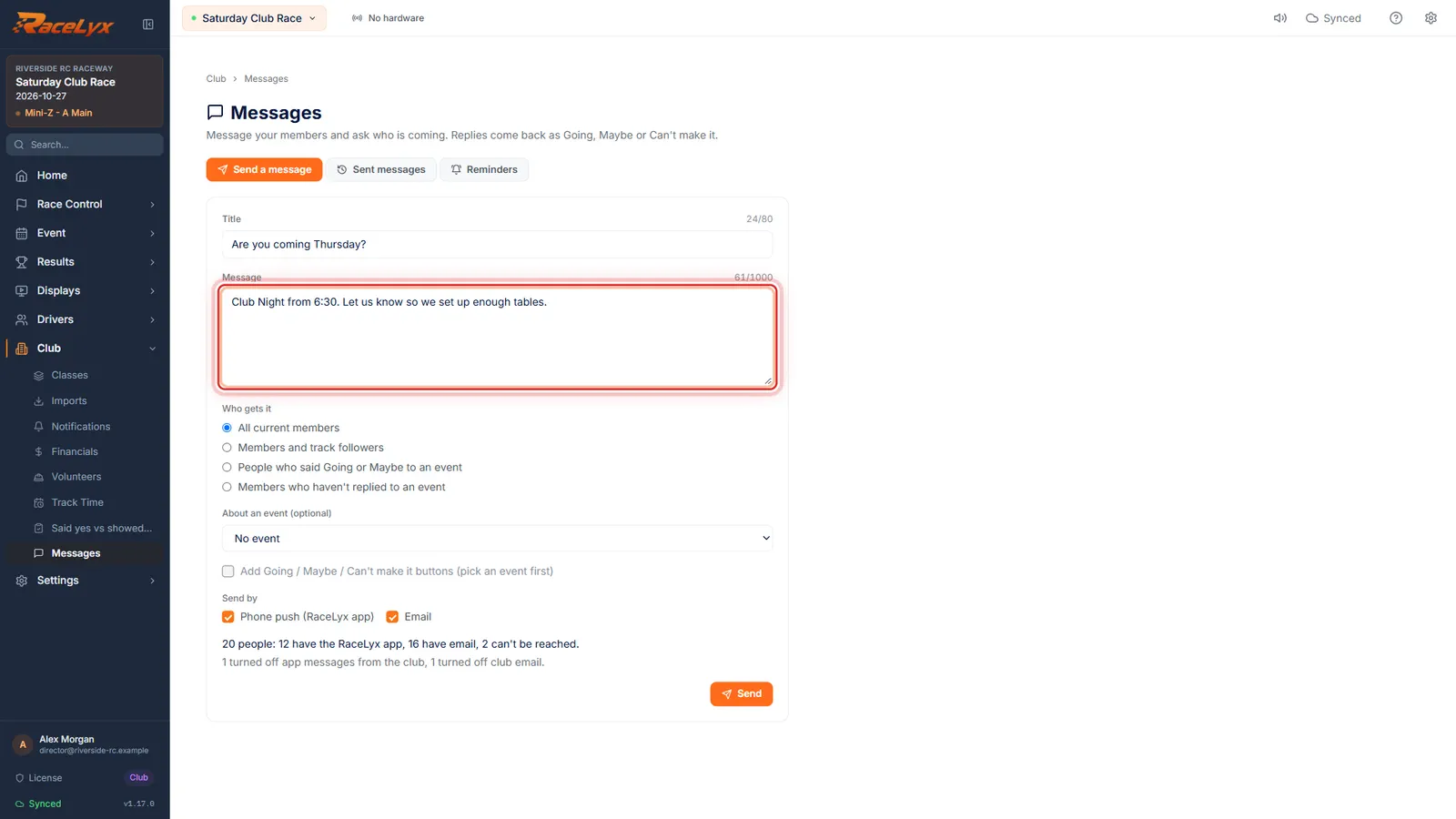
Type a short title, then the message.
The title is what shows in the phone notification and the email subject, up to 80 characters. The message can be up to 1,000 characters.
- 3
Choose who gets it
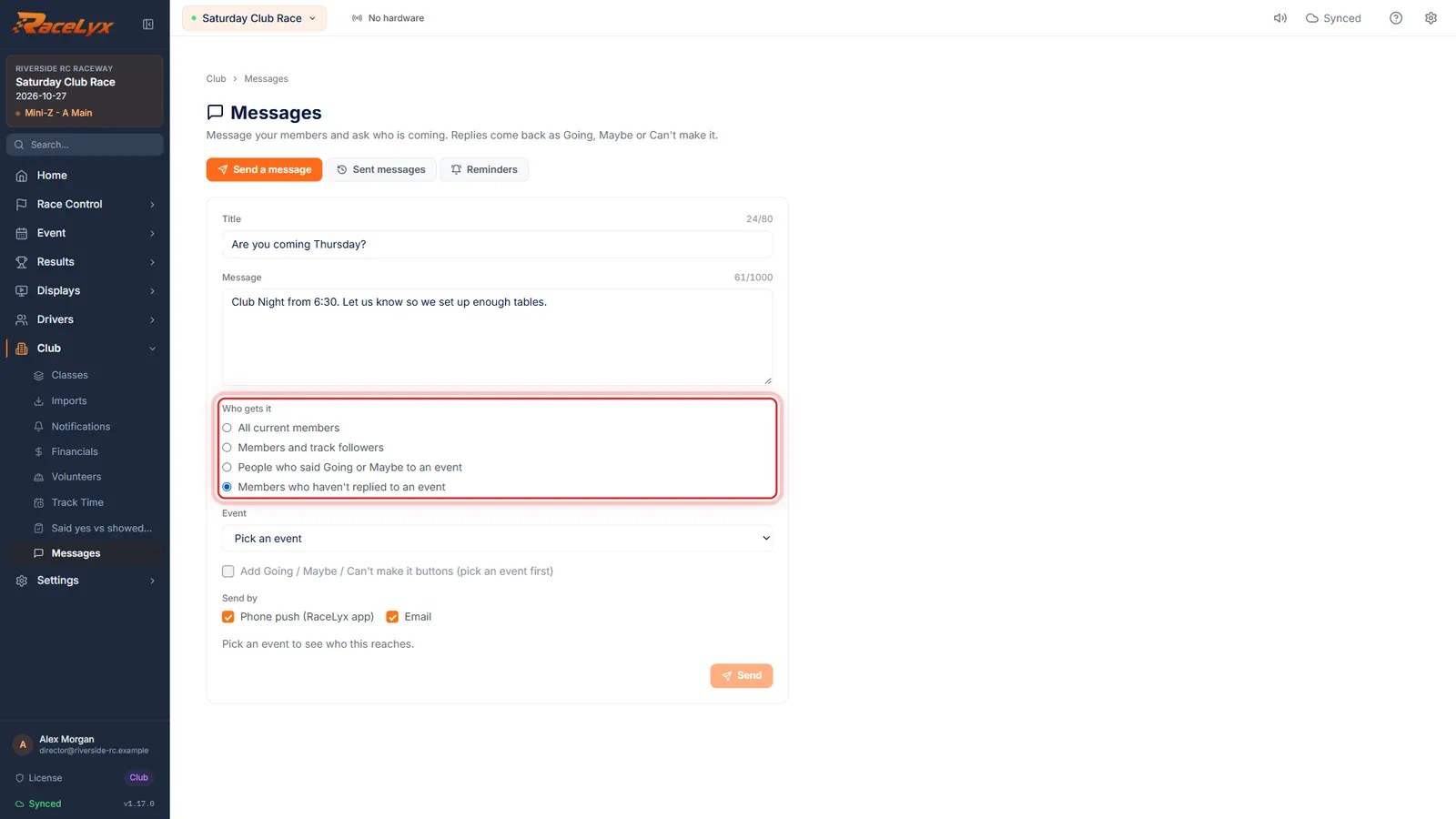
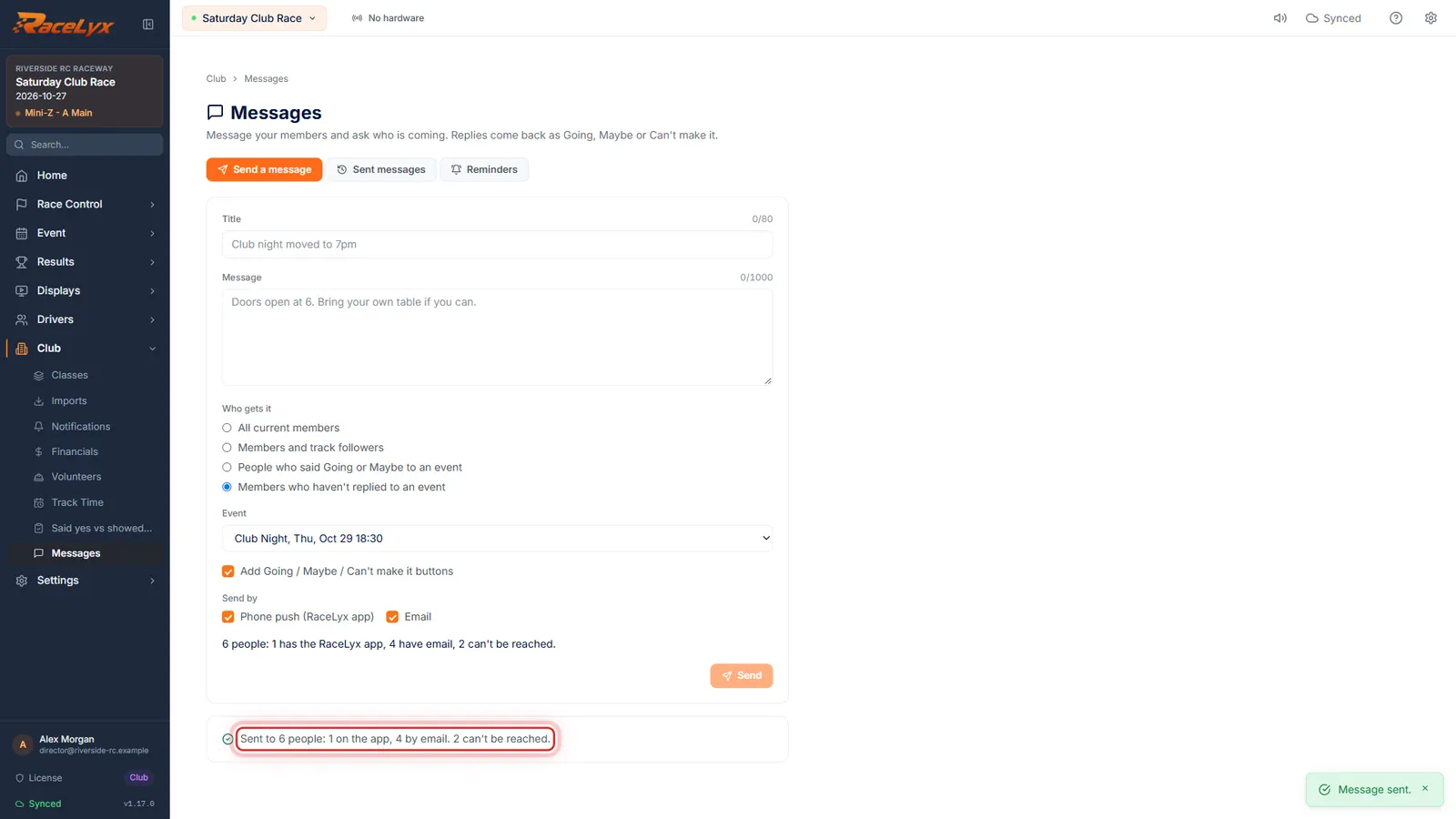
Under Who gets it, pick Members who haven't replied to an event.
All current members is everyone whose membership is current today. Members and track followers adds drivers who follow your track on racelyx.com. The two event choices need an event picked below.
- 4
Pick the event
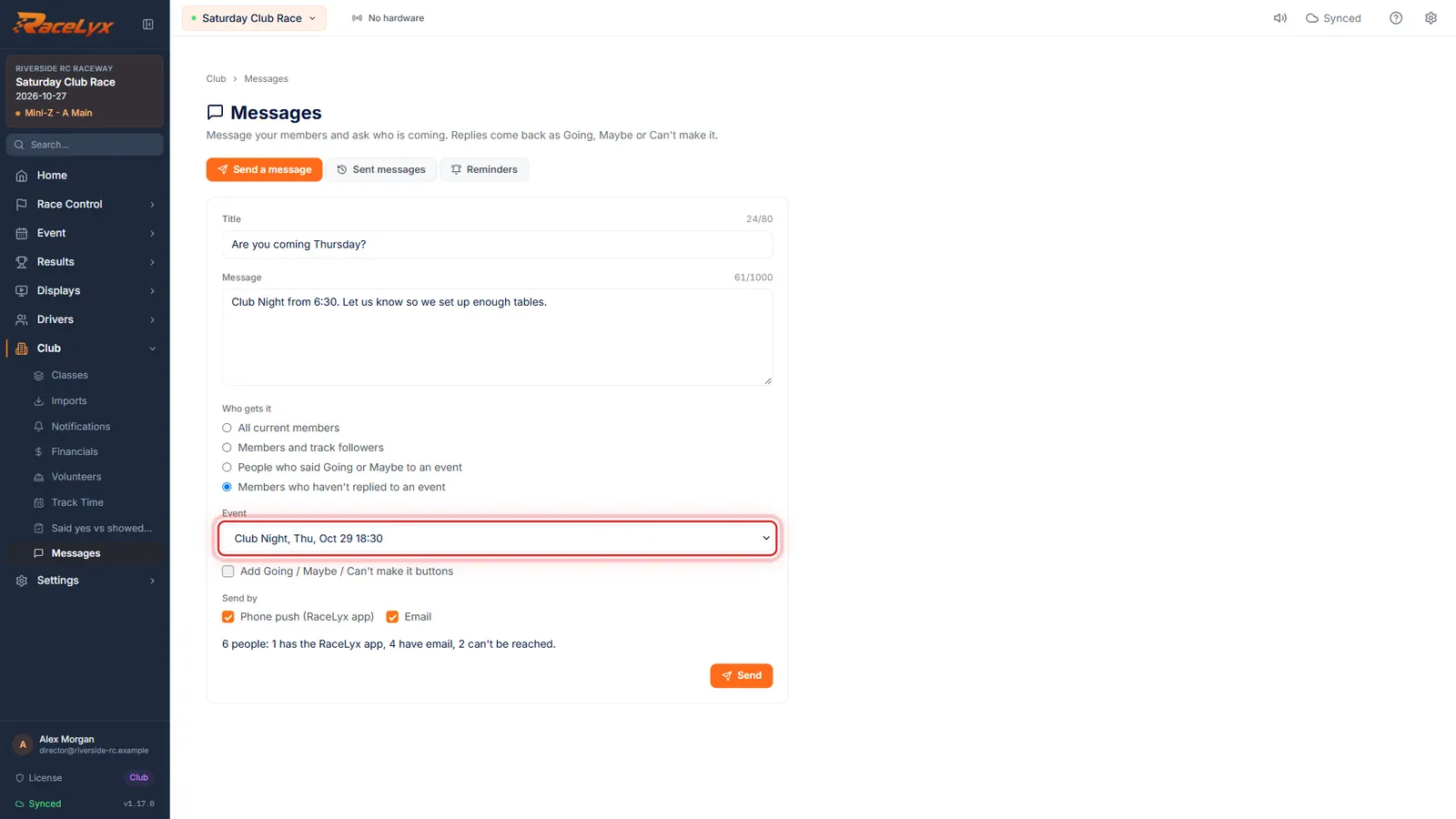
Pick the event.
Every event on your schedule from today on is listed with its date and start time. For a general message, leave it on No event.
- 5
Add the reply buttons
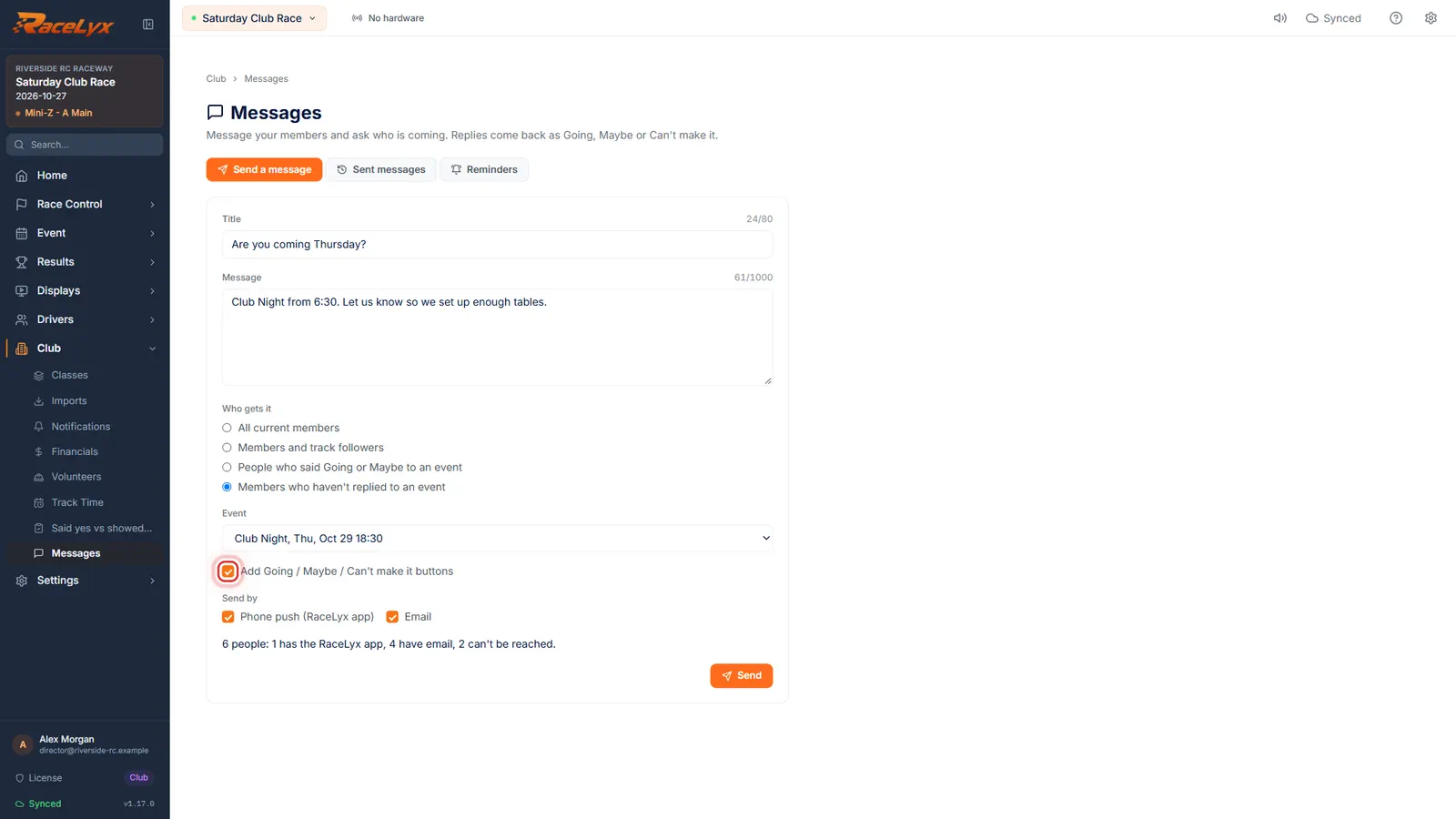
Tick Add Going, Maybe, Can't make it buttons. Their answers go straight onto that event.
In the email each person gets their own buttons, and one tap answers with no sign-in. In the RaceLyx app the buttons are on the message. Answers show on the event's Replies list.
- 6
Check who it reaches
This line says how many people it goes to, how many have the RaceLyx app, how many have email, and who can't be reached.
Can't be reached means no app and no email address. Below it, a line counts anyone who turned club messages or club email off. Send by lets you leave out the phone push or the email.
- 7
Send
Click Send, check the count, and click Send again.
The check names the message, how it goes out and how many people it reaches. The green line afterwards says how many got it on the app and by email.
- 8
Sent messages
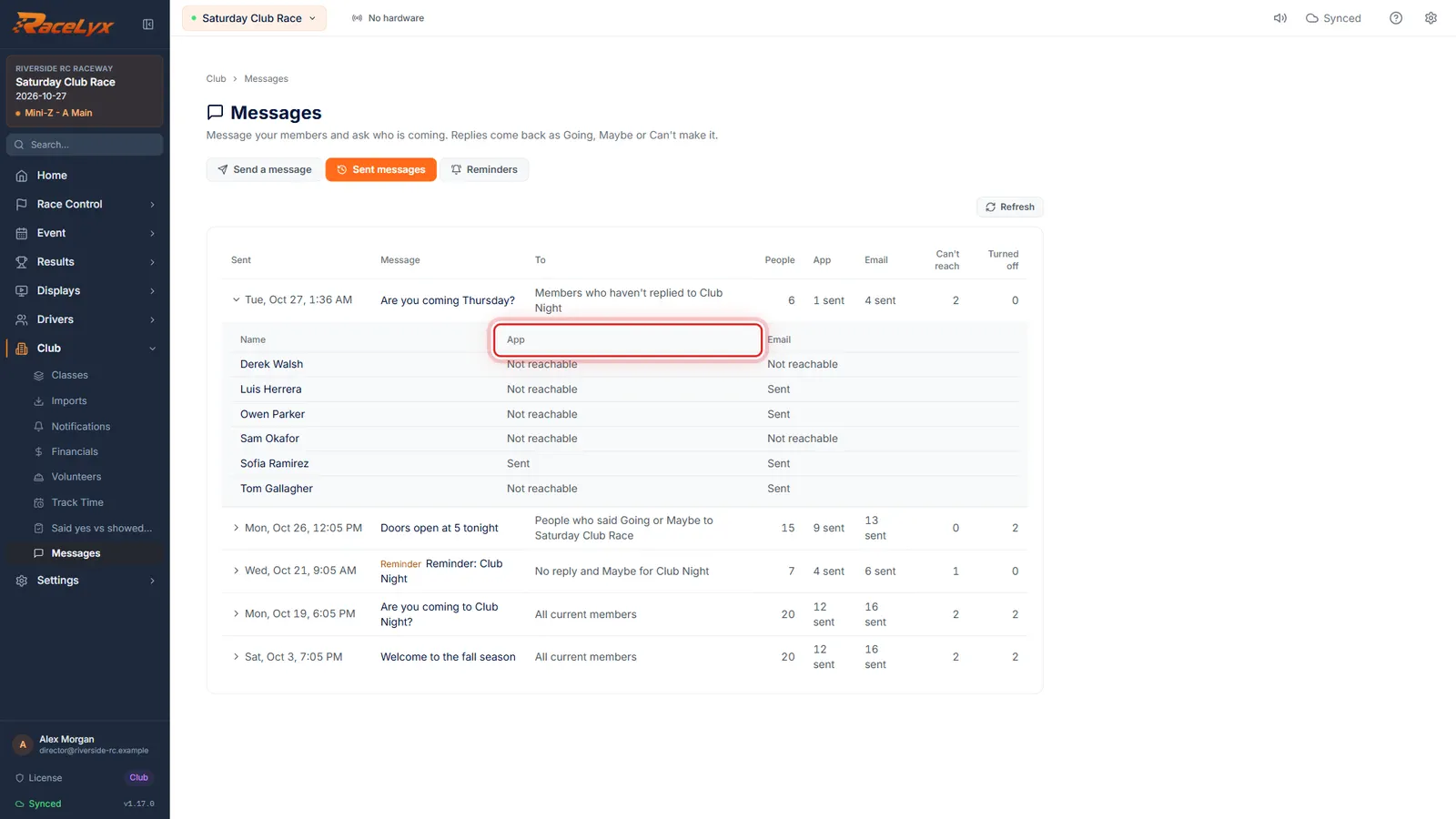
Sent messages keeps every message. Click one to see each person, and whether the app message and the email went out.
Each row shows when it went, the title (reminders are marked Reminder), who it was for, the number of people, app and email counts, Can't reach and Turned off. In the detail, Sent, Not reachable, Turned off and Email off are per person.
Tips
- Who gets it: All current members, Members and track followers, People who said Going or Maybe to an event, or Members who haven't replied to an event.
- "Members who haven't replied" with the buttons is the quickest way to chase answers before a race night.
- The reach line counts people, not messages: someone with the app and an email gets both, and counts once.
- Members who turned club messages off in their own settings are counted on their own line and are not sent to.
- A club can send one message a minute and 20 a day. Automatic reminders don't count toward that.
- Sent messages keeps every message with who it went to. Click a row to see each person and whether the app message and the email went out.
Troubleshooting
- Club messages go out through RaceLyx Cloud, so they need internet and your RaceLyx account.
- Sign in under Settings, RaceLyx Cloud. Nothing is sent until then, and what you typed stays on the page.
- A club can send one message a minute and 20 a day.
- Wait for the time it shows and press Send again. Your message is still there.
- Someone shows as Not reachable.
- They have neither the RaceLyx app linked to their driver nor an email address on their member record. Add their email on Drivers, Members, or ask them to sign in to the RaceLyx app.
- No upcoming events in the Event list.
- Only events on your schedule from today on are listed. Schedule the event under Event, Events first.
Related guides
Something here does not match what you see? Tell us and we will fix the guide.