A race weekend, with practice on Saturday and the mains on Sunday, is one event: one set of entries, one heat program and one set of results. In Event Setup pick Multi-Day Event, set the End Date, and say what happens on each day. The event then stays active until you end it, even with RaceLyx closed overnight.
Before you start
- Classes set up, as for any event.
Step by step
- 1
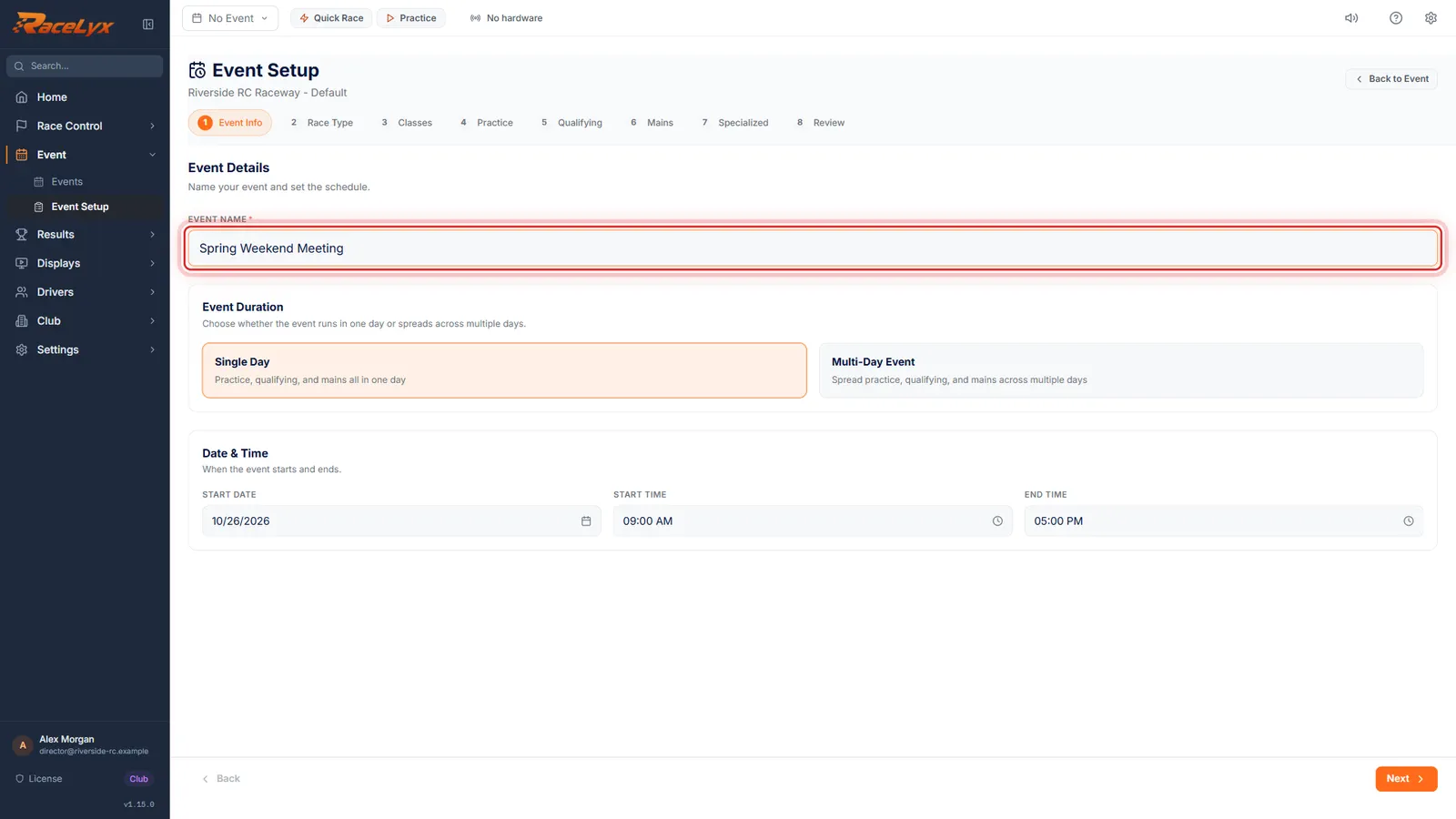
Name the event
Open Event, Event Setup, click Standalone Event and name the event.
A race weekend is set up like any event. Use the name drivers know it by. The Start Date is the first day of the weekend.
- 2
Multi-Day Event
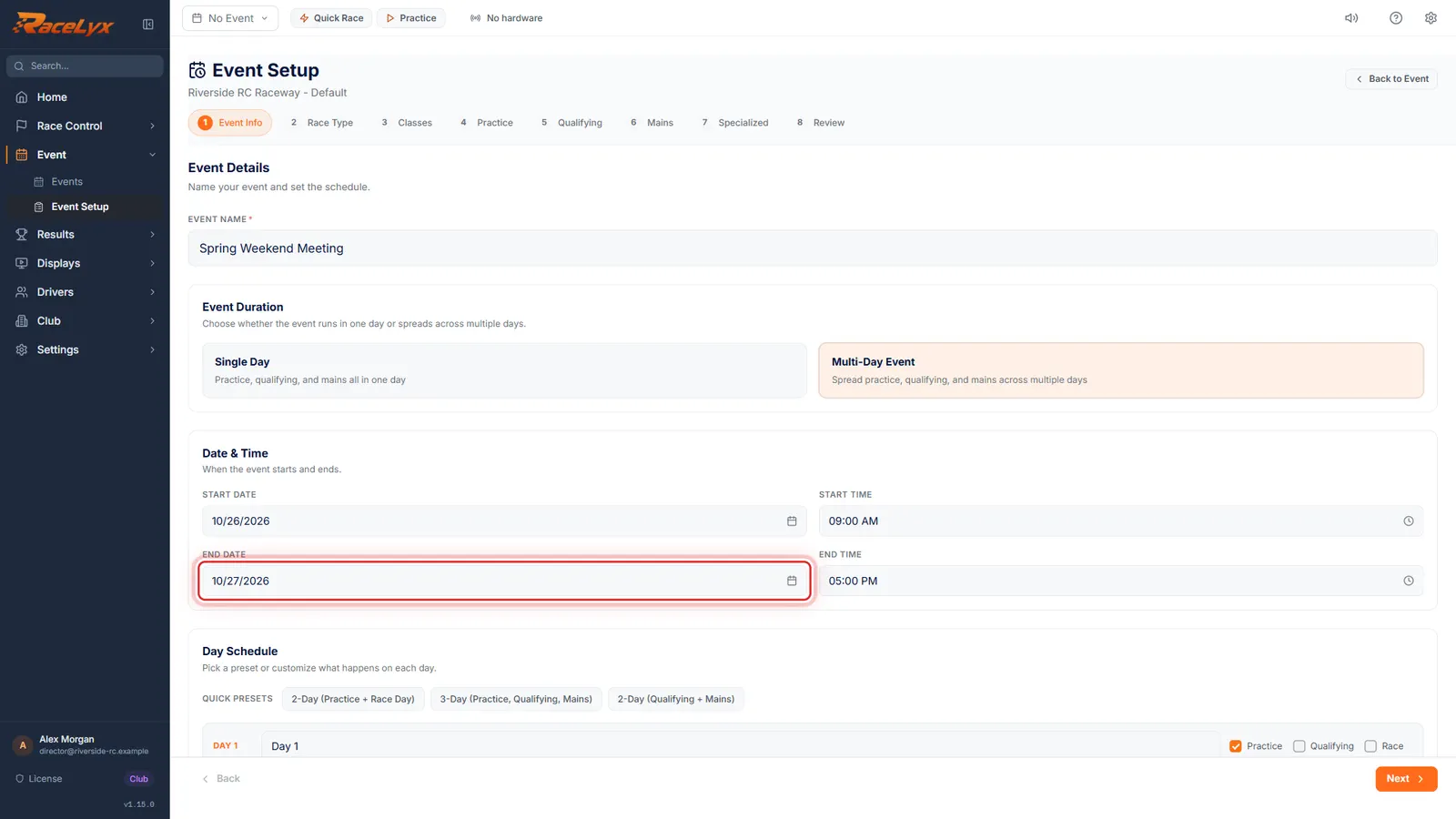
Under Event Duration, click Multi-Day Event. End Date moves to the next day. Change it for a longer event.
Multi-Day Event spreads practice, qualifying and mains across several days. Date & Time now has Start Date, Start Time, End Date and End Time. Day Schedule appears below with Day 1 and Day 2.
- 3
Day Schedule
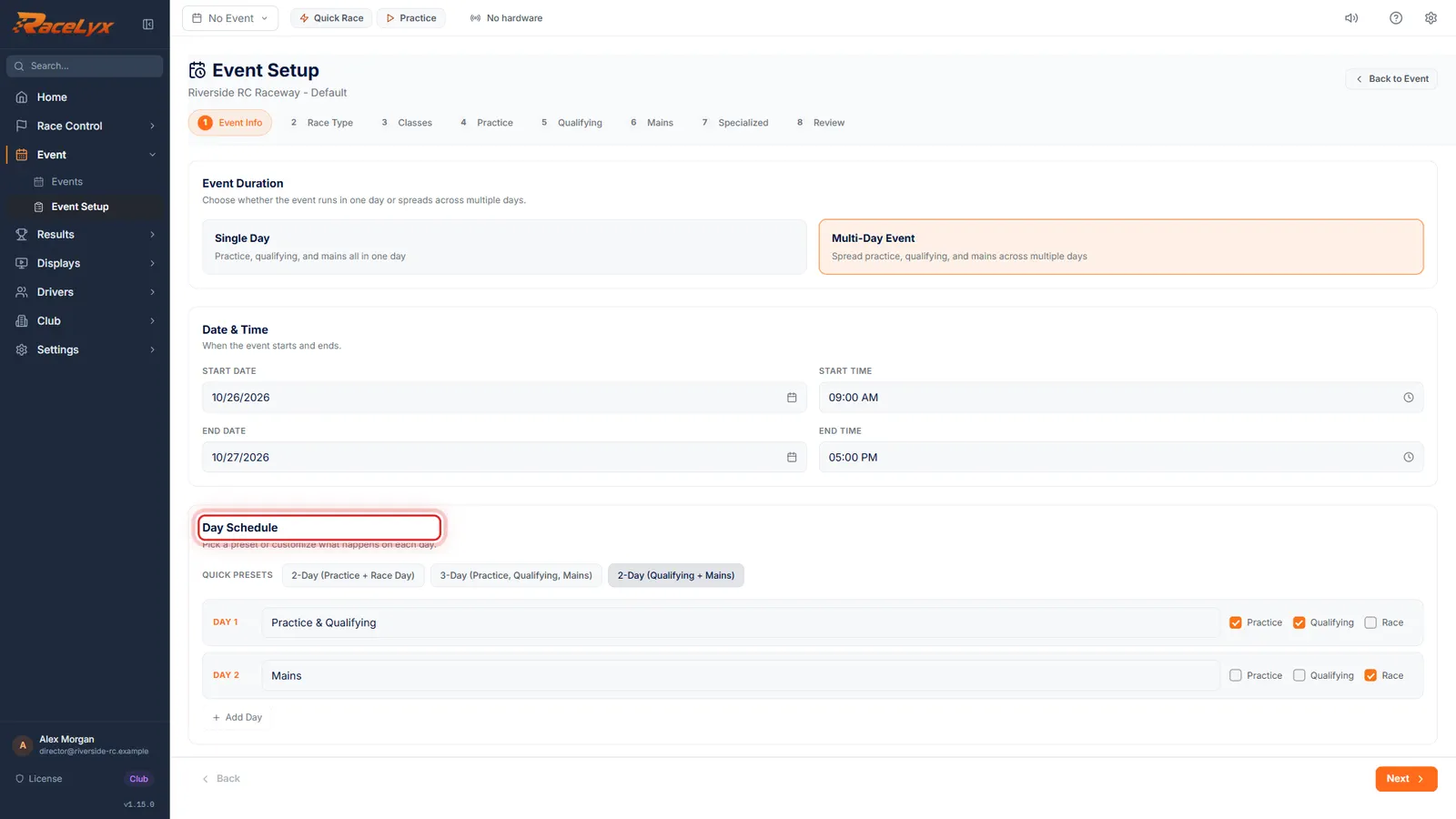
Under Day Schedule, pick a preset, here two days: qualifying, then mains. Rename a day, or tick Practice, Qualifying and Race for each one.
Quick Presets fill in the days: 2-Day (Practice + Race Day), 3-Day (Practice, Qualifying, Mains) and 2-Day (Qualifying + Mains). Each day has a label you can type over, Practice, Qualifying and Race boxes, and an X to remove it once there are three or more days. Add Day adds another.
- 4
Finish the steps
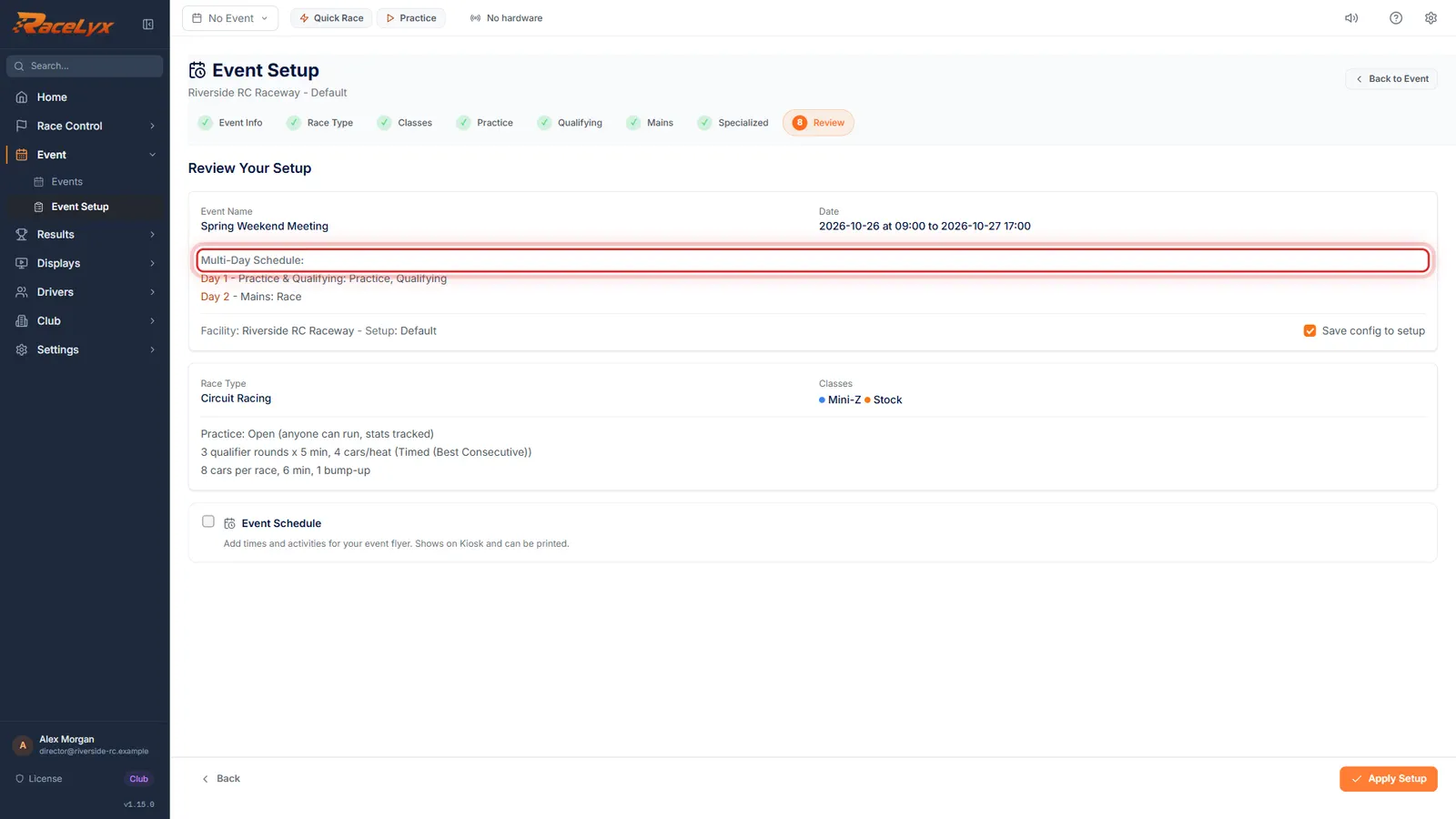
Finish the steps as for any event. Review lists each day and what runs on it.
Race Type, Classes, Practice, Qualifying, Mains and Specialized are the same as a one-day event. Review shows Multi-Day Schedule with each day's label and sessions, and the dates from start to end.
- 5
Apply Setup
Click Apply Setup, and save a template or skip. Day one is under way.
The event starts on Day 1. Enter drivers on Check-In and draw the heats as on any night.
- 6
Close for now
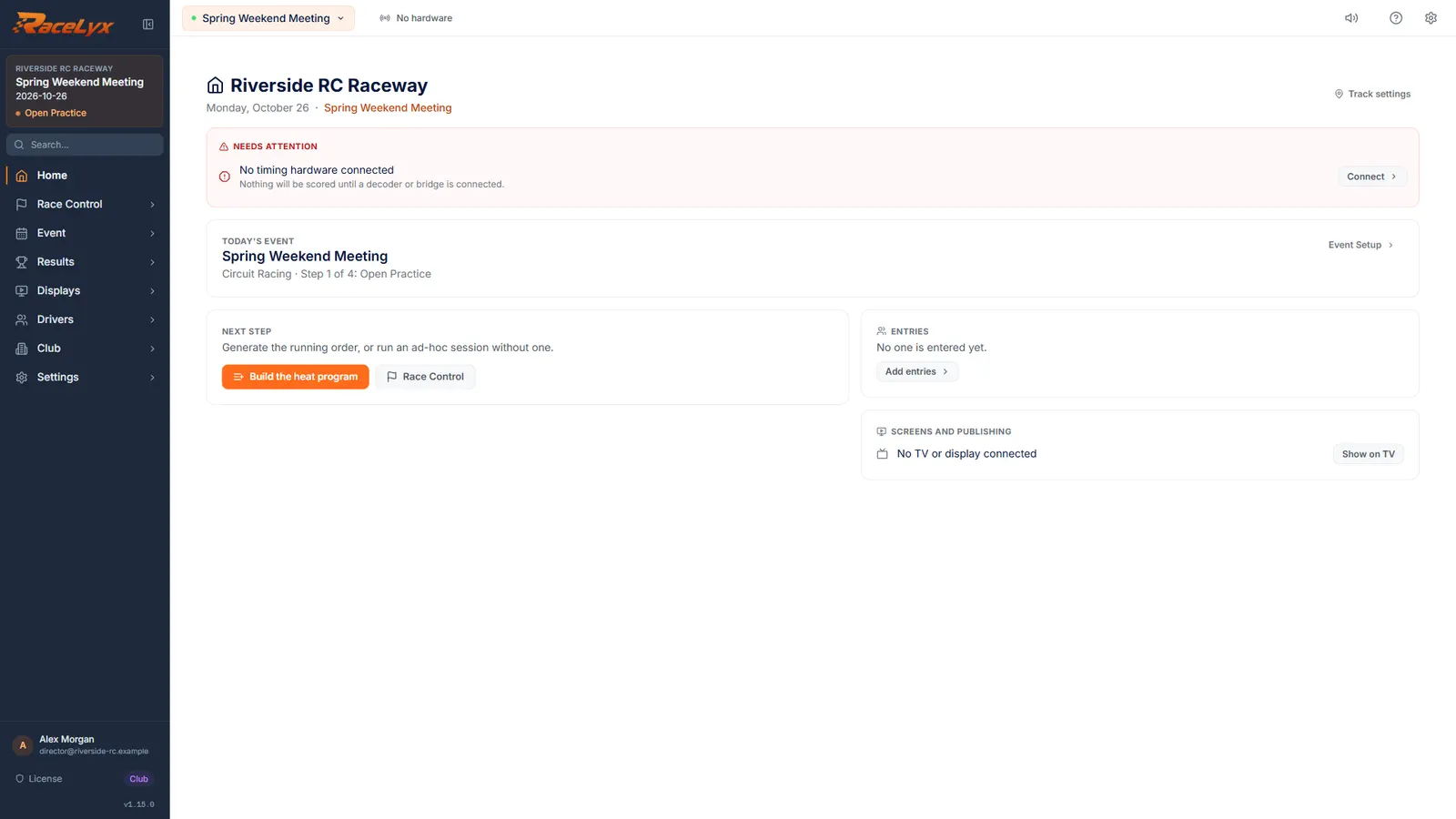
At the end of day one, open Event Setup and click Close for now. The event stays active overnight, even with RaceLyx closed.
Close for now leaves the event active and goes to Home without ending anything. Do not click End Event: that closes the whole event. Next morning open RaceLyx and the event is still running, with its entries, heats and results.
- 7
Day two
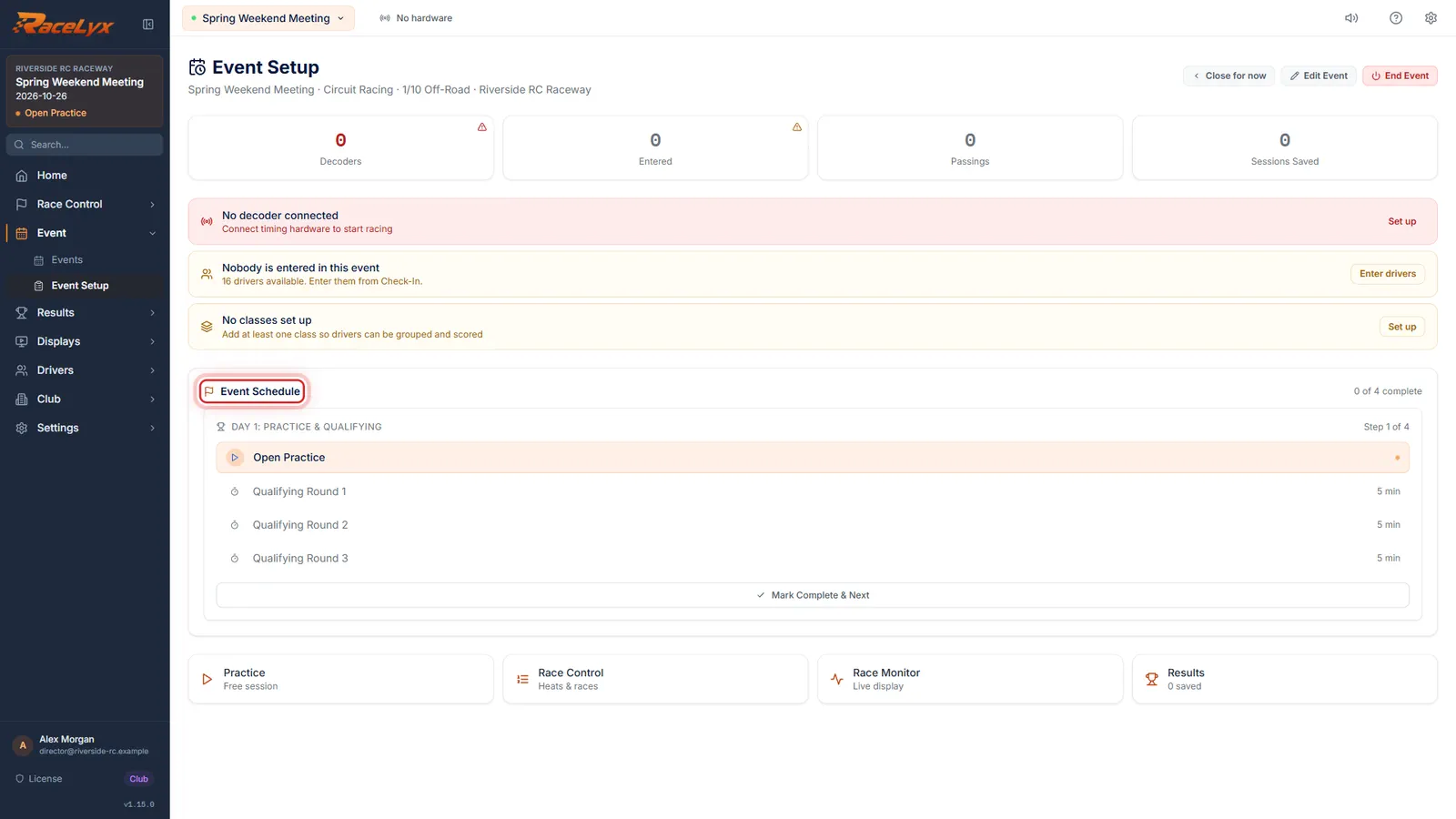
On day two, carry on from Heats & Program. The Event Schedule card keeps day one's plan, so use it as a guide only.
There is no control to move the event hub's Event Schedule card to Day 2 in this release; it keeps Day 1's checklist. Nothing else depends on it: Heats & Program, the next-round prompt, Build Mains and Race Control work the same on every day. End the event when the weekend's last main is saved.
Tips
- Pick a preset first, then rename the days: 2-Day (Practice + Race Day), 3-Day (Practice, Qualifying, Mains) or 2-Day (Qualifying + Mains).
- Close for now on the event hub leaves the event active and takes you to Home. You can close RaceLyx too; the event is still there in the morning.
- The Event Schedule card on the event hub follows Day 1's plan. There is no button to move it to Day 2 in this release, so on day two carry on from Heats & Program and Race Control as usual.
- Entries, heats, the next-round prompts and results all carry over to the next day, because it is the same event.
- End Event only when the last main of the weekend is saved.
Troubleshooting
- The Event Schedule card still shows day one's sessions.
- That is how it works in this release: the checklist follows Day 1. It does not stop anything; run day two from Heats & Program.
- The last button says Schedule Event, not Apply Setup.
- The Start Date is in the future, so the event is saved for later. Start it from Events on the first day.
- Remove Day is missing.
- An event keeps at least two days. Pick Single Day for a one-day event.
Related guides
Something here does not match what you see? Tell us and we will fix the guide.