Quick Rally is a rally with no event: set the stages, the runs on each and the timing on the page, pick who is running, and go. It suits a club rally afternoon or a test day. For classes, a gate course or named stages, set up a rally event instead. Rally is free on every plan.
Before you start
- Drivers on your Drivers list.
- No event open (with an event open, Race Control, Rally runs that event's rally).
Step by step
- 1
Open Quick Rally
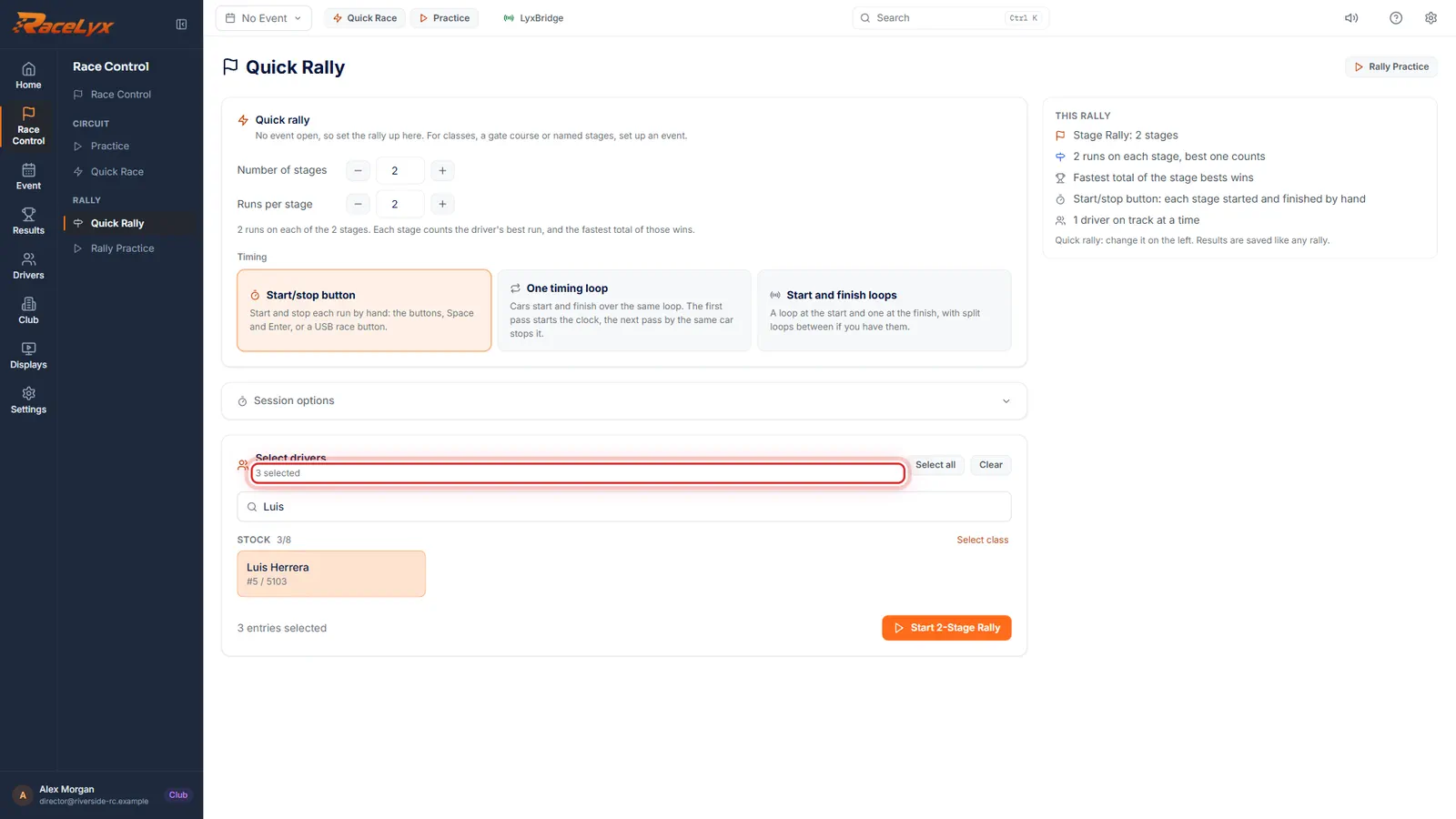
With no event open, click Race Control, then Quick Rally. You set the rally up right here.
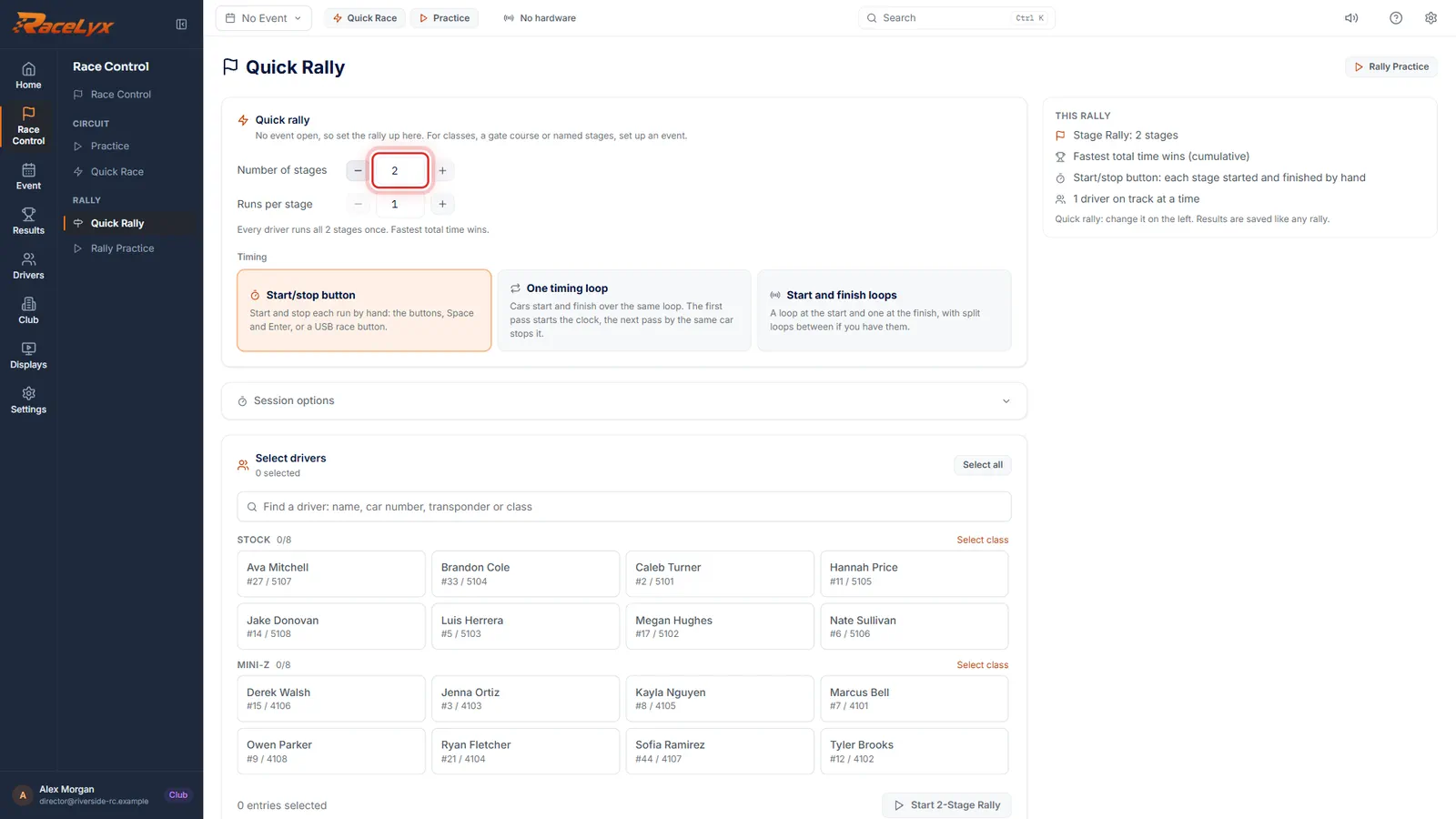
Quick rally says No event open, so set the rally up here. This rally, on the right, sums up what you chose.
- 2
Number of stages
Choose the number of stages. Here, two.
Use the minus and plus buttons, or type a number.
- 3
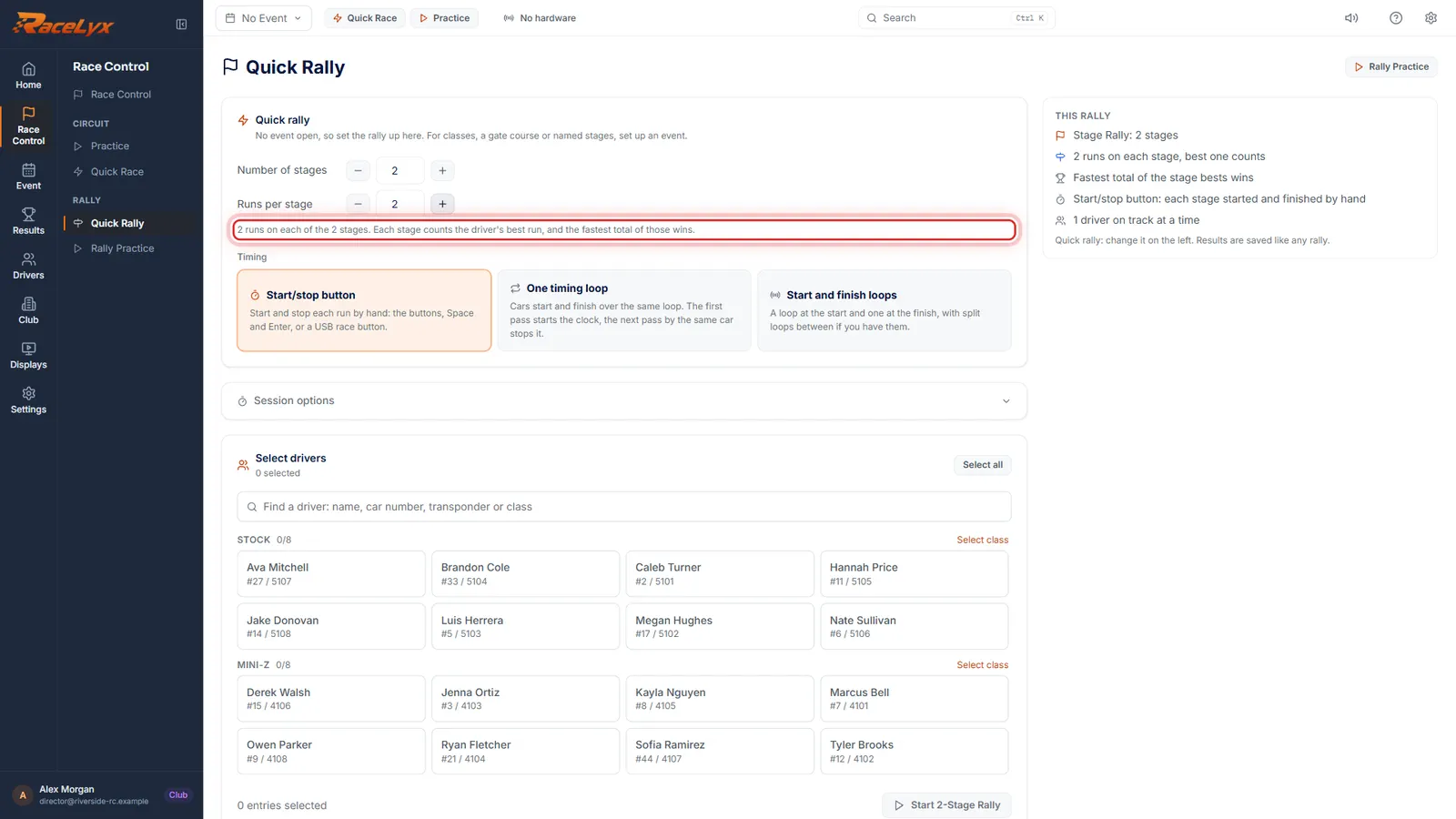
Runs per stage
Then runs per stage. With two, each stage keeps a driver's best run, and the stage bests are added up.
The line under the numbers says how it will be scored, for example 2 runs on each of the 2 stages: each stage counts the driver's best run, and the fastest total of those wins. Everyone gets all their runs on a stage before the next stage starts.
- 4
Timed by loops
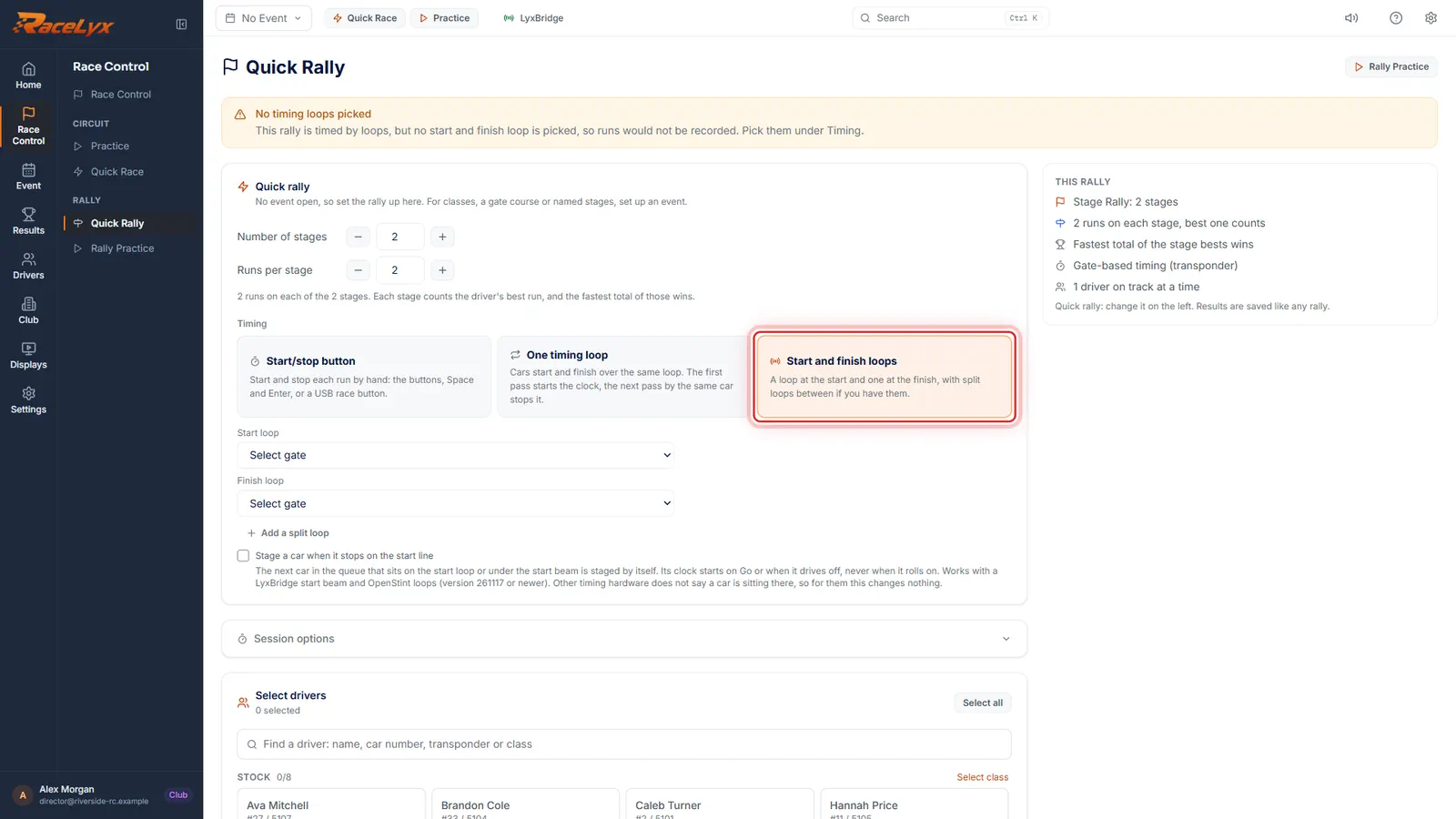
Got timing loops? Choose One timing loop, or Start and finish loops, then pick the loops from your decoder. Split loops can go between.
One timing loop: cars start and finish over the same loop. Start and finish loops: one at each end, plus split loops if you have them (Add a split loop). Any connected decoder can be a loop.
- 5
Stage a car on the start line
With loops, Stage a car when it stops on the start line stages the next car by itself when it parks there. It is off unless you tick it.
It works with LyxBridge start beams and OpenStint loops (version 261117 or newer). Other timing hardware does not say a car is sitting there, so for them it changes nothing. A car rolling on during the countdown stays staged until GO; leaving before GO is a false start.
- 6
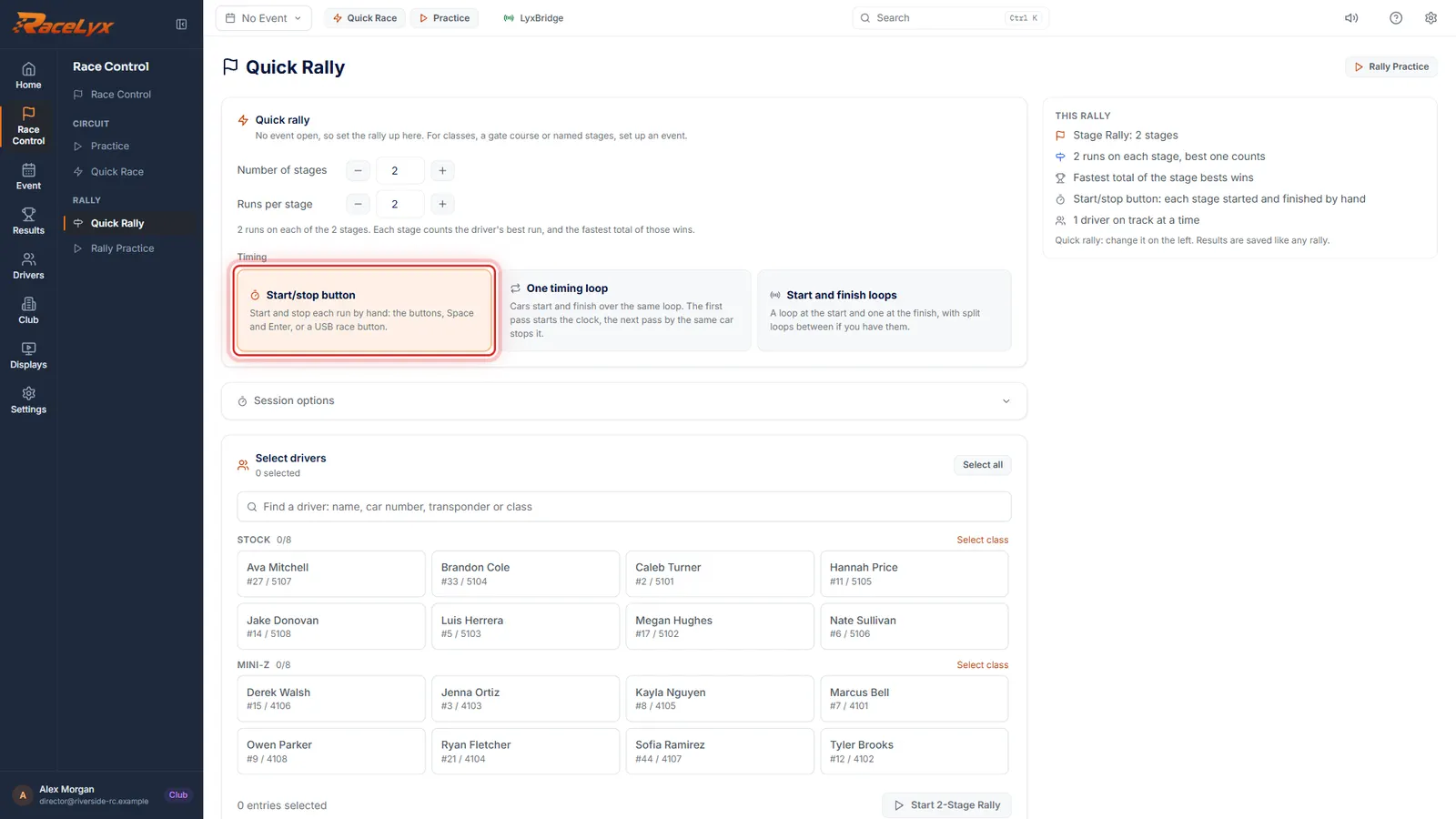
Start/stop button
No loops? Choose Start/stop button, and time each run with Space and Enter, or a USB race button.
Hand timing needs no hardware at all.
- 7
Find the drivers
Find each driver by name, car number or transponder, and click them. Or click Select class for a whole class.
The count under Select drivers keeps track. Select all takes everyone; Session options sets the start order.
- 8
Start the rally
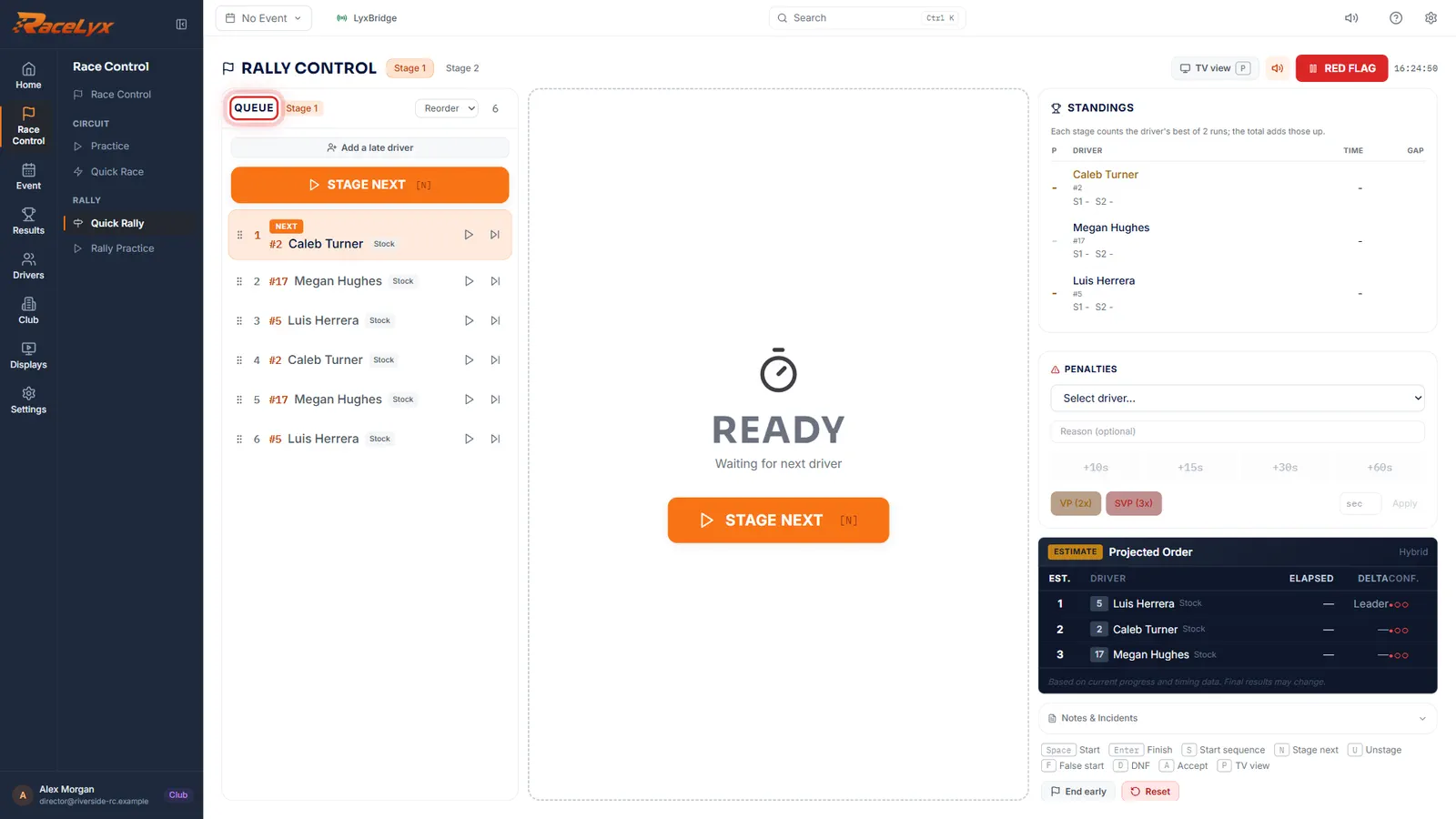
Click Start. Rally Control opens: the queue on the left, the car on course in the middle, the standings on the right.
The button names the rally, for example Start 2-Stage Rally. The stage tabs at the top show which stage is running.
- 9
Stage, start, finish, accept
Press N to stage the first car, Space as it goes, Enter as it finishes, then A to accept the time.
The same as the buttons: STAGE NEXT, START, FINISH and ACCEPT. D marks a DNF, F a false start.
- 10
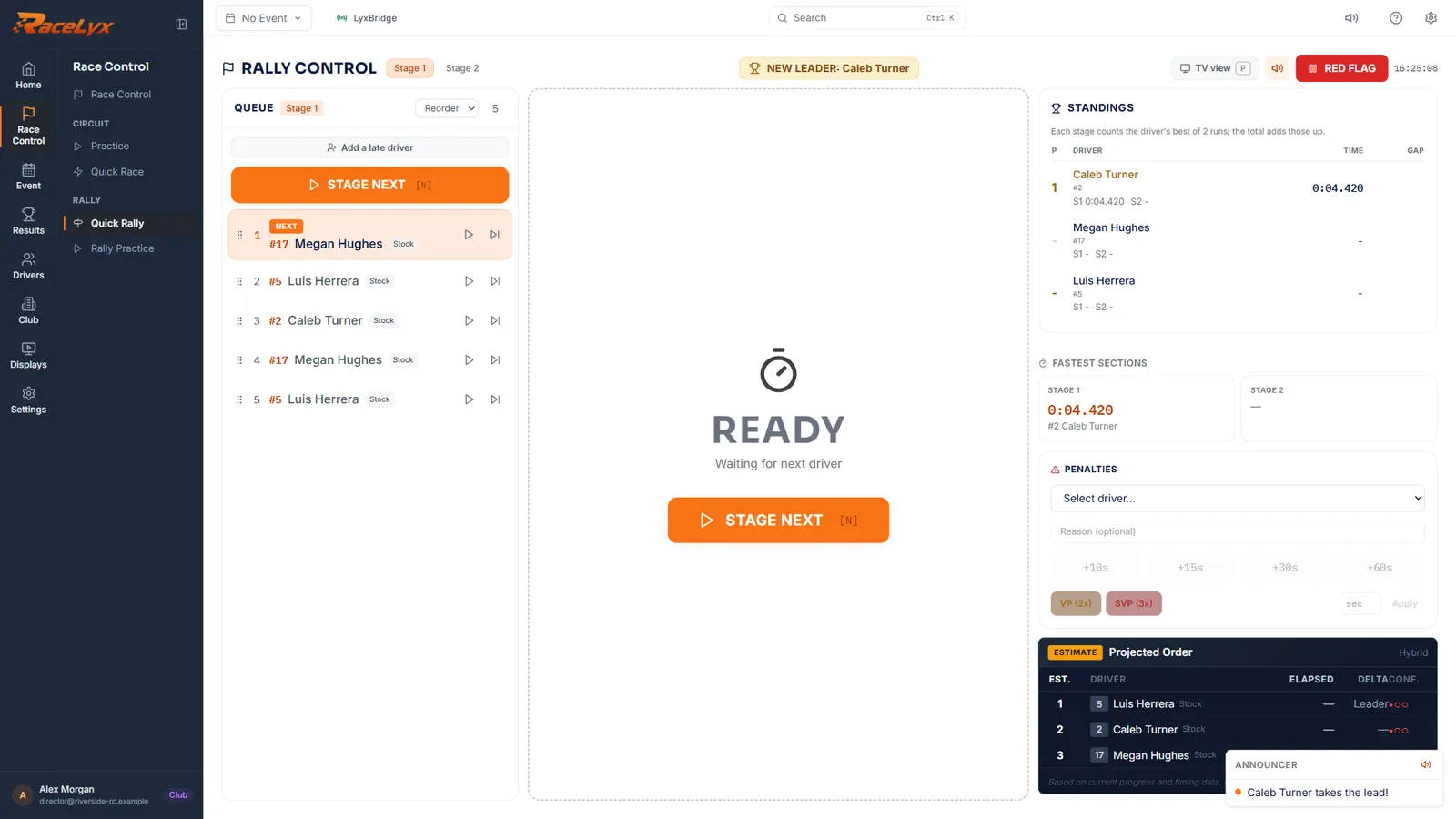
Stage times in the standings
The standings show every driver's time on each stage. When everyone is done, Finish rally saves it to Results.
Each row lists S1, S2 and so on. Fastest sections shows the best time on each stage.
Tips
- 5 stages with 1 run each is total time. 1 stage with 3 runs counts each driver's best run. With several runs on several stages, each stage keeps the driver's best run and the stage bests are added up.
- Keys in Rally Control: N stages the next car, Space starts, Enter finishes, A accepts, D is a DNF and F a false start.
- Any connected decoder can be a timing loop: a LyxBridge gate, an OpenStint loop or a lap counter.
- Leave the rally on another page and a small Rally open chip at the top takes you back.
- Close RaceLyx with a rally still open and it says so ("Quick Rally: stage 1 of 3, 12 runs done"), with a button to go to it. Close anyway keeps the rally, and Rally Control offers to pick it up next time.
- The driver and time are called the moment the clock stops. To hear it when you accept the run instead, see Settings, Voice & Audio.
Troubleshooting
- No timing loops picked
- You chose a loop option but no start and finish loop. Connect the decoder on Timing Hardware and pick its loops under Timing, or choose Start/stop button.
- The loop lists say No gates detected.
- No decoder is connected. Connect it on Settings, Timing Hardware, then come back.
- I can't see Quick Rally.
- An event is open, so Race Control lists that event's Rally. Close the event from the event picker to run a Quick Rally.
Related guides
Something here does not match what you see? Tell us and we will fix the guide.