The cash drawer is the race-night cash box. Open it with the float before the desk takes money; while it is open, every payment you mark paid counts toward it, split into cash, card, online and check. At the end of the night, count the box and close the drawer to see if you are over or short. It needs the Club plan.
Before you start
- Club plan (or a trial), with Financials on in Settings, Features.
- The float counted: the change you start the night with.
- An active event, if you want the drawer named after it.
Step by step
- 1
Open the Cash Drawer tab
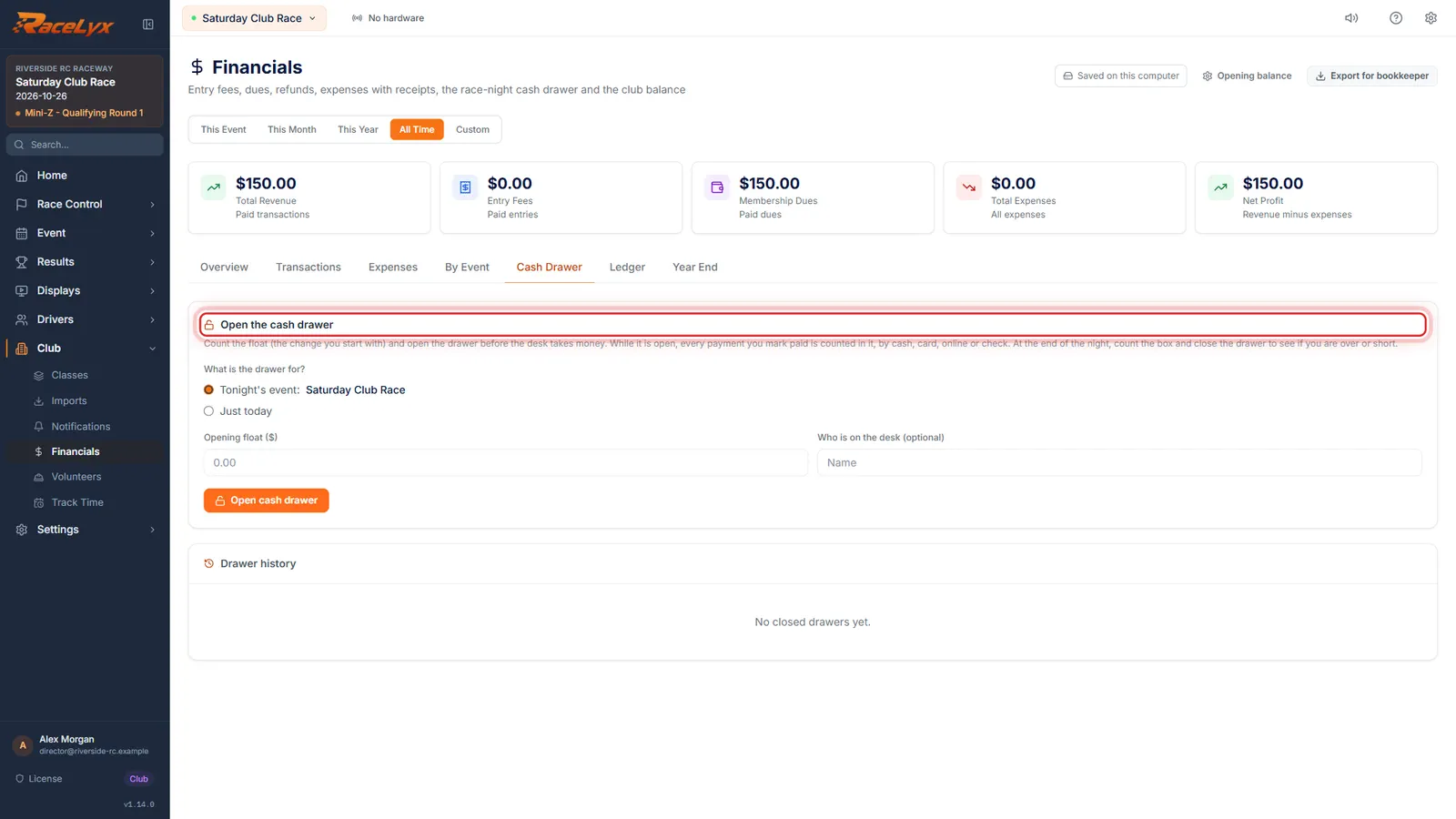
On Financials, open the Cash Drawer tab. Open the drawer before the desk takes any money.
What is the drawer for? picks Tonight's event (the active event) or Just today, with a name you can type. Below is Drawer history, the drawers you have already closed.
- 2
Opening float, then Open cash drawer
Type the opening float, the change you start with, and who is on the desk. Then click Open cash drawer.
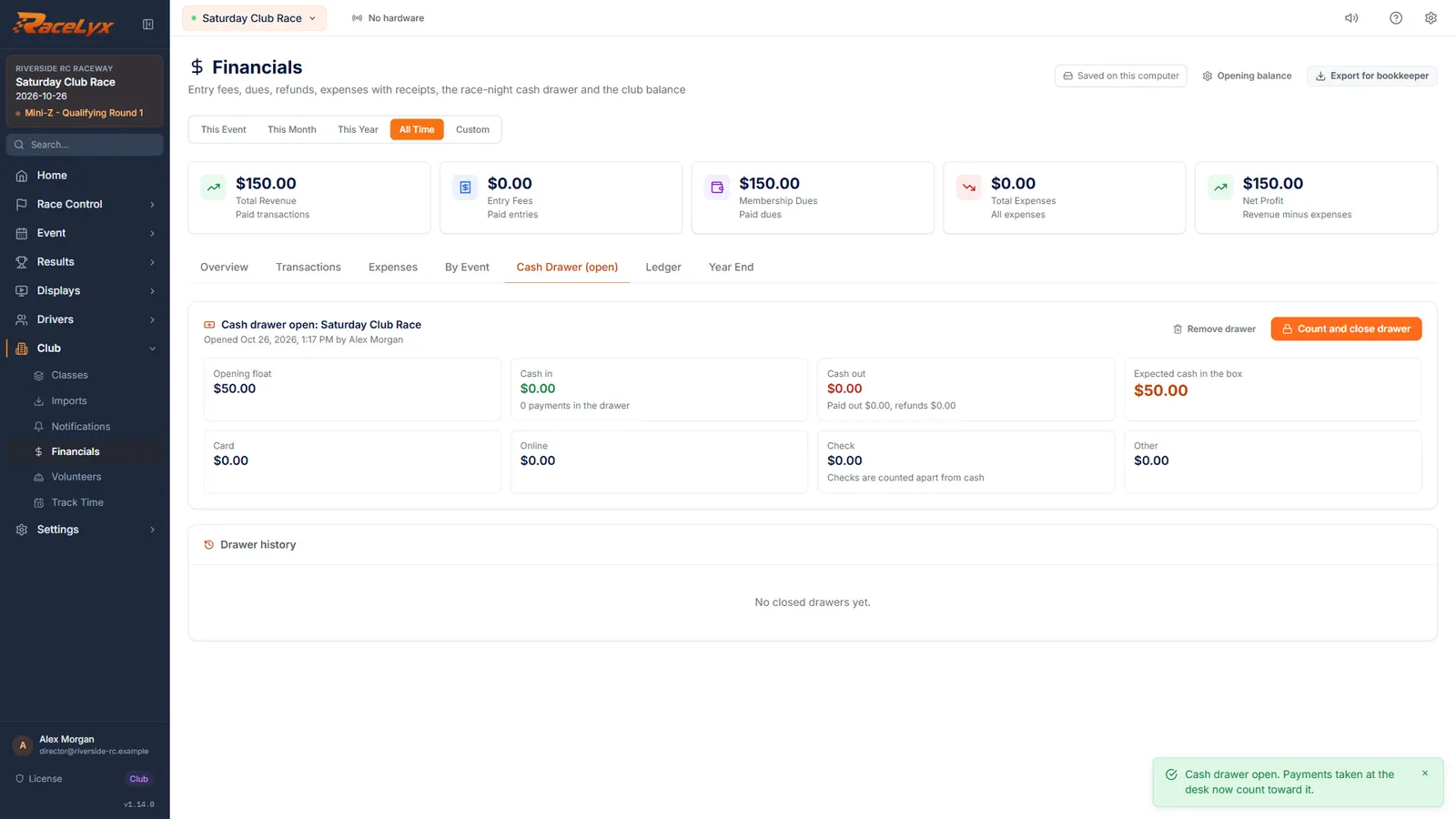
Opening float ($) is the change in the box before anyone pays. Who is on the desk (optional) goes on the close-out report. The toast says Cash drawer open. Payments taken at the desk now count toward it.
- 3
Take a payment at the desk
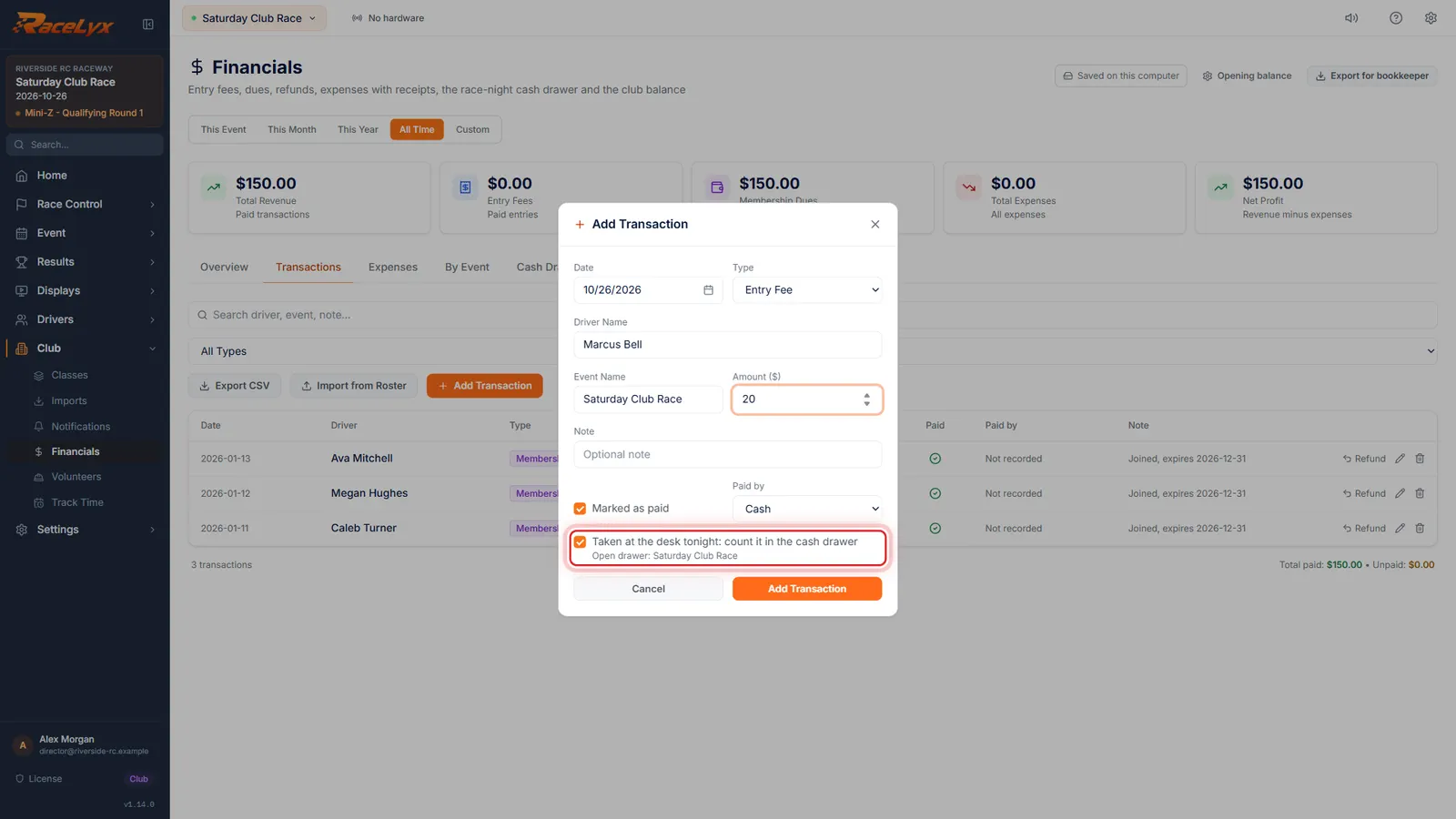
Now take money as usual. Here we add a cash entry fee on Transactions. Taken at the desk tonight is ticked, so it counts in the drawer.
Any payment marked paid while the drawer is open counts toward it: Cash or Card on the Check-In card, the Paid toggle on Drivers, membership renewals, and Add Transaction. Online payments stay out of the box. Under the checkbox, Open drawer names the drawer it goes into.
- 4
Expected cash in the box
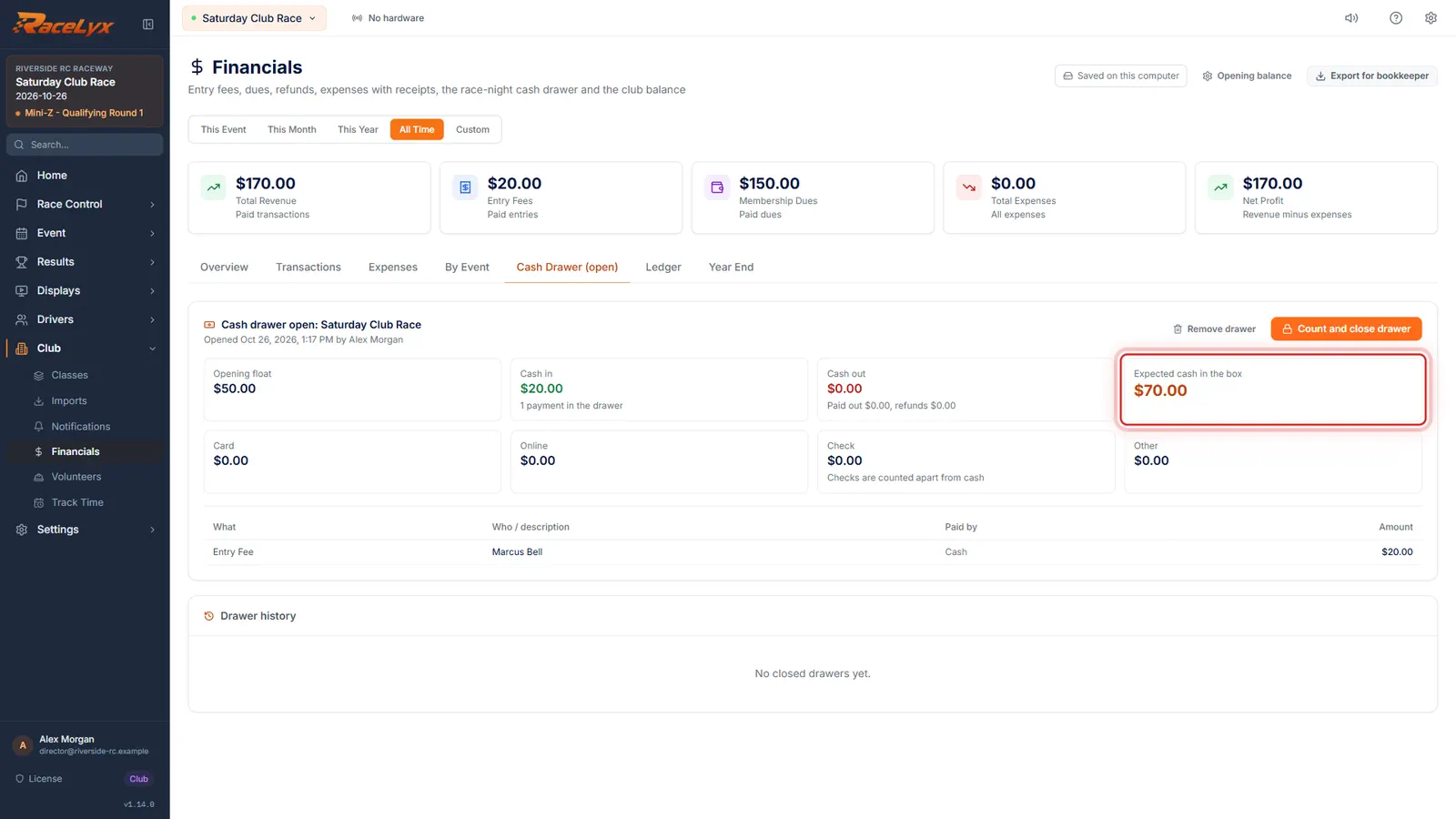
Click Add Transaction, then go back to the drawer. Expected cash in the box is the float, plus cash in, less cash out.
The open drawer shows Opening float, Cash in, Cash out, Expected cash in the box, and the Card, Online, Check and Other totals, with a list of everything that went through it. Cash out is cash expenses and refunds paid from the box.
- 5
Count and close drawer
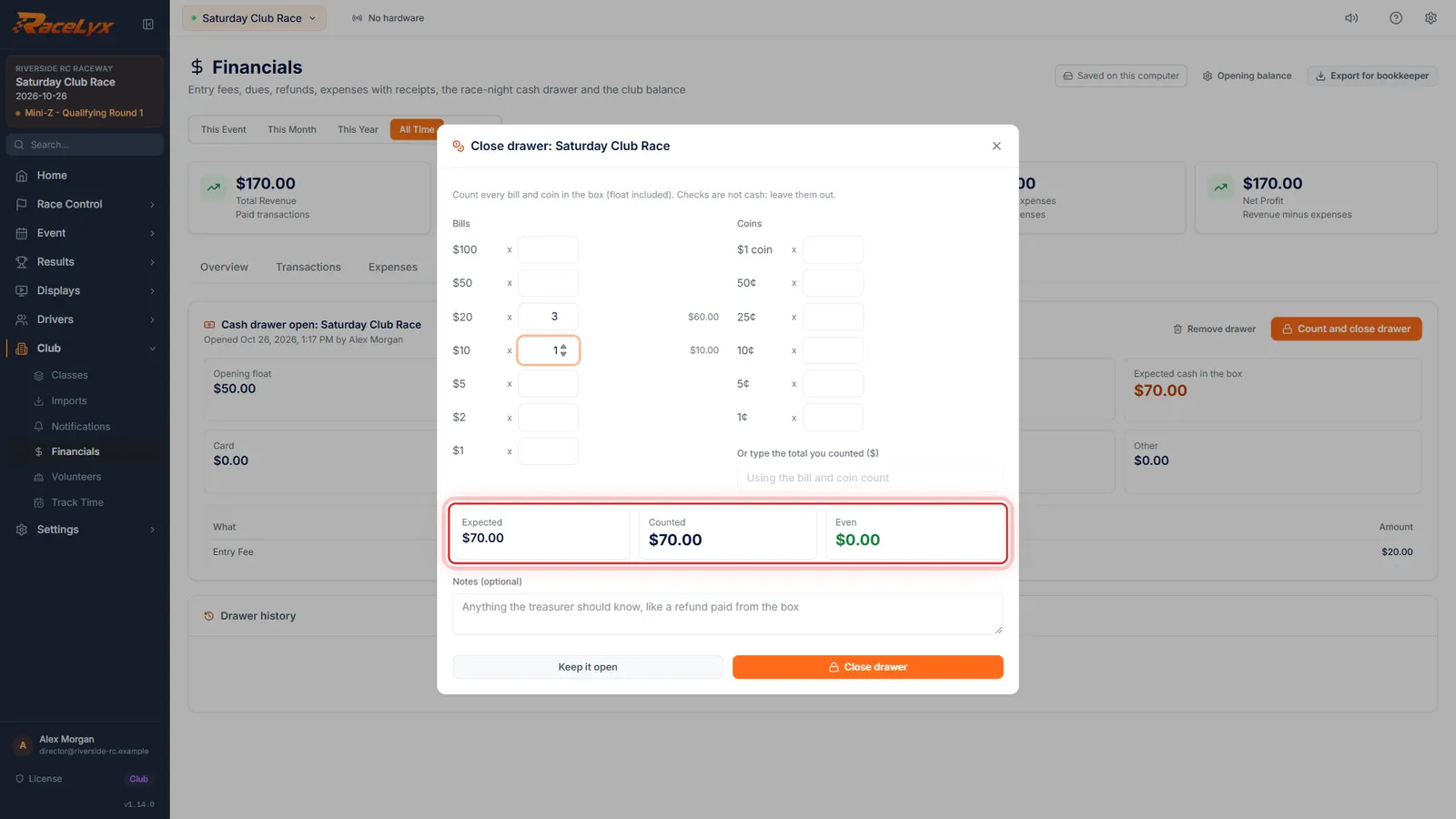
At the end of the night, click Count and close drawer. Type how many of each bill and coin. Counted, and Over or Short, update as you go.
Count every bill and coin in the box, float included, and leave checks out. If you counted it all by hand, type the total in Or type the total you counted ($) instead. Expected, Counted, and Over, Short or Even sit under the count. Keep it open closes the window and leaves the drawer open.
- 6
Close drawer and print
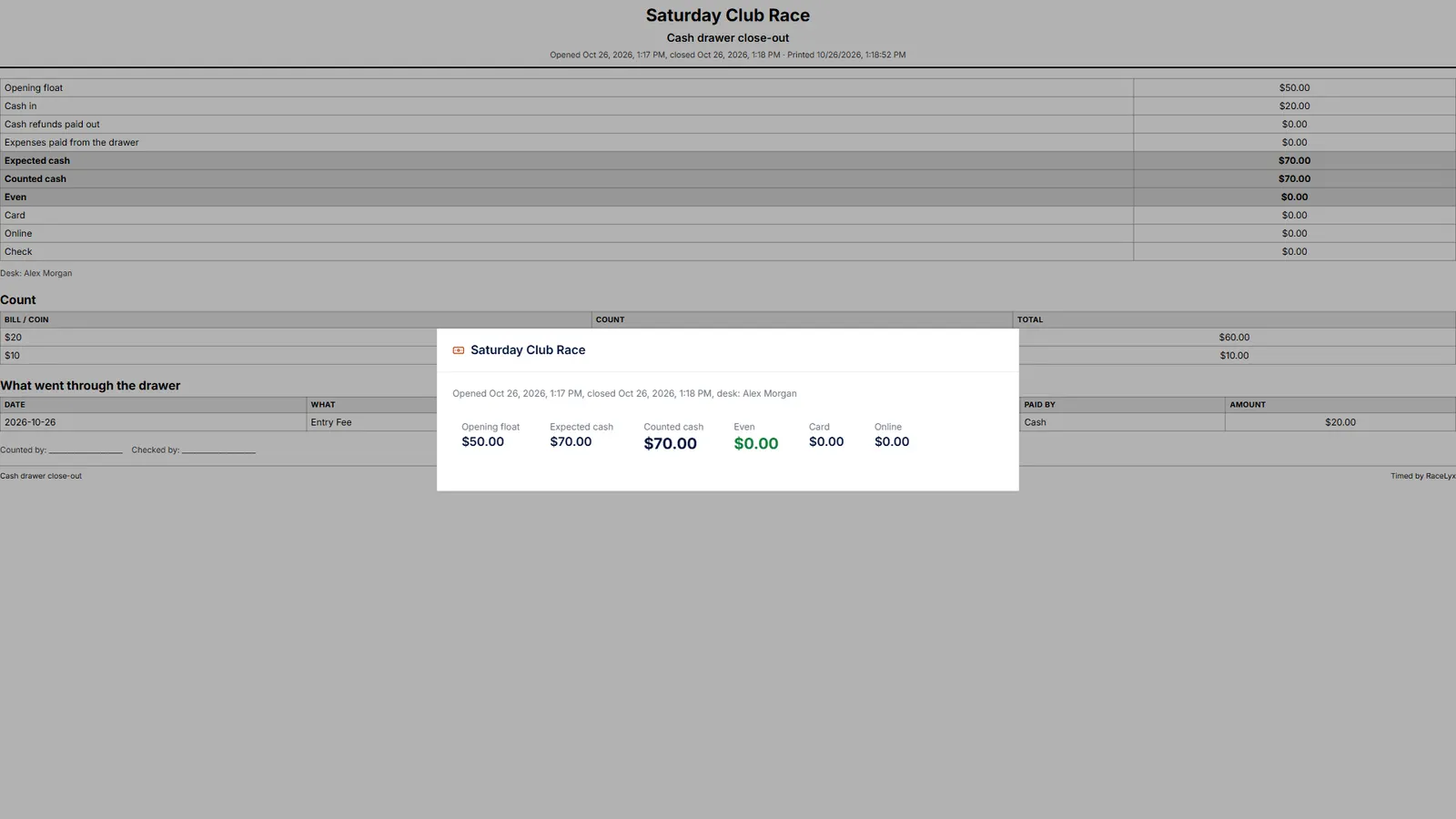
Click Close drawer. The summary shows the count and whether you were over or short. Print close-out report gives the treasurer a sheet to sign.
The toast says Cash drawer closed, with even, over or short and by how much. The printed close-out report lists the float, cash in, refunds and expenses paid out, expected and counted cash, the count by bill and coin, and every payment in the drawer, with lines for Counted by and Checked by. The drawer moves to Drawer history, where View and Print bring it back.
Tips
- One drawer is open at a time. While it is open the tab reads Cash Drawer (open), and Overview shows it with Go to the cash drawer.
- Cash or Card on the Check-In card, the Paid toggle on Drivers, membership renewals and Add Transaction all count toward the open drawer. Online payments stay out of the box.
- The Paid toggle on Drivers always records Cash. A card payment marked there makes the drawer look short: take card payments with Card on the Check-In card, or fix Paid by with the pencil on Transactions.
- The float is not income. Do not add it as a transaction.
- A cash expense can come out of the drawer: tick Paid out of the cash drawer on Add Expense. A cash refund comes out of it too.
- Checks are counted apart from cash. Leave them out of the box count.
- Remove drawer is only for a drawer opened by mistake. Its payments stay in your books.
- Drawer history keeps every closed drawer with View and Print, and adds up how much you were over and short.
- Over and short show in Drawer history and Year End, but do not change the club balance. To make the ledger match the bank, book a short as an Other expense and an over as Other Income.
Troubleshooting
- Count the bills and coins, or type the total you counted.
- Close drawer needs a count. Type how many of each bill and coin, or type the total in Or type the total you counted ($).
- Enter the opening float as a dollar amount (0 or more).
- Type the float in dollars, like 50. Use 0 if you start with an empty box.
- A payment is missing from the drawer.
- It was marked paid before the drawer opened, or it was paid Online. Edit it on Transactions and tick Taken at the desk tonight: count it in the cash drawer.
- The drawer is short.
- First check Paid by on Transactions: the Paid toggle on Drivers records Cash, even for a card payment. Then click Keep it open and recount. Look for a cash refund or expense paid from the box that was never recorded, add it, then count again. Anything you cannot explain goes in Notes (optional).
Related guides
Something here does not match what you see? Tell us and we will fix the guide.